How to keep track of deadlines: one list and one countdown
Write each deadline in one list the day you get it, keep the time left in view, pick the next by what a slip costs, and review it weekly.
Deadlines rarely slip because you never heard about them. They slip because they’re scattered: a chat message, an email, a calendar invite, a letter on the counter, and your head. To keep track of them, put every deadline in one list the day you hear about it, with a day and a time. Keep the time left on the most urgent one where you already look. Pick the next one by time left and by what a slip would cost. Then spend 15 minutes a week making the list true again.
The method works on paper, in a notes app, or in a spreadsheet, and this guide walks through each step for anyone juggling several deadlines at once. Deadline Bar, a Mac app that keeps your deadlines in the menu bar at the top of your screen and counts down to the most urgent one, is one way to run it. The last part shows how, on the free version.
How deadlines get lost in an ordinary week
Here’s an example week, made up but familiar. On Monday at 10:15 AM, Dana writes in team chat: “Can you get me the sales numbers by Thursday?” You reply “Sure” and go back to work. At 2:00 PM, a client email asks for a first draft “by the end of next week.” The monthly expense report is due Wednesday, as it is every month. A letter about your car registration sits by the door.
By Wednesday evening, the chat message has scrolled out of sight, the email sits under forty others, and “Thursday” in your head has no time attached. On Thursday at 11:30 AM, Dana asks where the numbers are: she needed them for her noon meeting. Nothing was forgotten in the usual sense. You knew every deadline; none of them was in front of you when it mattered.
Why deadlines slip
Four things go wrong, and each has its own fix.
They live in many places. Chat, email, the calendar, and paper each hold a few deadlines, and none of them shows the rest. To know what’s due this week you’d have to check every one. You don’t, and the one you skip is the one that bites.
They’re saved without a time. “By Thursday” can mean 9:00 AM, noon, or midnight. A deadline without a time lets you plan on an afternoon that isn’t there.
A date doesn’t say how urgent something is. A report due in three days that you got a month ago is nearly out of time; a form due tomorrow that you got this morning has barely started. A column of due dates shows neither fact.
The list goes stale. Dates move, work gets done, and new requests arrive. A list you don’t update earns a little less trust each week, until you stop checking it.
Keep track of deadlines in four steps
1. Capture every deadline in one place, the day you get it
Keep one list for everything: work, school, bills, and personal deadlines together. Separate lists bring back the problem of many places. Add each deadline within a minute of hearing it, while the message is still open.
For each one, write down:
- What’s due, as an action: “Send the sales numbers to Dana,” not “Numbers.”
- The day and the time: “Thursday 12:00 PM.” If you were given only a day, ask for the time now. It’s an easy question on Monday and an awkward one on Thursday.
- Who’s waiting, if anyone, in the name or a note.
A deadline is anything with a due moment and a cost if you miss it. Work with no due moment belongs on a to-do list; a meeting belongs in your calendar. If most of your deadlines are assignments, the students’ guide covers syllabi and exams; if they come from clients, the freelancers’ guide covers deliverables and revisions.
2. Keep the time left in view
A list you have to open is a list you’ll stop opening. Keep the most urgent deadline where you look many times a day: the top of a page on your desk, a sticky note on your monitor, or a countdown on your screen. One number in view, such as “2 days,” does more than ten dates in a drawer.
Judge urgency by the time left compared with the time it was given. A two-week report with two days left needs you more than a one-day task with most of its day ahead. The colors guide explains that measure with examples.
3. Decide what to do next
When several deadlines compete, start with the one that has the smallest share of its time left. Among deadlines that are about equally short of time, take the one that would hurt most to slip, then the nearest. The priorities guide works through that choice with an example. Then give the chosen deadline a fixed block on your calendar; timeboxing explains how long to make it and what to do when it ends.
Check what each top deadline depends on. If the numbers need a file from finance, ask for it today, not on the morning they’re due.
4. Review the list once a week
Pick a fixed time each week, such as Friday at 4:00 PM, and spend 15 minutes making the list true:
- Search the week’s email, chat, and notes for requests that never reached the list, and add them.
- Check every date. If something won’t fit, ask to move it now, while asking is still easy.
- Mark what’s finished as done, so it stops competing for your attention.
- Choose the first thing you’ll work on next week.
The review is what keeps the other three steps honest. A list you know is complete is a list you’ll keep checking.
A worked example: the same week, tracked
Here’s the week from the start of this guide again, with the four steps. It’s an example, with made-up names, starting Monday, Oct 12.
| Deadline | Came from | Due | Kind |
|---|---|---|---|
| Sales numbers for Dana | Team chat, Monday 10:15 AM | Thursday, Oct 15, 12:00 PM (you asked for the time) | Work, someone waiting |
| Expense report | Every month | Wednesday, Oct 14, 5:00 PM | Work, 30 minutes, repeats |
| First draft for Acme | Email, Monday 2:00 PM | Friday, Oct 23, 5:00 PM (you asked what “end of next week” meant) | Work, several hours |
| Car registration | A letter | Nov 30 | A day to watch, then act |
On Monday, all four go in the list as they arrive. You mark the sales numbers as the one that would hurt most to slip, since Dana is waiting, and ask finance for their file that afternoon. The expense report takes 30 minutes, so it gets a block on Wednesday morning. On Thursday at 10:00 AM you send Dana the numbers, two hours early.
On Friday at 4:00 PM, the review turns up a request from Wednesday’s meeting: “Review the launch slides before Tuesday.” It goes on the list with a time, Tuesday at 9:00 AM. The Acme draft, now a week away with hours of work in it, becomes Monday’s first block.
Doing it with Deadline Bar
Deadline Bar runs the four steps on your Mac. Install it from the Mac App Store, open it, and then:
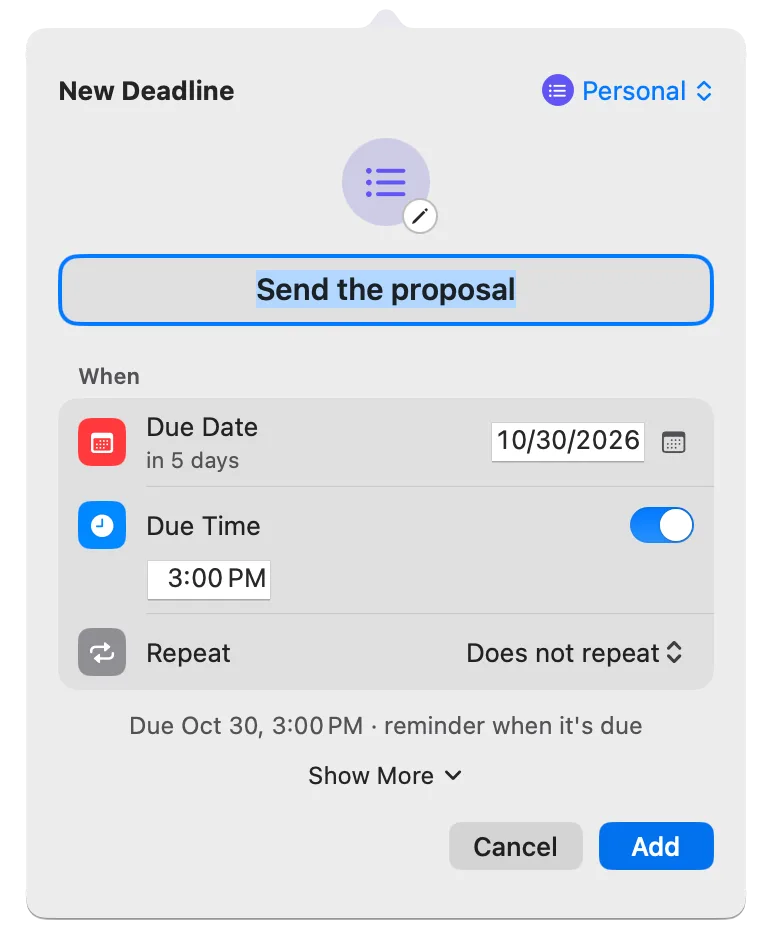
- Capture. Press Control-Option-D (Control-Option-D⌃⌥D) in any app. Quick Add, a small window for a new deadline, opens over what you’re doing. Type the name, type the day in Due Date, turn on Due Time and type the time, then press Return. A new deadline is a Task, Deadline Bar’s kind for work you spend time on. For a day you only watch, like the registration, click Show More and turn on Date Only to make it a Date. For the monthly report, choose Repeat: when you mark it done, next month’s round appears. The repeats guide covers reminders and repeats.
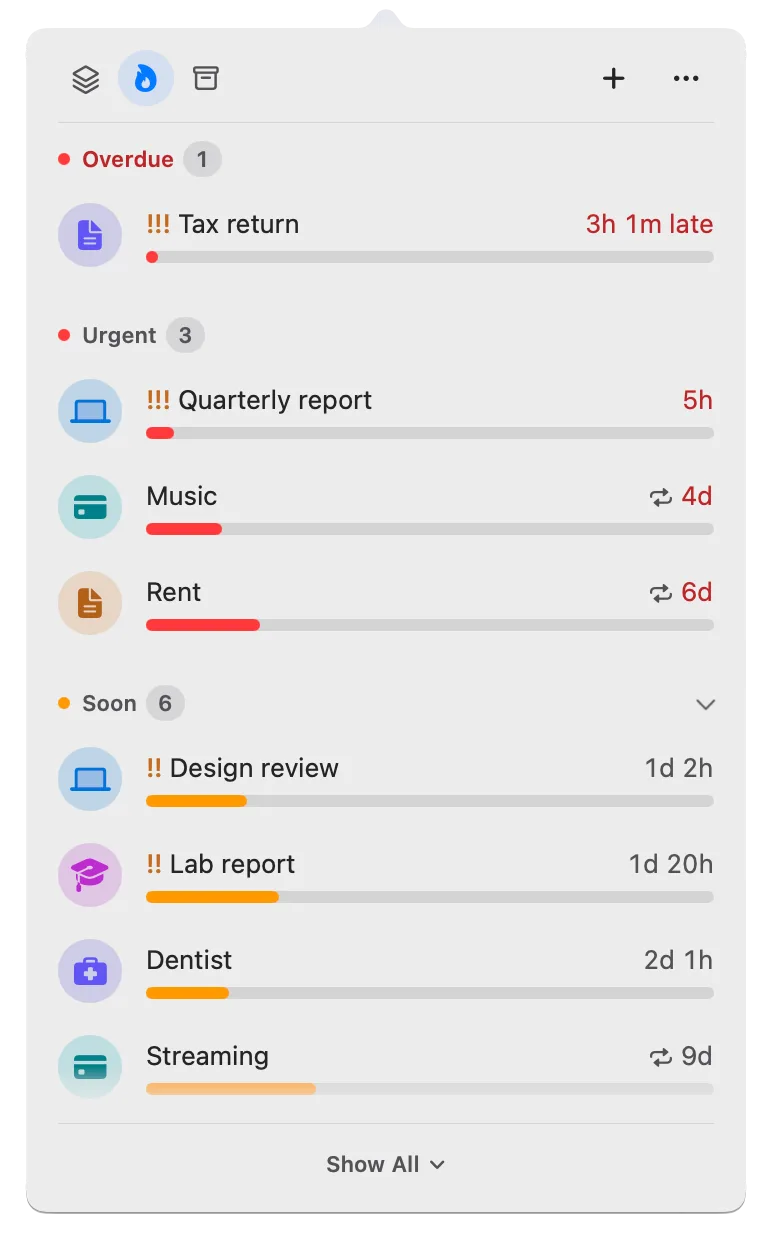
- See. The menu bar shows the time left on your most urgent deadline, such as “2d” for two days. Click it to open the panel, the list of all your deadlines, most urgent first, in four sections: Overdue, Urgent, Soon, and Later. A Task moves to Soon (yellow) with 30% of its time left and to Urgent (red) with 10%, counted from the start of the day you added it. A Date moves to Soon with 30 days left and to Urgent with 7.
- Decide. Right-click the deadline that would hurt most to slip, choose Priority, then High. It now leads the others in its section due the same day. To work on it, right-click it and choose Start Focus…, a timed work session on that one deadline (free too, with a 10-minute break after each 50 minutes of work in longer sessions).
- Review. Open the panel and read it top to bottom. Right-click a row to change its Due Date, to Postpone 1 Week, or to Edit… anything else. What you finished is under Completed, on the Scheduled & History tab (the archive box at the top of the panel).
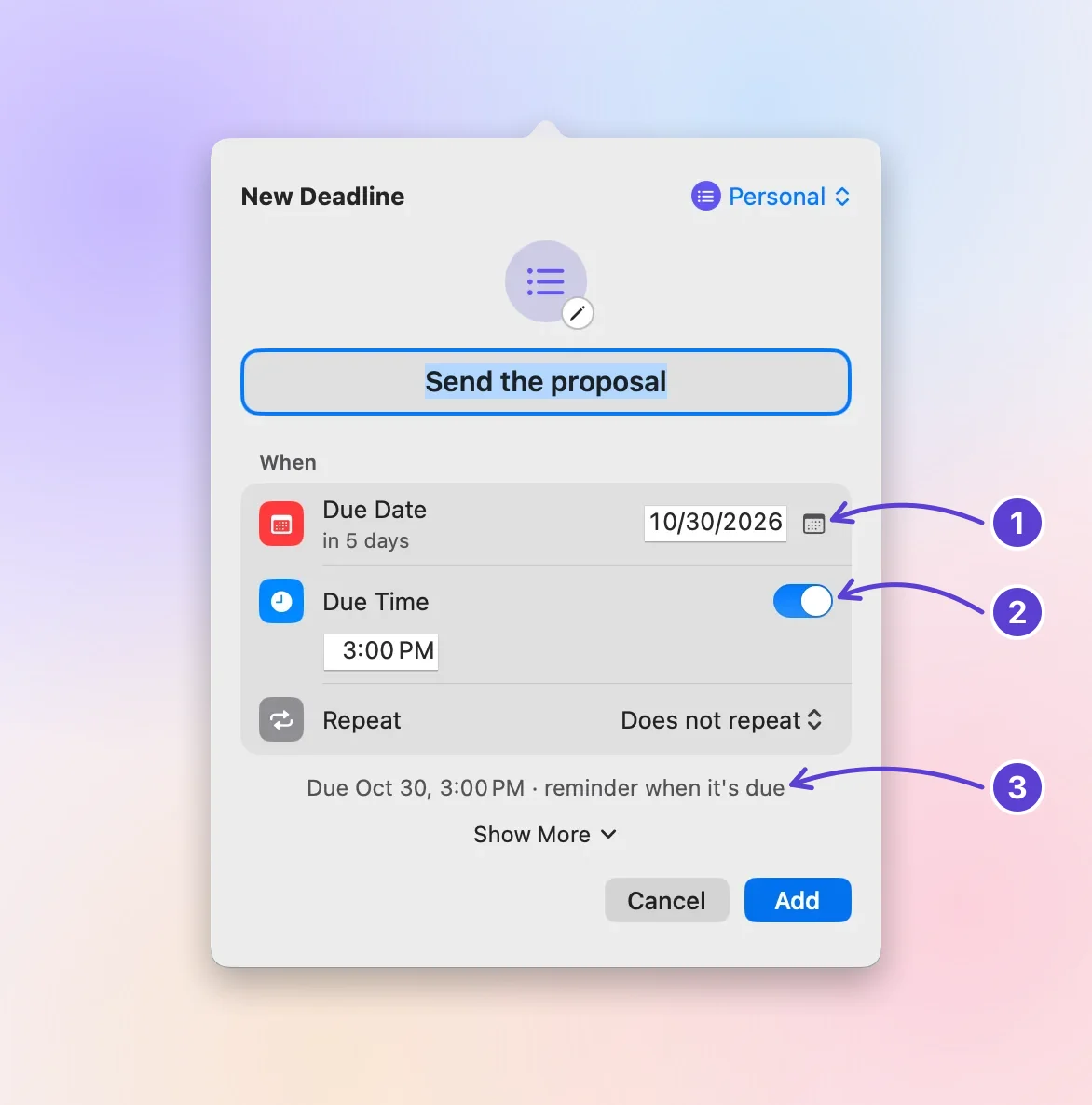
- Due Date: type it or pick it
- Due Time
- The reminder it starts with
The example week in the app
By Monday at 3:00 PM, with all four added, the expense report leads, in Urgent (red). It repeats every month, so its round counts the whole month since the last report was due, Sep 14 at 5:00 PM, and two days of thirty is under 10%. A higher section beats a higher priority, so the menu bar shows the expense report, “2d,” in red. The other three are in Later (green): each Task still has more than 30% of its time left, and the registration is 49 days away. Inside Later, the nearest day comes first, so the sales numbers lead there, then the Acme draft and the registration.
You finish the expense report on Wednesday at 10:00 AM and click its ✓; it moves on to Nov 14, and the sales numbers lead. They’ve been yellow since Tuesday at noon, 2 days before they’re due, turn red at noon, and go out on Thursday at 10:00 AM.
Four deadlines fit in the free version, which keeps up to five unfinished deadlines at a time. A repeating deadline, like the expense report, takes one place however many times it comes back.
Limits, and when another tool fits better
- Shared work. Deadline Bar is for your own deadlines on your Mac. It has no assignees, shared boards, or projects. When a team needs to see who owns what, use the team’s project tool or a shared calendar, and keep your own part of it in your list.
- Your phone. There’s no iPhone app and no sync between Macs. If you need deadlines on your iPhone, Apple Reminders syncs through iCloud.
- Big work with many steps. There are no subtasks. Split a big piece of work into deadlines with their own dates; start dates keep the later parts out of the list until you can begin them.
- One countdown in the menu bar. The menu bar shows only the most urgent deadline. The rest wait in the panel, one click away.
- More than five at a time. The free version keeps five unfinished deadlines. Deadline Bar Pro, the paid upgrade, removes the limit and adds groups of your own, your Reminders and Calendar items in the list, Focus of any length and rhythm, and Pro themes. The App Store shows Pro’s price in your currency before you pay; the yearly plan starts with a 14-day free trial.
Next step
Open the one place you’ll keep your list, and write down every deadline you know of right now, each with a day and a time. Then put the most urgent one where you’ll see it all day. On a Mac, the getting started guide adds your first deadline to the menu bar in a few minutes.
Questions
How do you keep track of multiple deadlines at work?
Keep one list for all of them, whoever they come from, rather than a list per project or per person. Put the person’s name in the deadline (“Numbers for Dana”) so you know who to tell if it moves. When two deadlines from different people collide, tell both people early which comes first and when the other will arrive; a day’s notice is a plan, while an hour’s notice is an apology.
Should I put deadlines in my calendar?
Put the time you’ll work on a deadline in your calendar, and keep the deadline itself in your list. An all-day event on the due day shows up only on that day, too late to plan, and a calendar shows when something happens, not how much time is left before it.
What’s the best app to keep track of deadlines?
The one you’ll check every day. For a handful of deadlines, paper or a notes app works if you review it weekly. Apple Reminders fits if you need your list on an iPhone or shared with someone. A team’s project tool fits shared work with owners and steps. Deadline Bar fits if you work on a Mac most of the day and want the time left in view without opening anything.
What should I do after I’ve missed a deadline?
Tell the person now, before they ask, and give a new time you’re sure you can keep. Then make that work the first thing you do. In Deadline Bar, a missed deadline stays at the top of the list under Overdue, showing how late it is, until you mark it done or give it a new date.
Trademarks belong to their owners; Deadline Bar isn’t affiliated with them.
Put every deadline in one list today
See your deadlines in your Mac’s menu bar, colored green to red as time runs out, and choose what to do next.

Read next
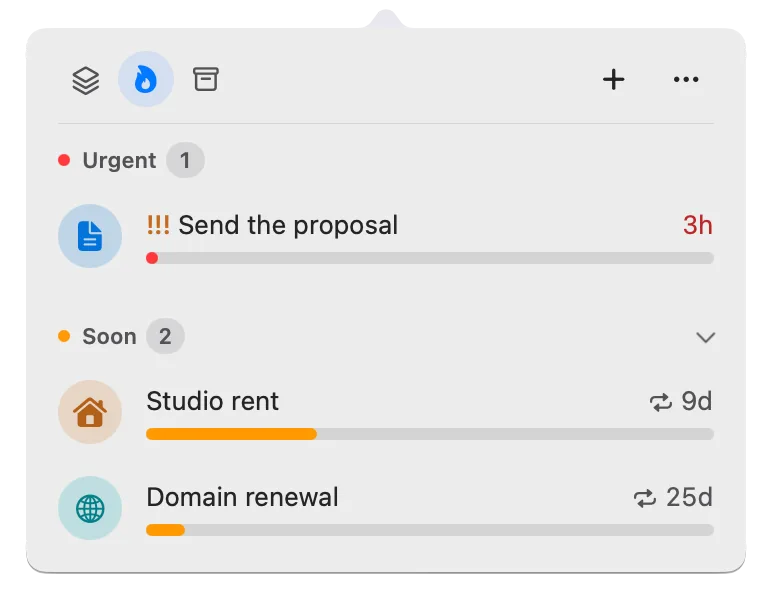
How to prioritize competing deadlines: what to do first
When several deadlines compete, sort them by how much of their time is left, then by what a slip would cost. A worked example, and how to do it on your Mac.
Mac menu bar countdown to your next deadline
Put a deadline countdown in your Mac menu bar, visible in every app: set a due time, see which deadline it picks and why, and finish it.