Mac menu bar countdown to your next deadline
Put a deadline countdown in your Mac menu bar, visible in every app: set a due time, see which deadline it picks and why, and finish it.
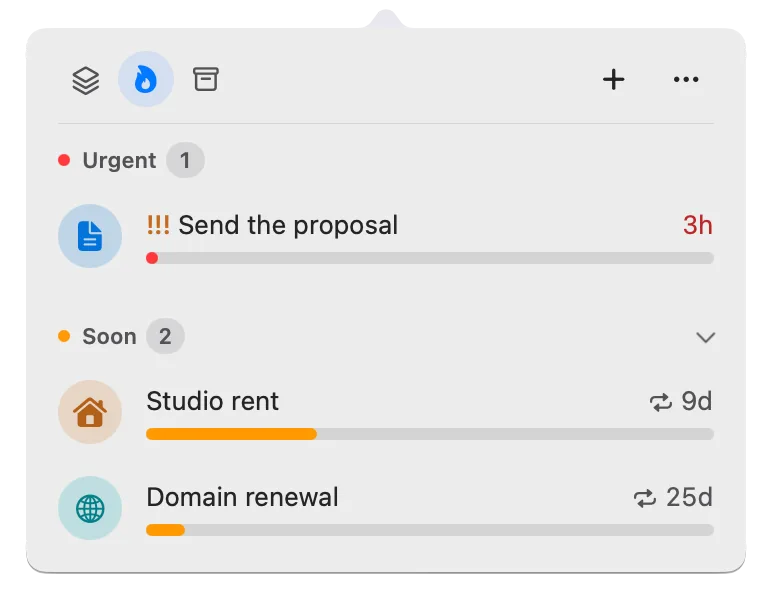
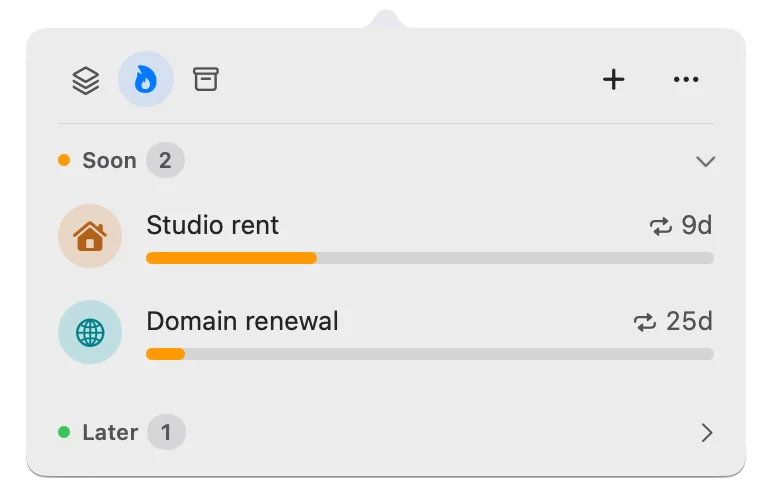
You want to know how long you have until a deadline without opening a calendar or doing the math. A countdown in the Mac menu bar, the strip across the top of the screen that stays visible in every app, answers that at a glance: it shows the time left, such as “2d” or “5h,” and changes color as the deadline gets close.
Deadline Bar is a Mac app that keeps your deadlines in the menu bar and counts down to the one that needs you most, which isn’t always the nearest. This guide is for anyone who works on a Mac and wants a due date in view while they work. The countdown is part of the free version; nothing here needs Pro.
Why a deadline sneaks up even when you know the date
Knowing the date isn’t the same as seeing the time left. Say a client proposal is due Thursday at 3:00 PM. On Tuesday you know that, but Tuesday fills with email and calls. On Wednesday evening you open the calendar, count the hours, and find you have one working morning left.
Nothing was forgotten. The date was in your head the whole time, but how much time was left never was. That number changes every hour, and nothing in front of you showed it.
Why a calendar or a timer doesn’t solve it
The usual tools answer a different question. Each one counts something real, but not the time left before your work is due.
| Counts down to | Do you start it? | Best for | |
|---|---|---|---|
| Interval timer | The end of a block you set, like 25 minutes | Yes; it measures the block, not the due date | Timing a work session |
| Event countdown | A date, in days | No | A trip, a launch, a birthday |
| Calendar | Nothing: it shows when things happen | No | Meetings and appointments |
| Deadline countdown | The moment work is due | No, it runs whether you work or not | Work and payments with a due time |
An interval timer, such as Menubar Countdown, counts down a block of work you start. It says nothing about Thursday. An event countdown, such as Count Down, counts the days to the events you add, which suits a trip or a birthday. A calendar shows Thursday at 3:00 PM, but you still have to open it and work out what’s left.
A deadline countdown counts down to the moment something is due, and it keeps running through your breaks. That’s the number you need when the question is “how long do I have?”
Keep one countdown in view
- Write down the due moment, with a time: “Thursday 3:00 PM,” not “Thursday.” Without a time, you may plan on an afternoon that isn’t there.
- Count down to that moment, not to the end of a work session.
- Show one countdown at a time: the most urgent deadline. Judge urgency by how much of its time is used, not by the date alone; among deadlines equally short of time, show the nearest. A proposal you got a week ago that’s due in two days has used most of its time. A review you got this morning that’s due tomorrow has barely started.
- Keep it where you already look, so you see it without opening anything.
- Mark it done when it’s done, so the next one takes its place.
The countdown is one part of a larger habit. For the rest of it, from capturing every deadline in one list to a weekly review, see how to keep track of deadlines.
Example: three deadlines on a Tuesday morning
This example is made up, to show how the countdown behaves. Deadline Bar counts a deadline’s time from the start of the day you add it to the moment it’s due, and colors it by the share of that time left: yellow at 30% or less, red at 10% or less. At 10:00 AM on Tuesday you have:
- Client proposal, due Thursday at 3:00 PM, added last Thursday. It has 2 days 5 hours left of the 7 days 15 hours it was given, so about 29% of its time remains.
- Code review, due Wednesday at 5:00 PM, added this morning. It has 31 of its 41 hours left, about 76%.
- Phone bill, due the Sunday after next, 12 days away, added as a Date: Deadline Bar’s kind for a day you only watch.
The menu bar shows 2d for the proposal, in yellow. The code review is due sooner, but it has used little of its time, so it’s still green. The phone bill is yellow too, because a Date turns yellow 30 days before it’s due. With two yellow deadlines, the nearer one, the proposal, leads.
You finish the code review on Wednesday morning. At 3:00 PM on Wednesday, a day before it’s due, the proposal turns red: a Task longer than 2 days is red for its last day at the latest, even with 10% of its time still ahead. On Thursday it counts down in hours, then minutes, and in its last minute in seconds. When you send it at 2:30 PM and mark it done, the menu bar moves on to the next deadline by itself.
Set up the countdown in Deadline Bar
Install Deadline Bar from the Mac App Store and open it. Its menu bar item is three small blocks, followed by the time left once you have a deadline.
Add a deadline with a due time
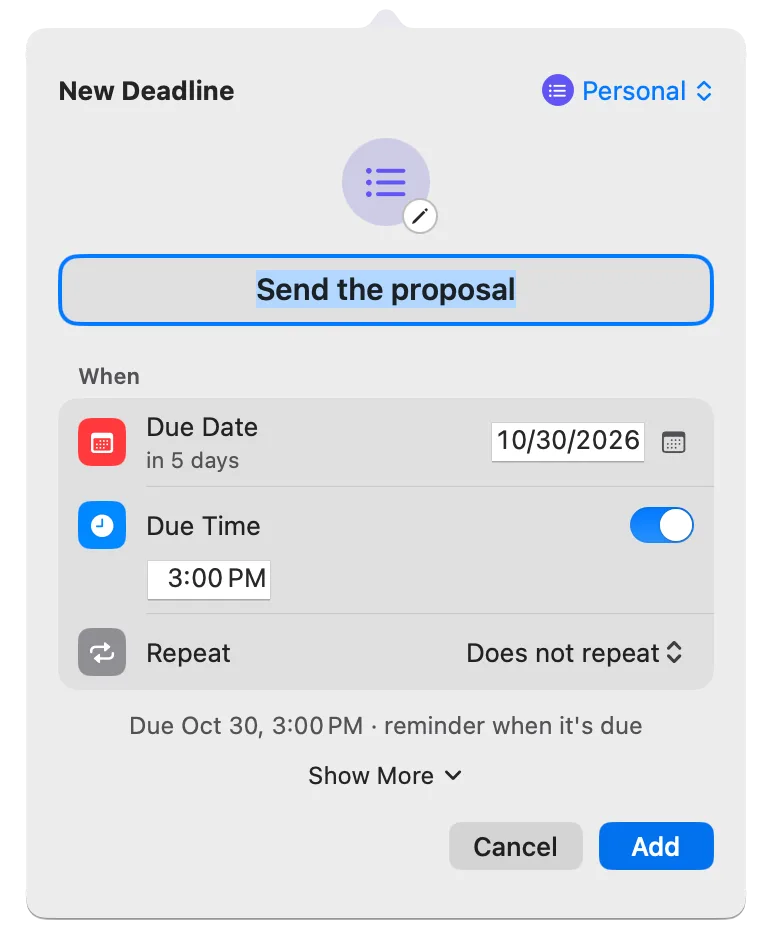
- Press Control-Option-D (Control-Option-D⌃⌥D) in any app. Quick Add, Deadline Bar’s small window for adding a deadline, opens over what you’re doing.
- Type the name, such as “Send the proposal.”
- Type the day in Due Date, or click the calendar button beside it and pick the day. Unless you change it, the day is tomorrow.
- Turn on Due Time and type the time, such as 5:00 PM. Without a time, a deadline is due at the end of its day.
- Leave the rest as it is. A new deadline is a Task, work you’ll spend time on; for a day you only watch, like a renewal, click Show More and turn on Date Only.
- Press Return.
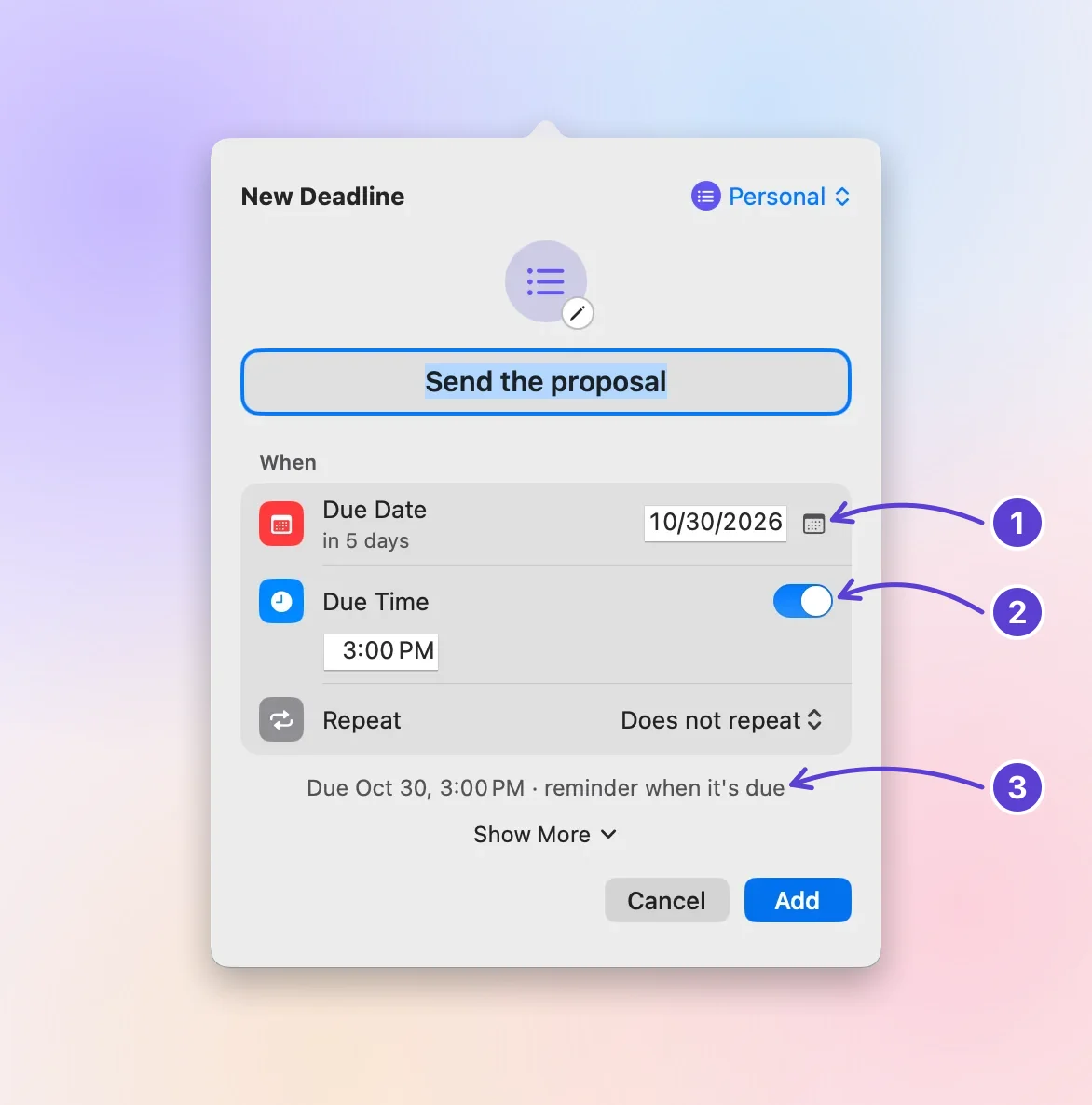
- Due Date: type it or pick it
- Due Time
- The reminder it starts with
If this deadline is your most urgent, the countdown appears in the menu bar right away. The group menu at Quick Add’s top right may show a group you used before, such as Work; that’s fine. To add the deadline without a group, choose Personal there.
Which deadline the menu bar shows
The menu bar shows the first deadline in your list. The order is set in Settings (click the menu bar item, click ⋯, and choose Settings…), under General → Sort by. With the standard order, Urgency, that’s:
- Overdue deadlines first, then red, then yellow, then green.
- Within a color, a deadline in its last hour comes first. The setting Move to top before it’s due, in the same place, changes that hour to 30 minutes, or turns it off with Never.
- Then the nearest day; on the same day, higher priority first, then the nearest due time.
To always see the nearest due date instead, choose Due date in Sort by. The guide to what matters first explains how to use the standard order to pick your next task.
Read the blocks, the color, and the time
The three blocks say where the deadline stands. As time runs out, the lit block moves from right to left:
- Right block, green: more than 30% of its time left.
- Middle block, yellow: 30% or less.
- Left block, red: 10% or less.
- All three, red: overdue.
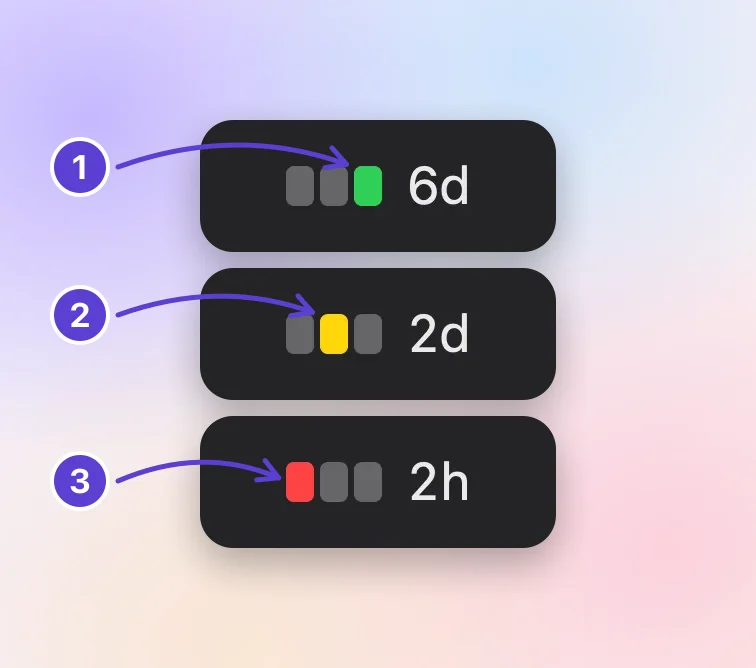
- Green: plenty of time
- Yellow: running short
- Red: little time left
Because the lit block moves, you can read it without color. A Date is colored by days instead: yellow with 30 days or less, red with 7 days or less. The colors guide explains both rules.
The time is short: “12d” for days, “5h” for hours, “45m” for minutes, and seconds in the last minute. It shows one unit. Days and hours count whole ones, so “2d” means at least two days and less than three; minutes round up, so it never reads “0m.” From 100 days out it reads in months and years, like “3mo 2d.” Once a deadline is overdue, the item shows when it was due, in red: the time if it was today, “Yesterday,” or the date.
To change the look, open Settings → Appearance → Menu Bar → Icon: Bar and time, Bar only, Colored time, or Time only.
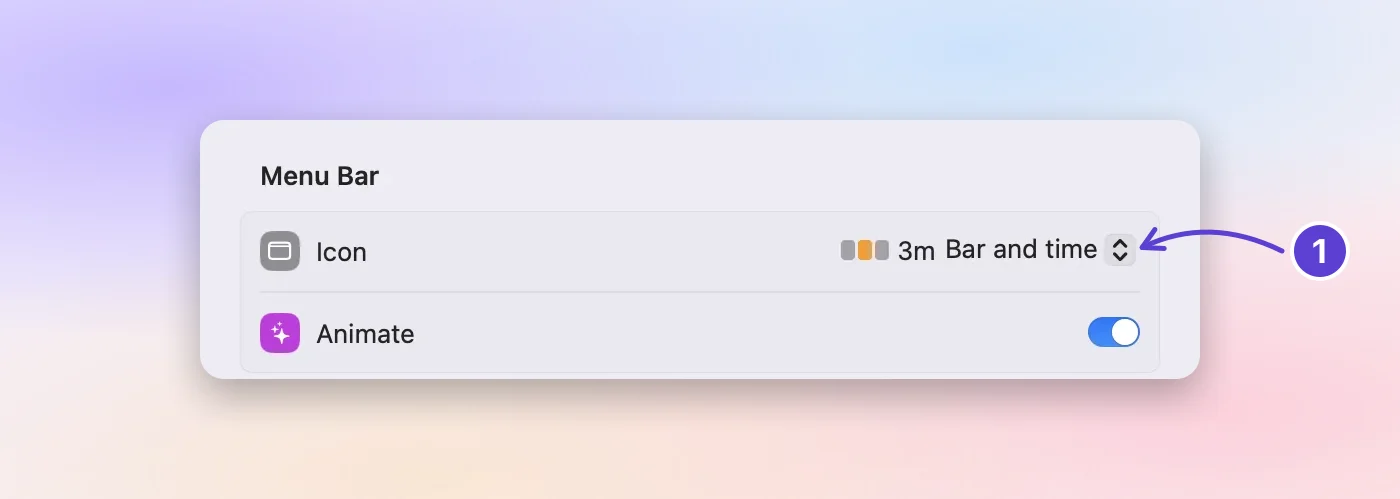
- Four ways to show it
Change it or finish it
Click the menu bar item to open the panel, the list of your deadlines that drops down from it. Then:
- Move it: right-click its row, choose Due Date, and pick Today, Tomorrow, This Weekend, or Next Week. Or choose Postpone 1 Week, which keeps its time.
- Change anything else: right-click it and choose Edit….
- Finish it: hover over its row and click the ✓. The menu bar moves on to the next deadline. Undo brings it back.
If you can’t see the countdown
A menu bar item can be hidden, most often on a MacBook with a notch or when the menu bar is crowded.
- Behind the notch: on a MacBook with a camera notch, a crowded menu bar can push items behind it. Make room by holding ⌘ and dragging items you don’t need out of the menu bar, then ⌘-drag Deadline Bar’s item where you want it, as Apple’s guide to the menu bar explains.
- Hidden by a menu bar manager: if you use an app that hides menu bar items, check its hidden section and move Deadline Bar out.
- Turned off in macOS: on macOS 26 or later, open System Settings → Menu Bar and make sure Deadline Bar is on under Allow in the Menu Bar (Apple’s guide).
- Reach it anyway: open Deadline Bar again from Finder or Spotlight. When its item can’t be seen, the panel opens at the top center of the screen. You can also set a shortcut for Open Deadline Bar in Settings → General → Shortcuts.
If the item shows empty blocks, there’s nothing to count down: you have no deadlines yet, or every one is waiting for its start date (a day you set that keeps a deadline out of the list until its work can begin). The item never leaves the menu bar on its own.
Limits, and when another tool fits better
- One countdown at a time. The menu bar shows the most pressing deadline; the rest wait in the panel. To see countdowns to many events, such as trips and birthdays, an event countdown app fits better.
- Time, not effort. A green deadline can still hold more work than its time left. The countdown can’t tell.
- Mac only. There’s no iPhone app and no sync between Macs.
- The countdown isn’t a work timer. To time a block of work, use an interval timer, or Focus, Deadline Bar’s timed session on one task (timebox one task shows how). While a session runs, the menu bar shows the session’s time instead, and the countdown comes back after.
- Five deadlines on the free version. It keeps up to five unfinished deadlines, with reminders, repeats, and Quick Add. Deadline Bar Pro, the paid upgrade, removes the limit and adds groups of your own, your Reminders and Calendar items in the list, and Focus of any length. The App Store shows Pro’s price in your currency before you pay; the yearly plan starts with a 14-day free trial.
What to do next
Add the deadline that’s on your mind right now with Control-Option-D⌃⌥D, and give it a time. Then read what the colors mean to know when yellow is a warning and when red means start now.
Questions
Can I choose which deadline the menu bar shows?
Not one by one. The menu bar always shows the first deadline in your list. You can change the order in Settings → General → Sort by, raise a deadline’s Priority so it leads those due the same day, or choose Urgency… on its row so it turns red sooner.
Why does the menu bar say “2d” when the panel says “2d 5h”?
The menu bar keeps one unit to stay short: whole days, or whole hours on the last day. The panel’s row adds a second unit under 10 days, such as “2d 5h,” and ticks in minutes and seconds, such as “4:32,” in its last 10 minutes.
Does the countdown keep running when the panel is closed?
Yes. It keeps counting with every window closed and in every app.
Does a countdown in the menu bar use much battery?
Very little. The item redraws only when what it shows changes: once a day while a deadline is days away, once an hour under a day, once a minute in its last hour, and once a second only in its last minute, plus when its color changes. Nothing ticks in between.
How do I put a countdown on my Mac desktop?
macOS doesn’t come with a countdown to a date. For minutes, the Clock app’s timer works. For a trip or a birthday, a countdown app with a desktop widget fits; Apple explains how to add widgets to the desktop. Open windows cover desktop widgets, though, so for a due time you want in sight while you work, the menu bar is the place that stays visible.
Trademarks belong to their owners; Deadline Bar isn’t affiliated with them.
Count down to your next deadline
See your deadlines in your Mac’s menu bar, colored green to red as time runs out, and choose what to do next.

Read next
Get started with Deadline Bar: add your first Mac deadline
Press Control-Option-D, give your first deadline a day and a time, and watch it count down in the menu bar. Then set a reminder, finish it, and see what’s free.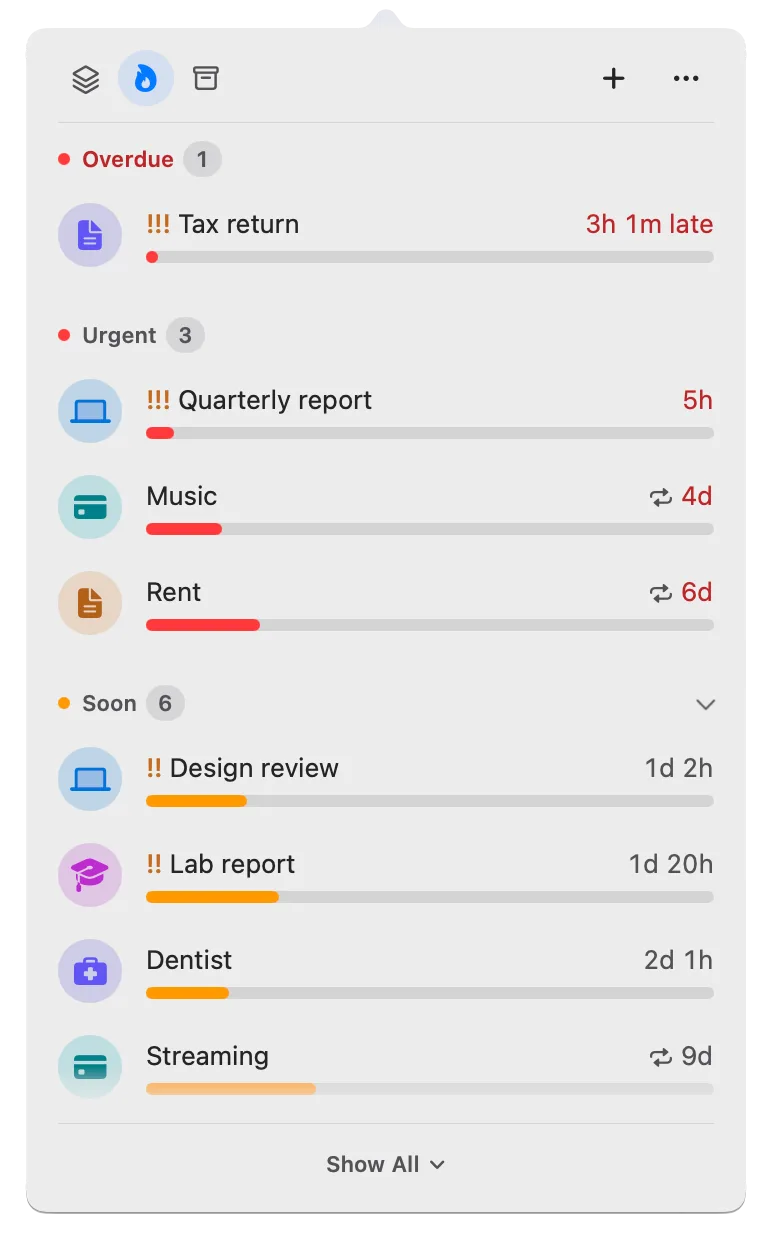
Green, yellow, red: how Deadline Bar shows a deadline’s urgency
A Task turns yellow at 30% of its time left and red at 10%; a Date at 30 and 7 days. Learn to read the three colors, and why time left isn’t the same as effort.