Green, yellow, red: how Deadline Bar shows a deadline’s urgency
A Task turns yellow at 30% of its time left and red at 10%; a Date at 30 and 7 days. Learn to read the three colors, and why time left isn’t the same as effort.
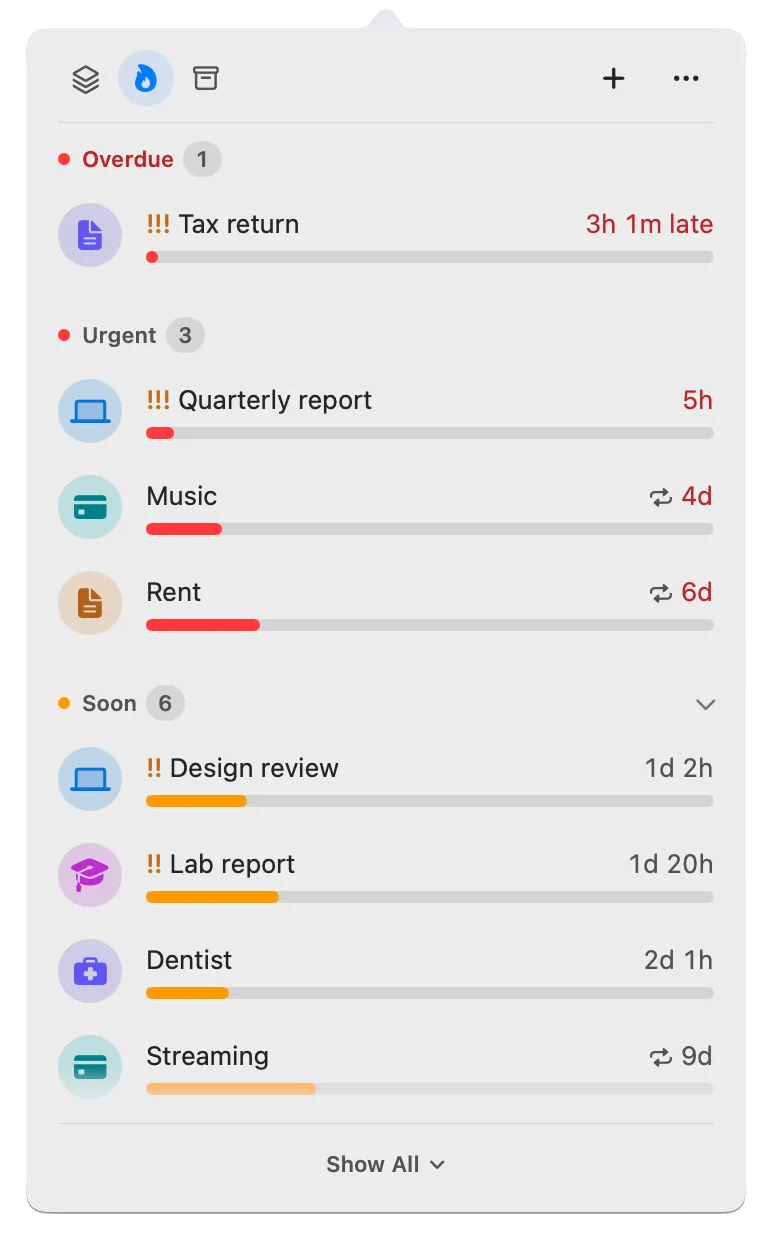
A list of due dates tells you what’s soonest, not what’s running out of time. Deadline Bar colors each deadline by the time it has left instead. A Task, work you spend time on, turns yellow when 30% of its time is left and red at 10% (by default), counted from the day you added it. A Date, a day you only watch, like a renewal, turns yellow 30 days before it’s due and red 7 days before. Green means there’s plenty of time, yellow means plan it, and red means start it now or decide to move it.
Deadline Bar is a Mac app that keeps your most urgent deadline in the menu bar at the top of your screen and lists the rest in a panel, most urgent first. This guide is for anyone who wants to know what the colors mean before trusting them: exactly when each one appears, why, and what the colors can’t tell you. Everything here is in the free version.
The idea: color by time left
A deadline’s color should answer one question: how much of the time you had is still left? A date alone can’t answer that, because deadlines come with very different amounts of time.
Deadline Bar has two kinds of deadline, and each uses its own rule:
- A Task, work you spend time on, is colored by the share of its time left, counted from the start of the day you added it to the moment it’s due.
- A Date, a day you only watch, like a renewal or a bill, is colored by the days until it’s due.
Why the share of time left works for Tasks
A date alone misleads. Compare two Tasks at 10:00 AM on a Monday (an example):
- A report you were given 30 days ago, due Thursday at 10:00 AM: 3 days of its 33 are left, so about 9% of its time remains.
- A pull request assigned this morning, due tomorrow at 5:00 PM: counted from the start of today, 31 of its 41 hours are left, so about 76% of its time remains.
By date, the pull request comes first. By share of time left, the report does: it has used over nine tenths of its time, while the pull request has used about a quarter. The share puts a two-day task and a two-month project on one scale: with the standard settings, a two-month thesis turns yellow with about 18 days left, and a two-day task with about 14 hours left.
The share doesn’t suit a Date. A yearly renewal measured that way would turn red more than a month before it’s due, and stay red for weeks. A bill or a renewal isn’t work spread over its year; you watch for it as it gets close. So a Date counts days instead.
How to read the three colors
The thresholds are exact:
| Color | Task (share of its time left, by default) | Date (time until due) |
|---|---|---|
| Green | More than 30% | More than 30 days |
| Yellow | 30% or less | 30 days or less |
| Red | 10% or less, or overdue | 7 days or less, or overdue |
The Task thresholds are the defaults; you can change them in Settings. The Date thresholds are fixed, and they’re exact intervals, not calendar months: a Date due Oct 18 at 11:59 PM turns yellow on Sep 18 at 11:59 PM and red on Oct 11 at 11:59 PM.
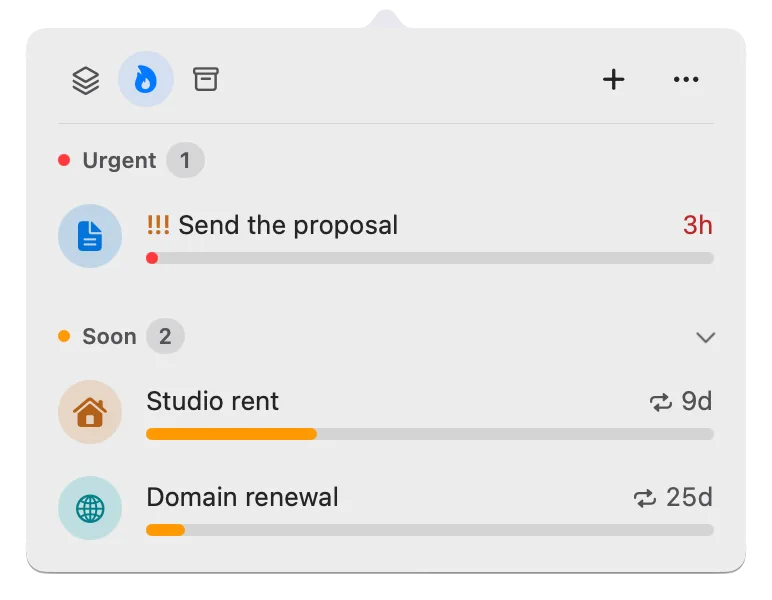
The panel’s Up Next list turns the colors into four bands: Overdue and Urgent (red), Soon (yellow), and Later (green). Then use them in this order:
- Review red and overdue items first. For each, decide whether it needs action today, and either do it or move it on purpose.
- Give each yellow item a slot on your calendar this week.
- Scan the green ones for big jobs. A large Task can be green and still need you to start now.
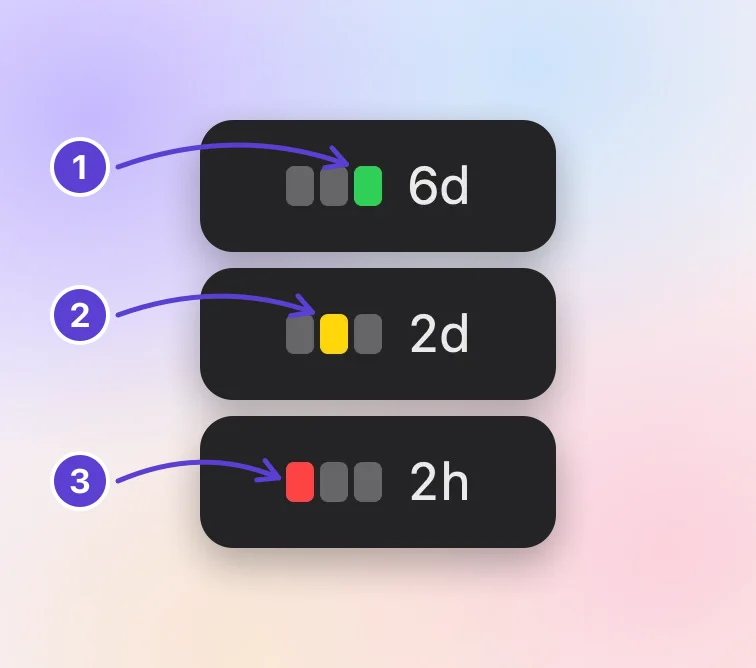
- Green: plenty of time
- Yellow: running short
- Red: little time left
Where the colors break: time isn’t effort
The color measures the clock, not the work. A green Task with two weeks left and three weeks of work in it is already late. A red Task that takes ten minutes is fine.
So after reading the color, ask one more question: how long will this take? If the honest answer is more than the time left, start it now, whatever its color. The colors also don’t know what a deadline costs to miss; a red library book and a red tax filing aren’t equal. The what matters first guide covers effort, consequences, and Priority, and timeboxing one task helps you start a big one.
Colors in Deadline Bar
Each row in the panel, a Task or a Date, shows a bar in the deadline’s color; the time left turns red too when the deadline is red or overdue, and stays gray otherwise. The bar drains from the start of the day you added the deadline to the moment it’s due.
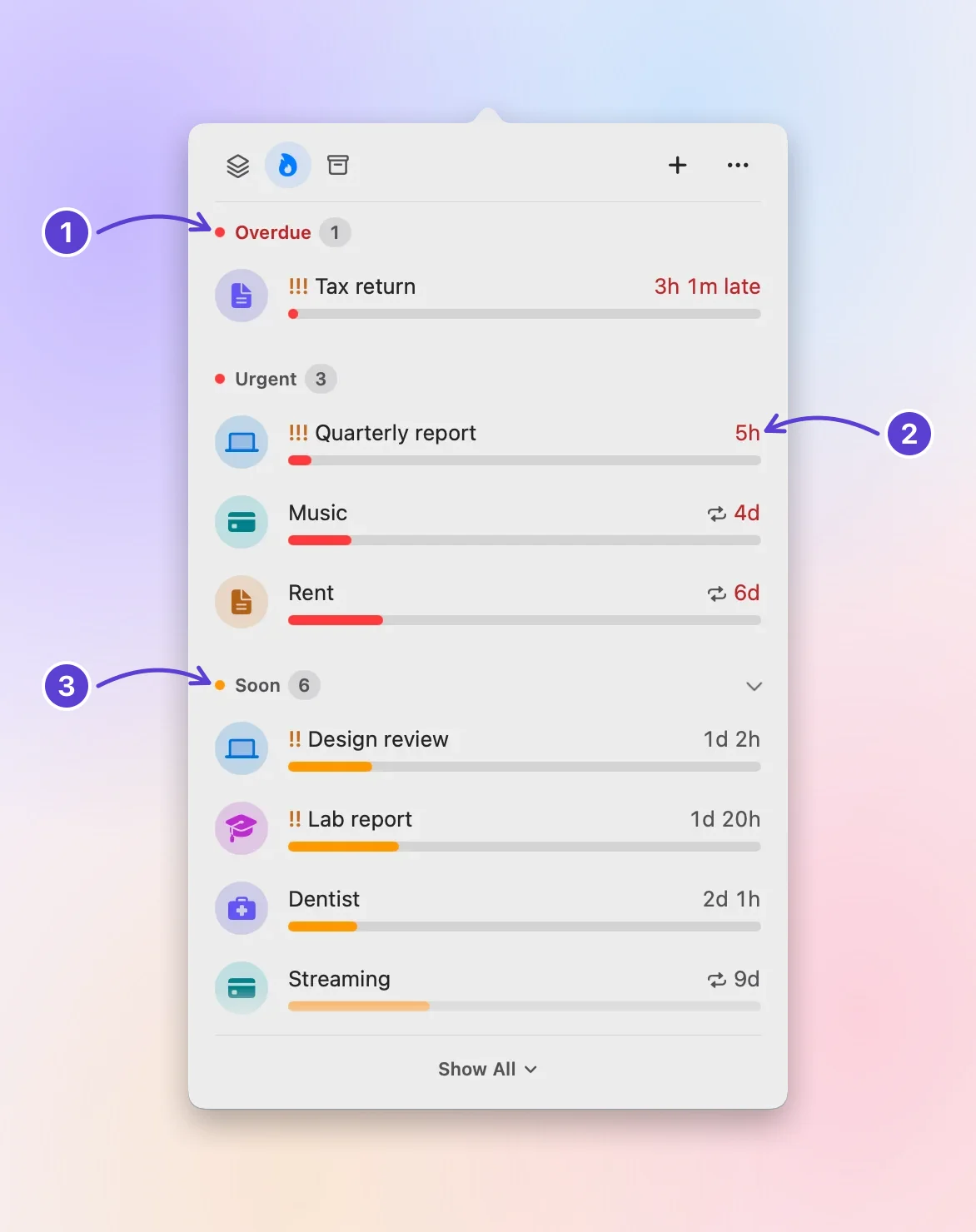
- Overdue comes first
- Red: little time left
- Yellow: running short
The menu bar item shows the most urgent deadline beside three small blocks, and one block lights up at a time: the right one in green, the middle one in yellow, the left one in red. When the deadline is overdue, all three light. The menu bar countdown guide explains which deadline it shows.
To change the Task thresholds:
- Click the menu bar item, click ⋯, and choose Settings….
- In General, set Soon (when a Task turns yellow) to 20%, 25%, 30%, 40%, or 50% of its time left.
- Set Urgent (when it turns red) to 5%, 10%, or 15% of its time left.
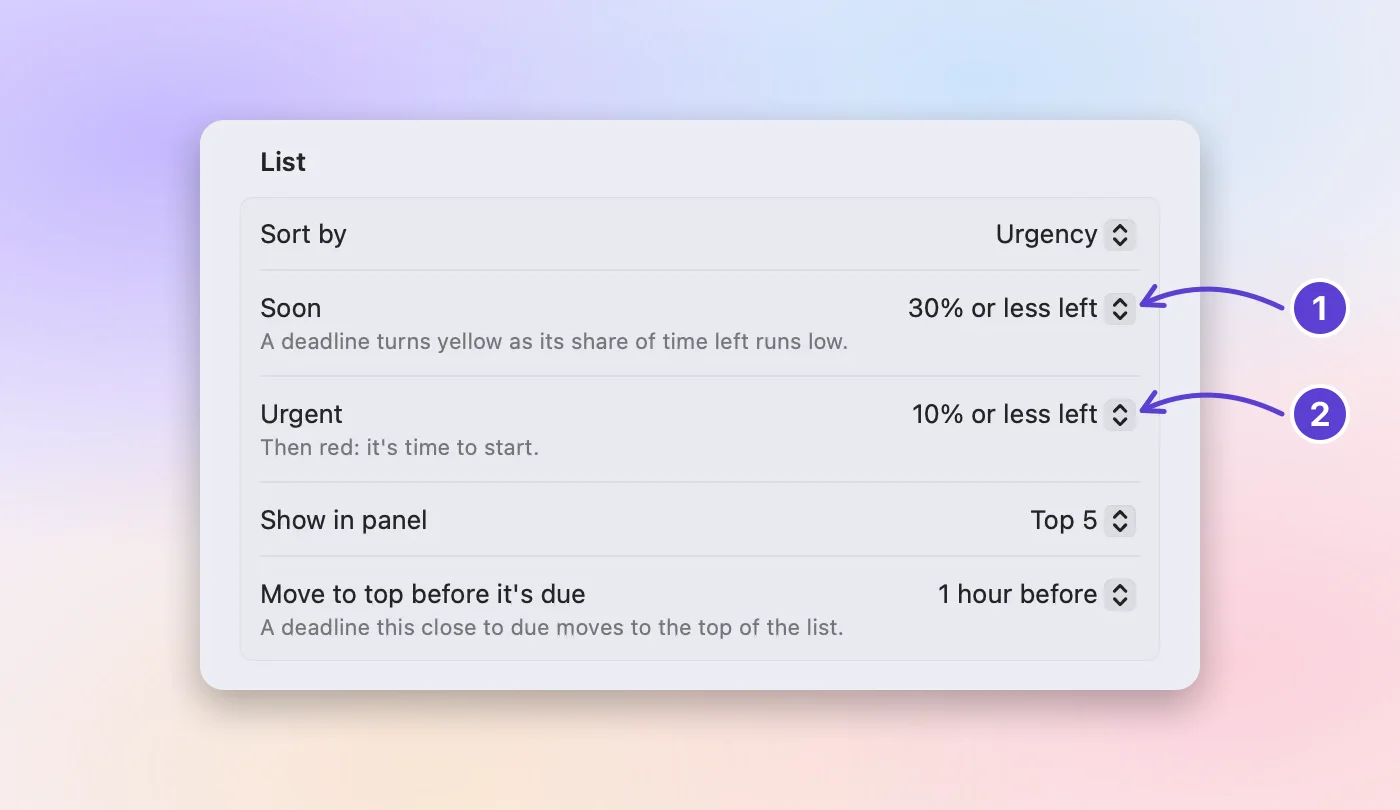
- Soon: when it turns yellow
- Urgent: when it turns red
The panel, the menu bar, and the order of Up Next follow the new thresholds right away. Higher thresholds, such as 40% and 15%, turn every Task yellow and red sooner, which matters most on long ones.
A Task’s start is the day you added it. You can set a later start date instead, and the bar drains from then; the start dates guide shows how.
What to do next
Open the panel now and check whether anything red is something you can’t finish in the time left. To decide between several deadlines of the same color, read what matters first.
Questions
Why is my renewal red when it’s still a week away?
It’s a Date, and Dates turn red with 7 days or less left, so you have time to act before the charge. A Task due in a week would usually still be green or yellow.
Can I change when Dates turn yellow and red?
No. Only the Task thresholds are in Settings. Dates always use 30 days and 7 days.
Why is a deadline due tomorrow green?
It’s a Task with a short window that has barely started, such as one added this morning and due tomorrow evening. It turns yellow and red as its own time runs down.
Do I have to choose Task or Date every time?
No. Quick Add, the window for a new deadline, starts on Task, and the built-in groups (ready-made labels in the free version) choose for you: Subscriptions and Bills are Dates, Work and Study are Tasks.
What do red, yellow, and green mean in a project status report?
Many teams rate each project green, yellow (or amber), or red: on track, at risk, or off track, often called a RAG status. Someone judges that by hand, from how the work is going. Deadline Bar’s colors look alike but mean something narrower: they’re computed from time left alone, so they warn you about the clock, never about the work.
Trademarks belong to their owners; Deadline Bar isn’t affiliated with them.
See every deadline’s time left at a glance
See your deadlines in your Mac’s menu bar, colored green to red as time runs out, and choose what to do next.

Read next
How to prioritize competing deadlines: what to do first
When several deadlines compete, sort them by how much of their time is left, then by what a slip would cost. A worked example, and how to do it on your Mac.