How to prioritize competing deadlines: what to do first
When several deadlines compete, sort them by how much of their time is left, then by what a slip would cost. A worked example, and how to do it on your Mac.
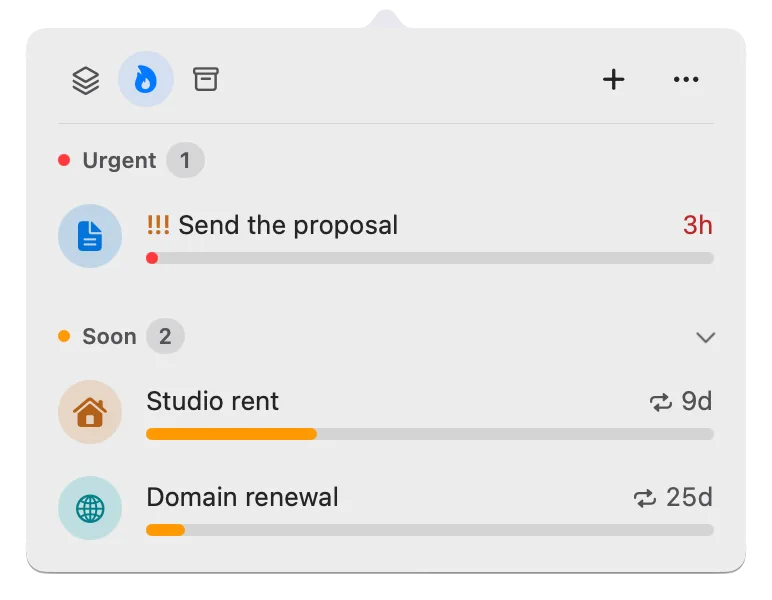
When several deadlines compete, the nearest due date isn’t always the one to start. Group them by how much of their own time is left, let what a slip would cost decide inside each group, and check the work left before you commit. Mark importance once, and let the order update itself as the days pass.
Deadline Bar is a Mac app that keeps your deadlines in the menu bar at the top of your screen and lists them most urgent first. This guide is for anyone juggling several due dates at once: it explains a way to choose, then exactly how Deadline Bar orders your list. Everything here works in the free version of Deadline Bar.
Sort by time left first, then by what a slip costs
Sort deadlines into a few bands by how much of their own time is left, and let importance decide only inside a band. Between deadlines that are equally important, the nearest due date goes first.
Why this order works
The time a deadline was given is a rough measure of the work it needs. A report you got a month ago and must hand in in three days has about 10% of its time left; whoever set it expected weeks of work, and most of them are gone. A task you got this morning, due tomorrow, still has most of its day; it was given a day because it’s small. Due-date order puts the small task first. Time-left order puts the report in its last tenth, a band above the small task, and the report is the one at risk.
That has a cost, and it’s worth seeing. Say it’s Wednesday at 9:00 AM. You add a 20-minute form, due Thursday at 9:00 AM. Your three-week client proposal is due Monday, with about 20% of its time left. By time left, the form (about three quarters of its time left, counted from the start of the day you added it) sits a band below the proposal for most of Wednesday, even though it’s due first. That’s the rule working: the form needs 20 minutes and has a whole day of slack, while the proposal needs hours and has a few days.
The small task doesn’t stay down. As its own time runs out, it climbs on its own: it turns yellow with 30% of its time left (around 11:00 PM Wednesday in this example, when it joins the proposal’s band and, due sooner, goes above it) and red with 10% (around 5:40 AM Thursday), so by the time you sit down on Thursday morning it’s in Urgent, above the proposal. If you’d rather clear small things first, you can, and the list won’t stop you: do the form now, or sort by due date (see other ways to sort).
Importance comes second because two deadlines in the same band are not equally costly. Take two things due Friday, both given two weeks: a client proposal that decides next quarter, and a form HR asked for. If one slips, a day late on the form is an apology; a day late on the proposal can lose the client. Importance decides what time alone can’t.
Writing the choice down saves your attention for the work. An undecided choice comes back every time you look at the list, and each time the weighing takes a little of the attention the work needs. Mark the proposal as the one that matters, once, and the list answers “which first?” for you.
Time left vs the Eisenhower matrix
The Eisenhower matrix, where most advice on competing deadlines starts, sorts tasks into four boxes by two questions: is it urgent, and is it important? Do the urgent and important ones now, schedule the important ones that can wait, hand off what’s only urgent, and drop the rest. It’s good at one thing: keeping important work with no near date from being crowded out by whatever shouts loudest.
It misleads on the urgent side. In the matrix, urgency is a feeling you judge, and it usually follows the nearest date or the latest request. The quarterly report and the expense form below would both feel urgent, though one has used more than nine tenths of its time and the other about four fifths. Time left turns that feeling into a measure, and leaves the matrix’s real question, what a slip would cost, to decide inside each band.
How to do it
Work through your deadlines in four passes. It takes a few minutes the first time, less after that.
- Find the hard commitments. Note anything with a fixed cutoff and a real cost: a submission portal that closes, a payment with a fee, a client launch, an exam. These can’t move without asking someone.
- Sort into bands by share of time left. Not by date alone: by how much of its own time, from when you got it to when it’s due, each deadline has left. A few bands are enough: plenty of time, running short (30% or less), nearly out (10% or less), and late.
- Mark importance only where it decides something. Ask one question of each deadline: would it hurt if this
slipped?
- High: yes, clearly. Money, a client, a grade, or someone waiting on you.
- Medium: it matters, but a day late is survivable.
- Low: nice to finish, and nobody is waiting.
- None: most deadlines. Their time left is enough to order them.
- Check effort and dependencies before you start. Estimate the hours each top item needs, and note anything you’re waiting on: a reply, a file, someone else’s part. A deadline you can’t move forward today shouldn’t be the one you’re thinking about.
A worked comparison
Here’s an example with three deadlines on a Wednesday at 9:00 AM. Sorted by due date, the report would also come first; the table shows what the other two columns add.
| Deadline | Time left | Would it hurt to slip? | Work left |
|---|---|---|---|
| Quarterly report, due Thursday 5:00 PM | Under 10% of its two weeks | Yes: your manager presents it Friday | 3 hours |
| Client proposal, due Friday | About 20% of its two weeks | Yes: it decides next quarter | 6 hours |
| Expense form, due Friday | About 20% of its two weeks | A little | 20 minutes |
The report goes first: it’s the only one in its last tenth. The proposal and the form are in the same band, so importance decides and the proposal comes next. The form waits, though at 20 minutes you might clear it between the two. That last call is yours; no list can make it for you.
Where this breaks
Importance stops helping when it’s everywhere. If many items are marked high, the label no longer separates them, and you’re back to comparing effort, consequences, and due times by hand. Keep high for the one or two deadlines that would really hurt if they slipped.
Time left isn’t effort left. Share of time assumes a deadline’s window fits its work, and sometimes it doesn’t: a big job given only a week looks calm longer than it should. Check large items before they reach their last stretch, and split a big one into smaller deadlines with their own dates; start dates let the later parts wait until they begin.
Dependencies stay outside the list. If the report needs numbers from finance, the order can’t know that. Ask for what you need early, and move on to the next deadline while you wait.
Doing it in Deadline Bar
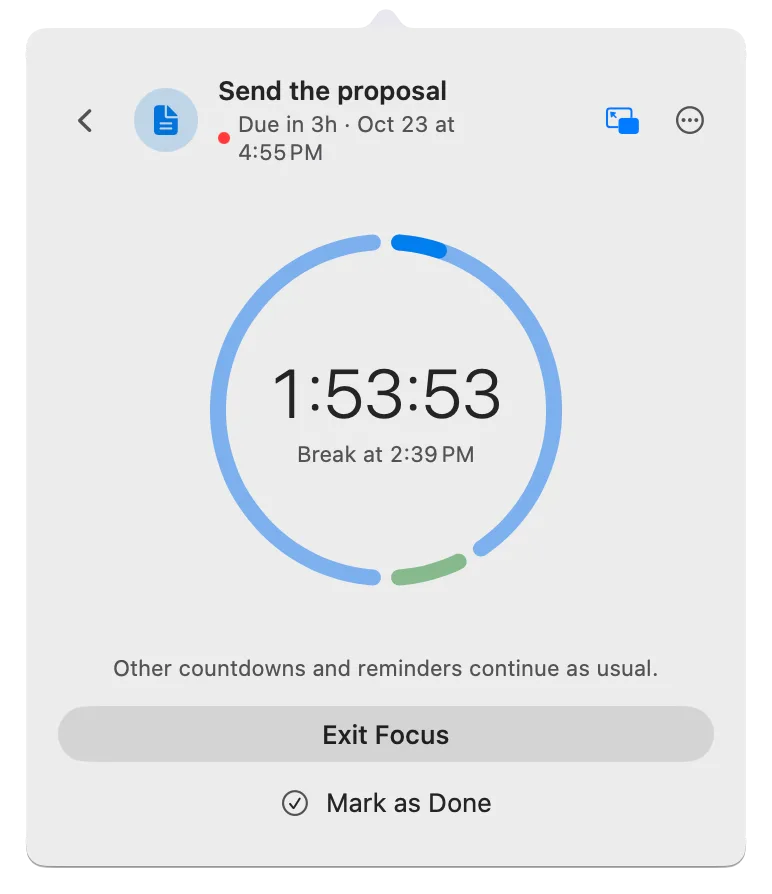
The panel is the list that opens when you click Deadline Bar in the menu bar, and the menu bar shows the first deadline in it. Deadline Bar sorts Up Next, the panel’s main list, by urgency unless you change it (the get started guide shows the panel step by step).
What decides the section
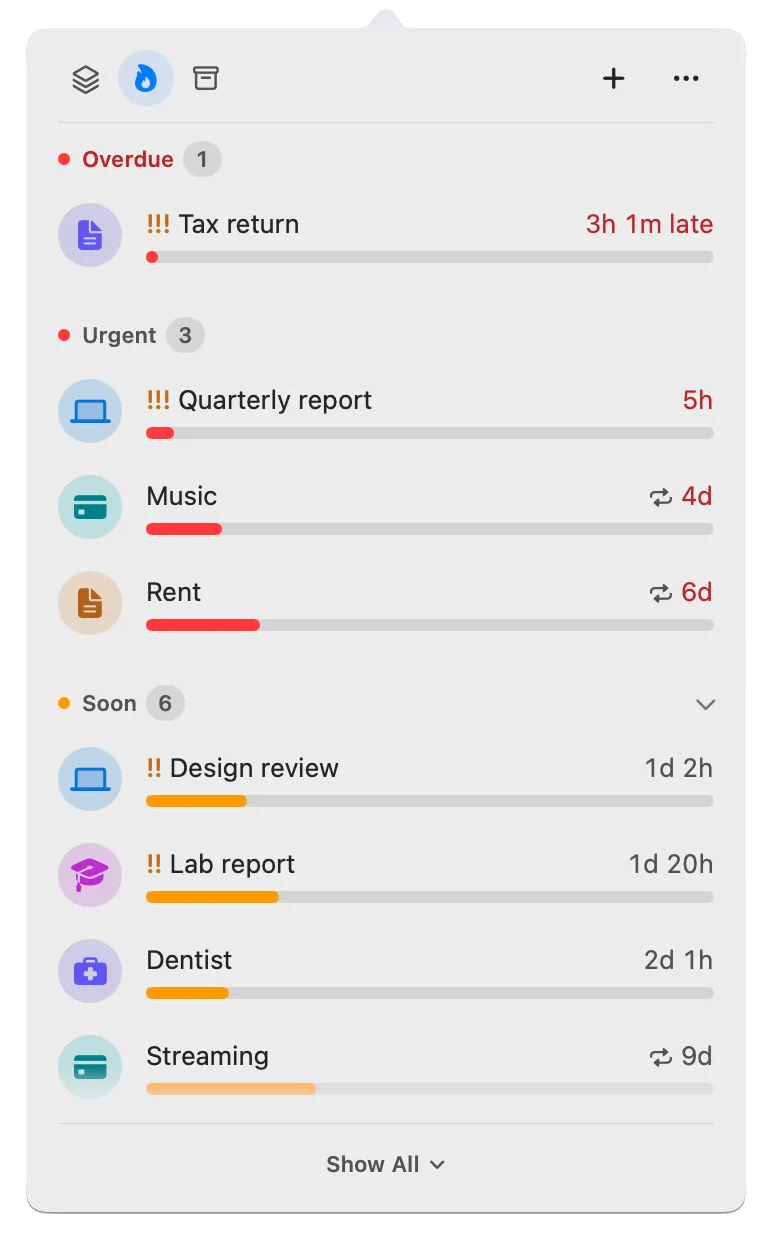
Up Next groups your deadlines into four sections: Overdue, Urgent, Soon, and Later. Deadline Bar has two kinds of deadline, and each is placed by its own rule:
- A Task, the kind for work you spend time on, is placed by the share of its own time left, from its start to its due date. It’s Urgent at 10% or less and Soon at 30% or less. You can change both in Settings → General.
- A Date, the kind for a day you only watch, like a renewal or an exam, is placed by days left. It’s Urgent at 7 days or less and Soon at 30 days or less.
Later holds everything with more time than that. Overdue means past its due time, for either kind. The color guide explains the two rules with examples.
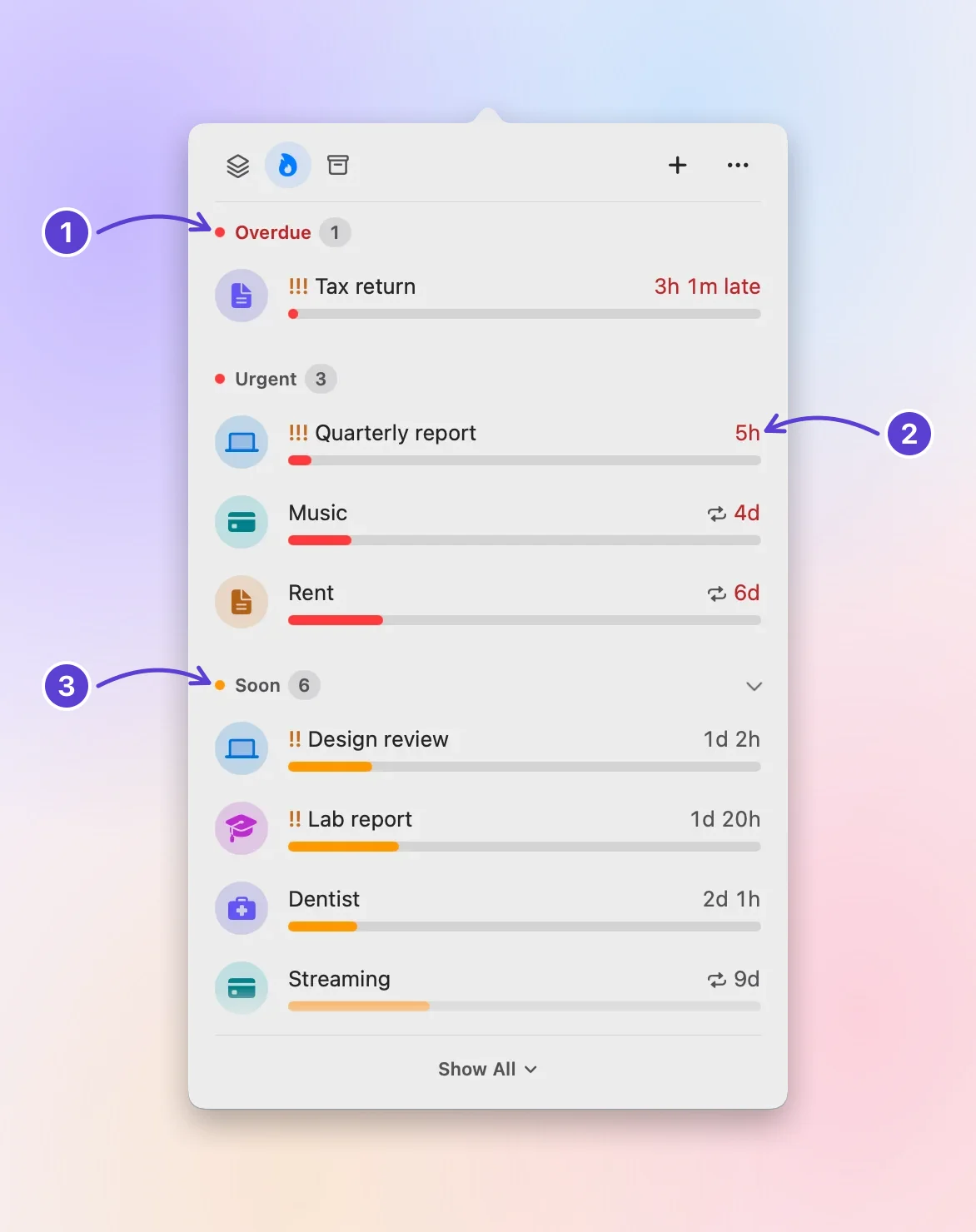
- Overdue comes first
- Red: little time left
- Yellow: running short
The full order
Up Next applies four rules, in this order:
- Section. Overdue first, then Urgent, Soon, and Later.
- Last hour. Inside a section, a deadline in its last hour moves to the top, above higher priorities. Change the window in Settings → General → Move to top before it’s due: 30 minutes before, 1 hour before (the default), or Never.
- Priority. Then high before medium before low, and deadlines with no priority last.
- Due date. Then the nearest due date first.
A higher priority never jumps a section. An important deadline in Soon stays below an unmarked one in Urgent, because the Urgent one is closer to its end.
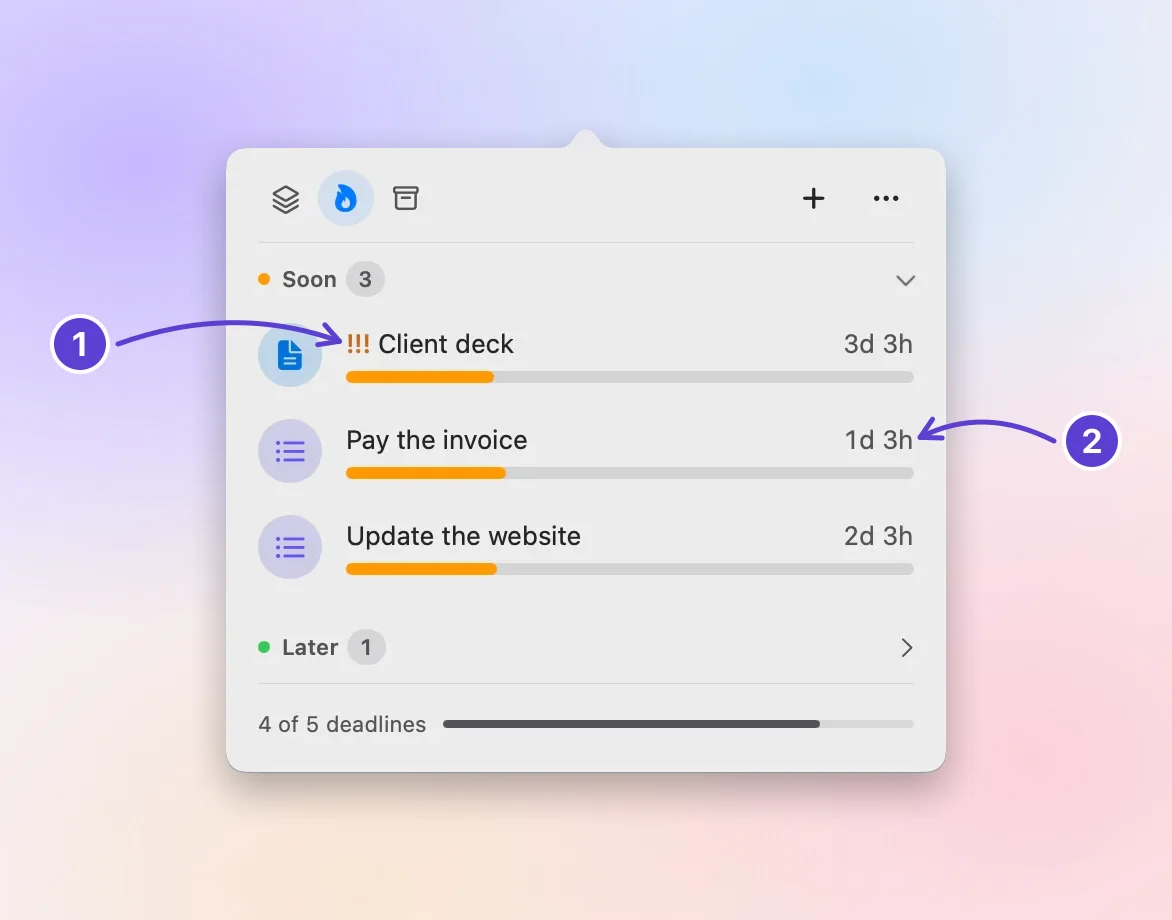
- Priority leads, though due last
- Then the nearest due
Mark a priority
Set Priority in three places:
- In Quick Add (Control-Option-D, Control-Option-D⌃⌥D): click Show More, then use the Priority row.
- In the deadline’s form: right-click its row and choose Edit…, then use the Priority row.
- On the row itself: right-click it and choose Priority, then Low, Medium, or High.
The row shows !!!, !!, or ! before the title, and the list reorders at once. To see the rules from inside the app, click ⋯ in the panel and choose Sort By → Why This Order?.
Other ways to sort
Sort By in the panel’s ⋯ menu (also Sort by in Settings → General) offers Urgency (the default), Due Date, Least Time Left (%), and Most Time Left (%). The other three still put overdue deadlines first, then any in their last hour (the Move to top window), and ignore priority for the rest. Due Date is the one to choose if you’d rather see small tasks due tomorrow above larger work due later. Urgency is the only one that uses everything in this guide.

When you’re already working on something
You can start Focus, a timed work session on one deadline (a Task; a Date is only watched). If a Task in a more urgent section, or one with a higher priority in the same section, is waiting, the panel shows it on the Focus page, the view of your running session, as “more pressing” and offers Switch, which moves the session to that deadline. Nothing changes until you choose.
Next step
Open your list and ask the one question of each deadline: would it hurt if this slipped? Mark the one or two that would with !!!, and leave the rest alone. When the top item is a large piece of work, read the timeboxing guide next for how to give it a fixed block of time.
Questions
Does the order change during the day?
Yes, without you doing anything. A deadline moves up when it crosses into Soon or Urgent, or enters its last hour, and Deadline Bar reorders the list at that moment. Between those moments the order stays put, so the list doesn’t shuffle while you read it.
Does a priority stay when a deadline repeats?
Yes. When you mark a repeating deadline done, the next round keeps its priority, with its name and reminder. If the next round matters less, right-click its row, choose Priority, then None.
Does priority change the color of a deadline?
No. Color shows time left only. Priority changes the order inside a section and shows as !!!, !!, or ! on the row.
Can Deadline Bar estimate how long a deadline will take?
No. It knows when each deadline started and when it’s due, not how much work it needs. Estimate effort yourself, and split a large deadline into smaller ones with their own dates.
How do you prioritize tasks with the same deadline?
When two tasks are due at the same moment, the due date can’t choose between them, so ask which one would hurt more to slip, and start that one. If they matter equally, start the one with more work left: a short task can still fit at the end, and a long one can’t. In Deadline Bar, give the one that matters more a higher Priority, and it leads whenever the two share a section.
Trademarks belong to their owners; Deadline Bar isn’t affiliated with them.
Let the list put the next one first
See your deadlines in your Mac’s menu bar, colored green to red as time runs out, and choose what to do next.

Read next
Green, yellow, red: how Deadline Bar shows a deadline’s urgency
A Task turns yellow at 30% of its time left and red at 10%; a Date at 30 and 7 days. Learn to read the three colors, and why time left isn’t the same as effort.