Repeating deadlines on Mac, and when reminders ring
Set an early reminder and a repeat, and the next round appears when you mark one done. All-day reminders, month-end dates, and late payments.
You want a reminder before something is due, and for things that come back, like rent or a subscription, you want the next one set up without retyping it. Deadline Bar, a Mac app for deadlines, does both: you pick an early reminder and a repeat when you add a deadline, and when you mark a repeating deadline done, its next date takes its place.
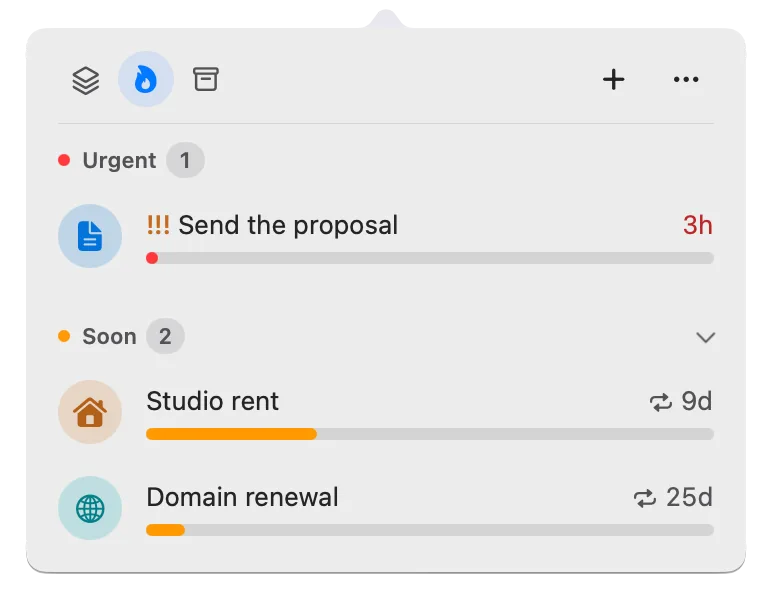
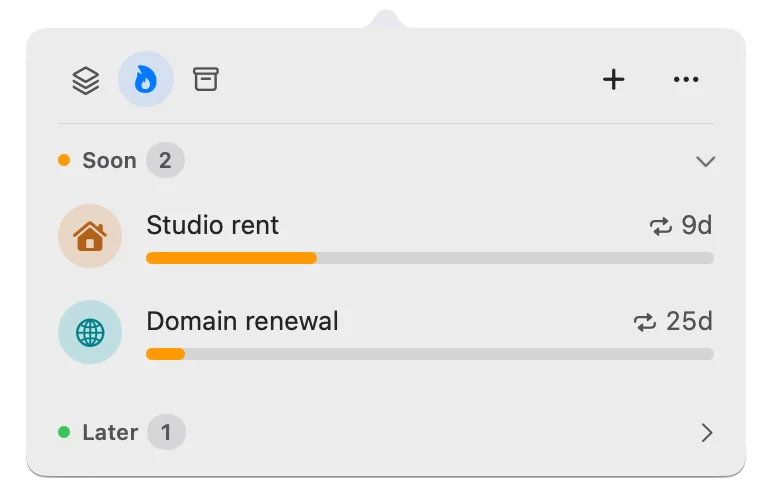
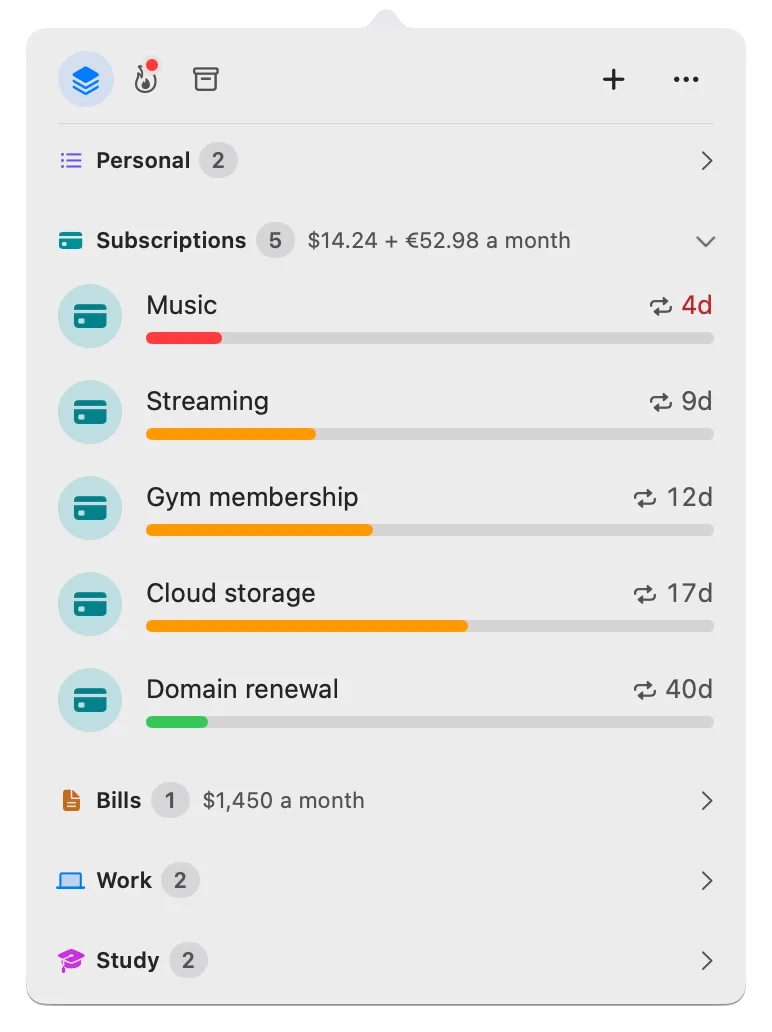
Deadline Bar counts down to your most urgent deadline in the menu bar at the top of your screen and lists the rest in a panel (the list that opens when you click the menu bar item). This guide is for anyone setting up bills, renewals, or regular work in it. It shows exactly when each reminder arrives and how repeats behave, including month-end dates and payments made late. Reminders and repeats are both part of the free version.
Apple’s Reminders app repeats too (set up repeating reminders), and for a nudge on a schedule, such as taking out the trash, that’s enough. The difference is what happens between the alerts. A repeating deadline in Deadline Bar sits in your list, turns yellow and then red as its day nears, and stays overdue in view until you mark it done.
Before you start: with a time, or all day
Deadline Bar has two kinds of deadline: a Task, for work you spend time on, and a Date, for a day you only watch, like a renewal. Each turns from green to yellow to red as its time runs out. A Task turns yellow with 30% or less of its time left and red with 10% or less (the defaults, in Settings → General), counted from the start of the day you added it. A Date turns yellow 30 days before it’s due and red 7 days before.
When a reminder rings depends on whether the deadline has a time:
- A deadline with a time is due at that minute, and its reminder rings exactly that far ahead, such as 1 hour before.
- A deadline without a time is due at 11:59 PM on its day. A reminder then would leave you no day to act, so every reminder rings at 9:00 AM instead, on the day or the days before.
This table shows what you get for two example deadlines due on a Friday, with the standard settings:
| Notification | Due Friday at 5:00 PM | Due Friday, no time |
|---|---|---|
| Early reminder, “1 day before” | Thursday, 5:00 PM | Thursday, 9:00 AM |
| Early reminder, “1 hour before” | Friday, 4:00 PM | Not offered |
| Early reminder, “1 month before” | 30 days before, 5:00 PM | 30 days before, 9:00 AM |
| Alert when due | Friday, 4:59 PM and 5:00 PM | Friday, 9:00 AM |
| Nudge when it’s time to start | Once, as it turns red (Tasks only) | Not sent |
| Morning summary | 9:00 AM on days when something is red or yellow | The same |
The last three come from Deadline Bar’s Settings → Notifications, and all three are on by default. “1 month before” means 30 days.
- Alert when due rings twice for a timed deadline: a last call a minute before, then at the due time. An all-day deadline gets one alert, on the morning of its day.
- Nudge when it’s time to start rings once, as a timed Task turns red, so a report you’ve left too long tells you before it’s late.
- Morning summary lists what’s red or overdue and what’s yellow, once a day; nothing is sent on a day with nothing in either.
Set a reminder and a repeat
- Press Control-Option-D (Control-Option-D⌃⌥D) in any app to open Quick Add, the window for a new deadline. Type its name, such as “Rent.”
- Type its day in Due Date. To give it a time, turn on Due Time and type one; leave it off for an all-day deadline.
- Click the Repeat pop-up and choose every day, every weekday, every week, every 2 weeks, every month, every 3 months, every 6 months, or every year. An “Every weekday” repeat set on a Saturday or Sunday starts on Monday.
- Click Show More, then the Early Reminder pop-up (it shows the current reminder, such as 5 minutes before), and choose when. With a time: at the deadline; 5, 15, or 30 minutes before; 1 or 2 hours before; 1, 2, or 3 days before; 1 or 2 weeks before; or 1 month before. Without a time: on the day; 1, 2, or 3 days before; 1 or 2 weeks before; or 1 month before, each at 9:00 AM. Set a Time…, at the end of that menu, turns on Due Time and reminds you 15 minutes before. To have no reminder, choose None at the top of that menu.
- Press Return. The deadline appears in the panel, and in the menu bar if it’s now your most urgent one.
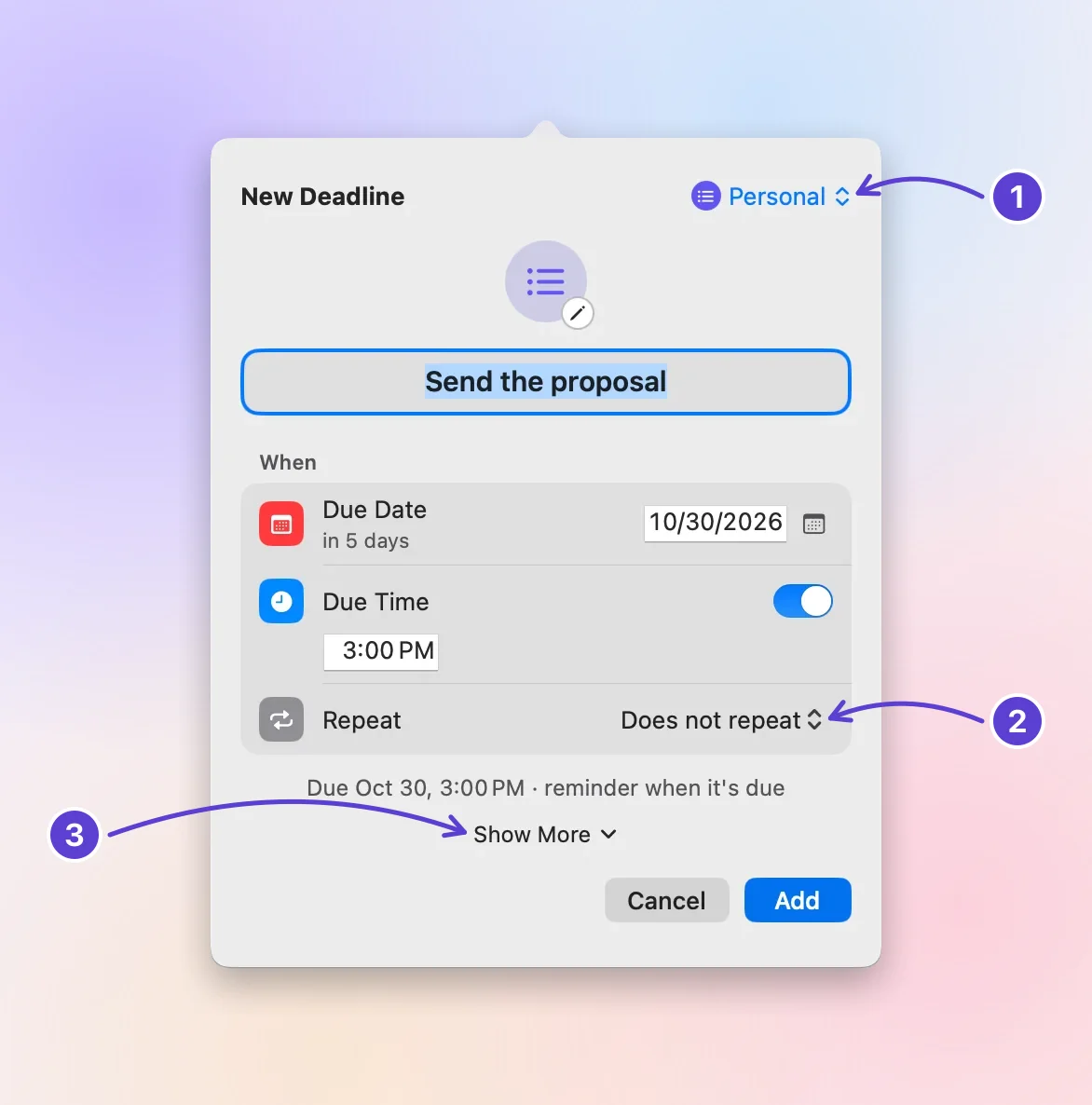
- Its group
- Repeat
- Show More: Priority, Notes, Link
For a deadline you already have, right-click its row in the panel and choose Edit…. The form is Quick Add’s, with everything under Show More already open.
A new deadline starts with the Default early reminder from Settings → Notifications: 5 minutes before unless you change it, or 9:00 AM on the day for an all-day deadline. The built-in groups set their own: 3 days before for Subscriptions, 2 days before for Bills, and 1 day before for Study.
A repeat that shows later
A yearly renewal doesn’t need to sit in your list all year. Under Show More, set Shows to how long before each due date the round appears: 1 day, 3 days, 1 week, 2 weeks, or 1 month before, or, for a deadline with a time, 2 hours before. Until then, it waits under Scheduled, on the Scheduled & History tab, and its reminder becomes When it shows. An early reminder can’t ring before the round shows.
A daily routine
Some tasks come back every working day at the same hour, such as “Plan the day,” due at 9:00 AM. Set Repeat to Every weekday, give it a time of 9:00 AM, and under Show More, set Shows to 2 hours before. Each round waits in Scheduled until 7:00 that morning (“Shows today at 7:00 AM”), then joins your list and counts down to 9:00. Like every repeat, a round you don’t finish stays overdue until you mark it done.
Check the next date and what Done does
Open the deadline’s form (Edit…). The line under the When rows says when the next one will be, such as “Every month · next round Nov 30.”
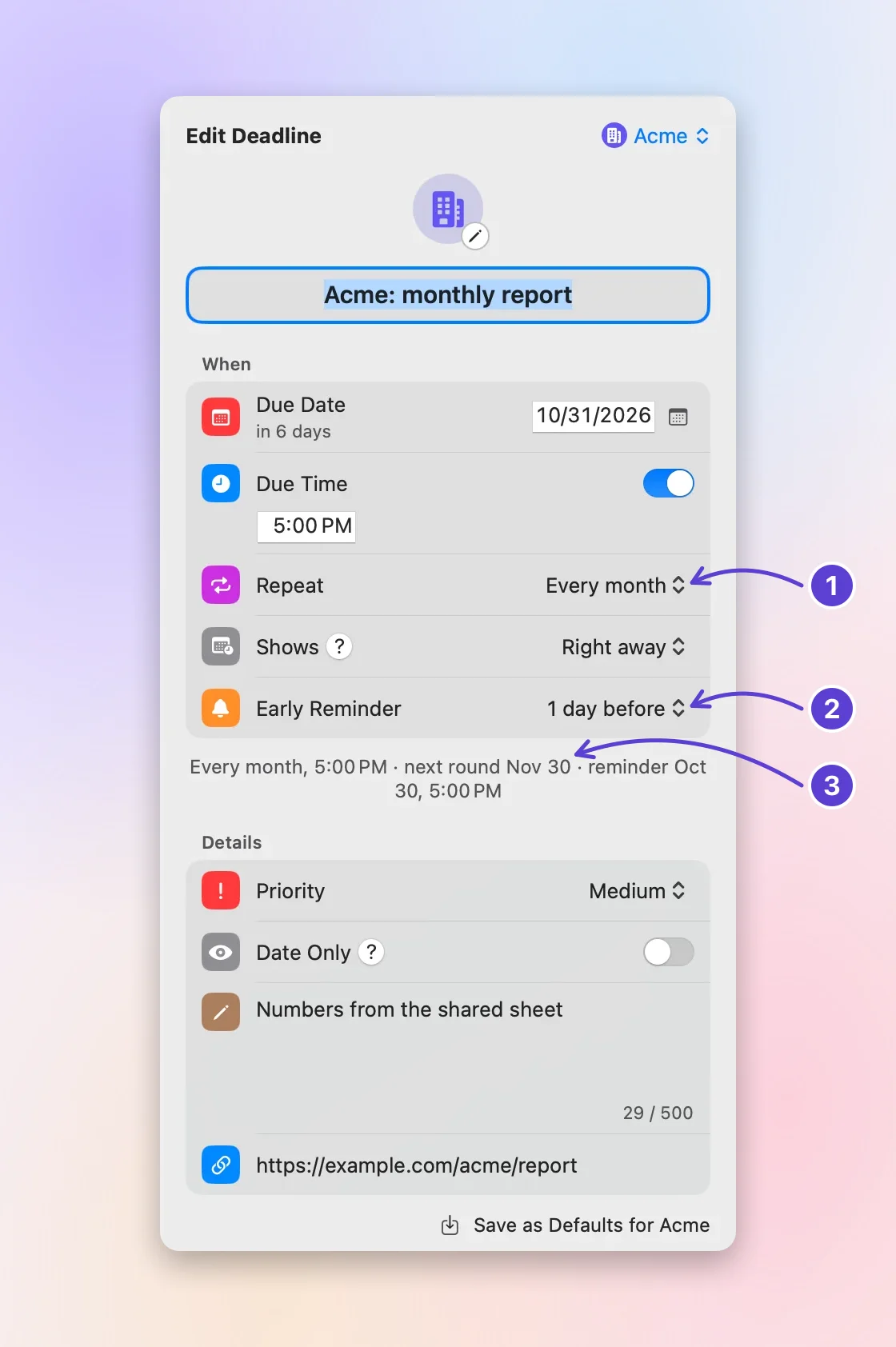
- Repeat: every month
- Early Reminder, 1 day before
- The next round, named
When you mark a repeating deadline done, from the ✓ on its row, from Done, Next Round in its menu, or from the button on its reminder:
- This round goes to Completed, the list of finished deadlines in the panel, as a deadline of its own.
- The same deadline moves to its next date, with the same reminder and repeat. Its countdown starts again, counted from the due date just before the new one.
- If you’re late, it skips to the first date still ahead. Rent due Jul 28 that you mark done on Oct 2 comes back on Oct 28, not three times overdue. The rounds in between aren’t listed: if you still owe them, pay them first, or add each as a deadline of its own.
Undo brings the round back as it was. The free version holds five unfinished deadlines, and a repeating deadline counts as one, however many times it comes back.
Month-end dates
A monthly repeat keeps its day. For example, rent due Jan 31 comes back Feb 28 (Feb 29 in a leap year), then Mar 31. It doesn’t stay on the 28th after February. So for a deadline on the last day of every month, start it on a 31st, such as Oct 31, and choose Every month: it lands on Nov 30, then Dec 31. A deadline set on the 30th stays on the 30th, except in February.
A round you postponed
Postpone 1 Week, in a row’s menu or on a reminder, moves only this round. For example, a card bill due Jan 28 that you postpone to Feb 4 still comes back on Feb 28 once you mark it done. Move to Tomorrow on a reminder works the same way.
Changing the due day itself, in the form’s Due Date (or with a quick choice from Due Date in the row’s menu), moves the whole repeat: a monthly bill you move to the 5th comes back on the 5th from then on.
If something’s off
- A reminder rings only if its time is still ahead. “1 day before” on a deadline due in three hours never rings.
- A reminder didn’t arrive at all: the notification troubleshooting guide checks permission, macOS Focus, sleep, and the rest, in order.
- To stop a repeat, open the form and choose Does not repeat under Repeat.
- With Pro, Deadline Bar can also list items from Apple’s Reminders app (see Reminders and Calendar in Deadline Bar). Those repeat as Reminders sets them, and their notifications have no Move to Tomorrow or Postpone 1 Week, since their dates belong to Reminders.
- If a reminder comes at a bad moment, click Remind Me in 10 Minutes on it.
Free or Pro
Reminders, repeats, the morning summary, and the nudge are all part of the free version, which keeps up to five unfinished deadlines and includes the four built-in groups (Subscriptions, Bills, Work, and Study). Deadline Bar Pro, the paid upgrade, removes the limit and adds groups of your own, each with saved defaults such as its own reminder and repeat. The App Store shows Pro’s price in your currency before you pay; the yearly plan starts with a 14-day free trial.
What to do next
Add the bill or renewal that comes back most often, with a repeat and a reminder a few days before. Then read the bills and renewals guide to set up the rest.
Questions
Can a deadline repeat every two weeks, or on a custom schedule?
Every two weeks, yes: choose Every 2 weeks under Repeat, and each round lands on the same weekday as the first. Custom schedules, such as every 10 days or the first Monday of each month, aren’t offered. For one of those, add each date as its own deadline.
Can I skip one round without marking it done?
There’s no Skip button. Open the deadline’s form (Edit…) and set Due Date to the next round’s date instead: the repeat continues from there, and nothing is added to Completed. Marking a round done also moves it on, but records it as finished.
Trademarks belong to their owners; Deadline Bar isn’t affiliated with them.
Set a reminder you can rely on
See your deadlines in your Mac’s menu bar, colored green to red as time runs out, and choose what to do next.

Read next
Bill reminders on Mac: track due dates and yearly renewals
Track every bill and yearly renewal on your Mac: the next due date, the last day to act, and a reminder in time. You enter each one; nothing reads your bank.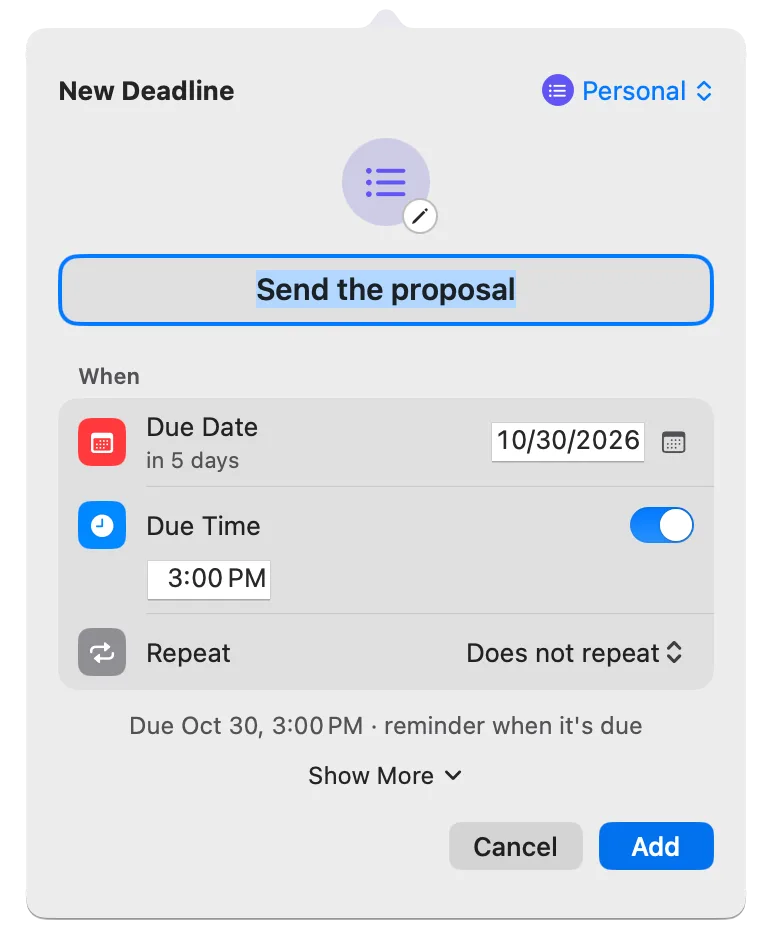
Deadline Bar reminders not showing up? Six checks
A Deadline Bar reminder didn’t appear? Check the deadline’s own reminder and macOS notification settings first, then the alert style, Focus, and sleep.