Bill reminders on Mac: track due dates and yearly renewals
Track every bill and yearly renewal on your Mac: the next due date, the last day to act, and a reminder in time. You enter each one; nothing reads your bank.
Bills and renewals slip by because nothing happens until the money moves. The fix is a short list you can see: each bill or subscription with its next charge date, the last day you can still cancel it, and a reminder early enough to act. When a charge goes through, the entry moves on to its next date.
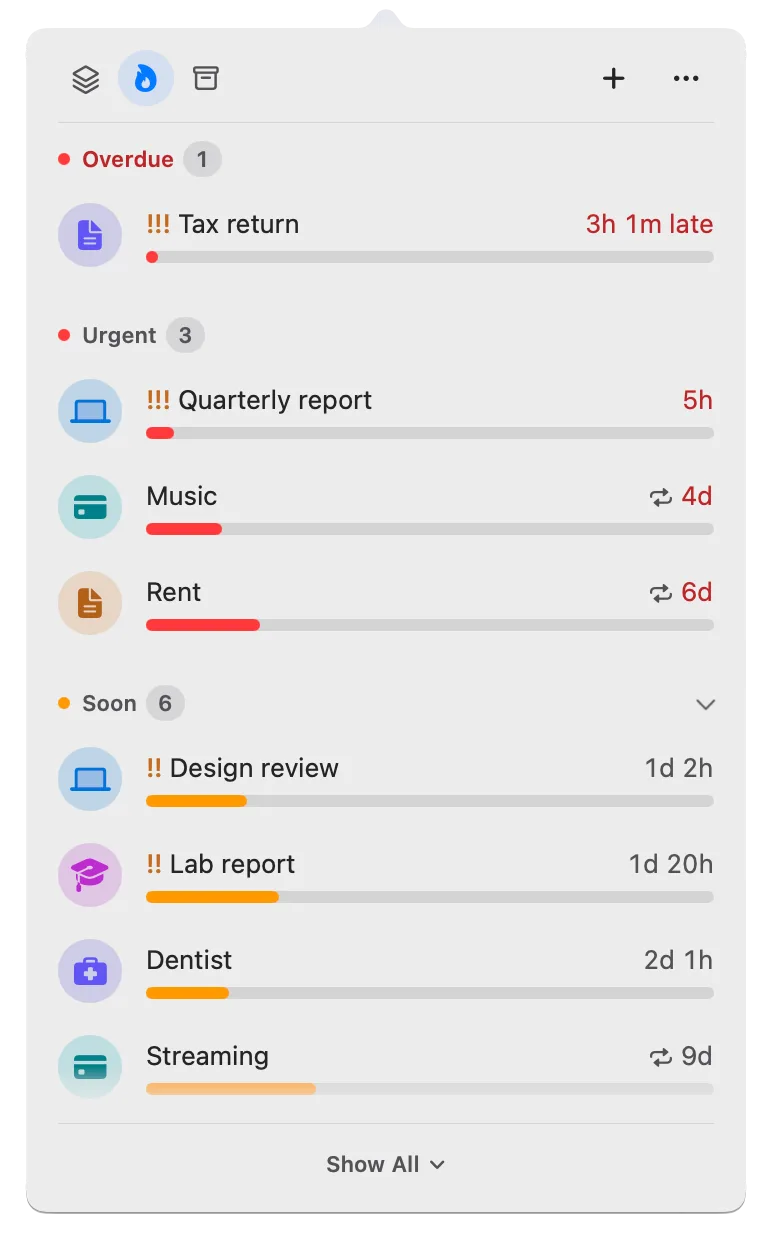
Deadline Bar is a Mac app that keeps your deadlines in the menu bar at the top of your screen: the most urgent one counts down there, and a click shows the rest, each colored green, yellow, or red by how close it is. This guide is for anyone who pays rent, bills, and subscriptions and wants to see them coming on a Mac. Everything here works on the free version, which holds up to five unfinished deadlines at a time (a repeating bill counts as one); Deadline Bar Pro removes that limit.
What a missed renewal looks like
Picture an ordinary month. Rent is due on the 1st. A streaming service charges on the 14th. A cloud storage plan you bought a year ago renews in March, for a year’s price at once. You know all three exist. What you don’t see is when each one needs you.
So the streaming plan you meant to drop renews for another month. The yearly storage plan takes a full year’s payment the week your card is near its limit. You could have stopped both. The dates were somewhere you weren’t looking.
Why bills and renewals slip
Three things work against you.
- There’s nothing to do until the day. A report reminds you of itself because you work on it every day. A renewal gives no sign until the charge appears.
- The dates live in many places. One is in an email from last spring, another on a provider’s billing page, another only on your bank statement.
- The day you must act often comes before the charge. Many providers ask you to cancel before the renewal date, so a reminder on the charge date can be too late to change anything.
Yearly plans make all three worse. You see them once a year, they cost the most, and by the time you remember them, their cancellation window may have closed.
List every payment with two dates
The method needs no particular app; a notebook would do. What matters is the order.
- List every recurring payment. Look at your bank and card statements, your app store’s subscriptions page, and your email for “receipt” or “renews.” Write down what you find.
- Record two dates for each. The charge date (when the money goes) and the cancellation cutoff (the last moment you can stop it). The provider’s terms decide the cutoff. If you can’t find one, treat the charge date as the cutoff.
- Set a reminder before the earlier of the two. Give yourself time to decide and to act: a few days for most subscriptions, a week or more for anything yearly or expensive.
- When a charge goes through, check it and move to the next round. Confirm the amount, then note the next date.
- Review the whole list once a month. Ask of each one: keep, change, or cancel?
A worked example: one monthly bill, one yearly plan
This example uses made-up names and amounts.
Sam pays $1,450 rent on the 1st of every month, a streaming service at €12.99 a month (billed in euros), and a cloud storage plan at $119.88 a year that renews on Mar 3. The storage provider’s terms say a plan must be canceled at least 24 hours before it renews, so the cutoff is Mar 2.
Sam’s list looks like this:
| Payment | Charges | Cutoff | Reminder |
|---|---|---|---|
| Rent | 1st of each month | none | 2 days before |
| Streaming | 14th of each month | before the 14th | 3 days before |
| Cloud storage | Mar 3, yearly | Mar 2 | 1 week before the renewal |
The monthly cost of the storage plan is $9.99 ($119.88 divided by 12). That’s useful for comparing it with the others, but it isn’t what leaves Sam’s account each month: in March, the whole $119.88 goes at once. A good list keeps the two apart: what each payment costs a month on average, and which payments land this month.
Doing it with Deadline Bar
In Deadline Bar, a bill or a renewal is a Date: the app’s kind of deadline for a day you watch, as opposed to a Task, which is work you spend time on. A Date turns yellow when it’s 30 days away or less, and red at 7 days or less. (A Task is colored by the share of its time left instead, counted from the day you add it: by default, yellow at 30% or less, red at 10% or less.) Four groups come built in, in the free version and Pro alike; two of them, Subscriptions and Bills, are on from the start and have a form made for payments.
A monthly bill is never much more than 30 days away, so it’s yellow almost all the time and red in its last week. For bills, the color tells you little; the reminder is the signal to act.
Add a bill or a subscription
- Click the Deadline Bar item in the menu bar. The panel opens: the list of your deadlines.
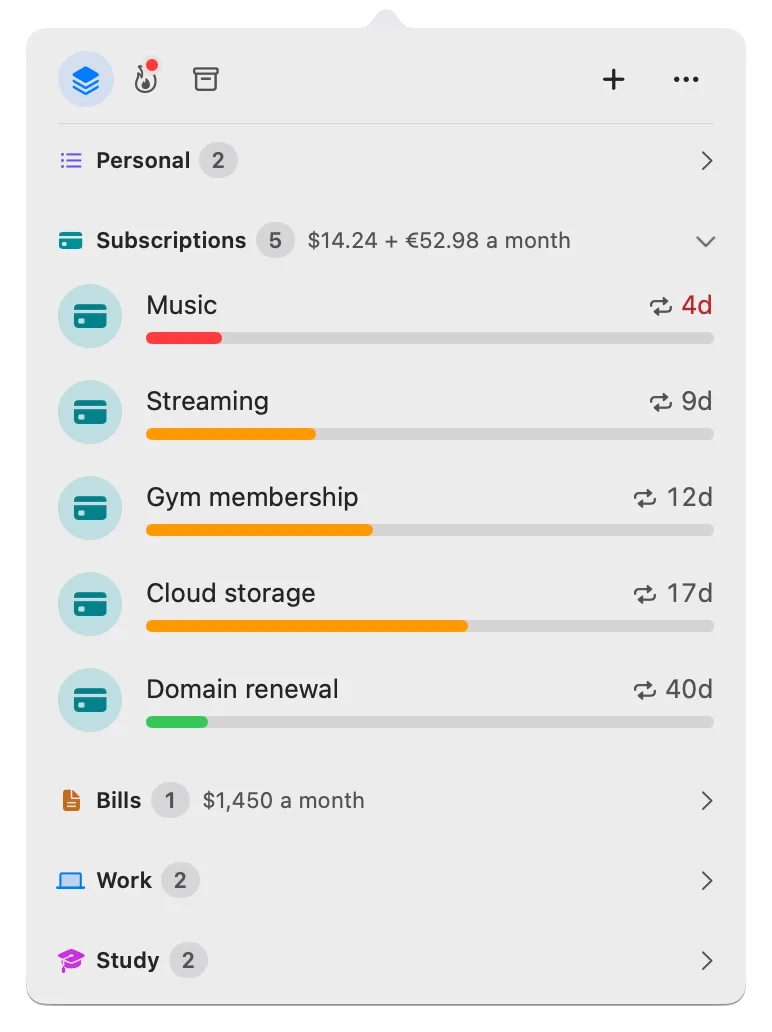
- Click the Groups tab (the stack icon) at the top of the panel. You’ll see your groups, Subscriptions and Bills among them. If one is missing, turn it on in Settings → Groups.
- Hold the pointer over the Subscriptions or Bills line and click the + that appears at its right. A form opens, titled New Subscription or New Bill.
- Type a name, such as “Cloud storage.”
- Type the next charge date, or the cutoff, as explained below, in Due Date. Choose how often it’s billed from the Repeat pop-up, such as Every month or Every year.
- Under Details, enter the Price and pick its currency in the menu beside it.
- Optional: click Show More and paste the provider’s billing page into Link, so the cancel button is one click away when you need it.
- Click Add.
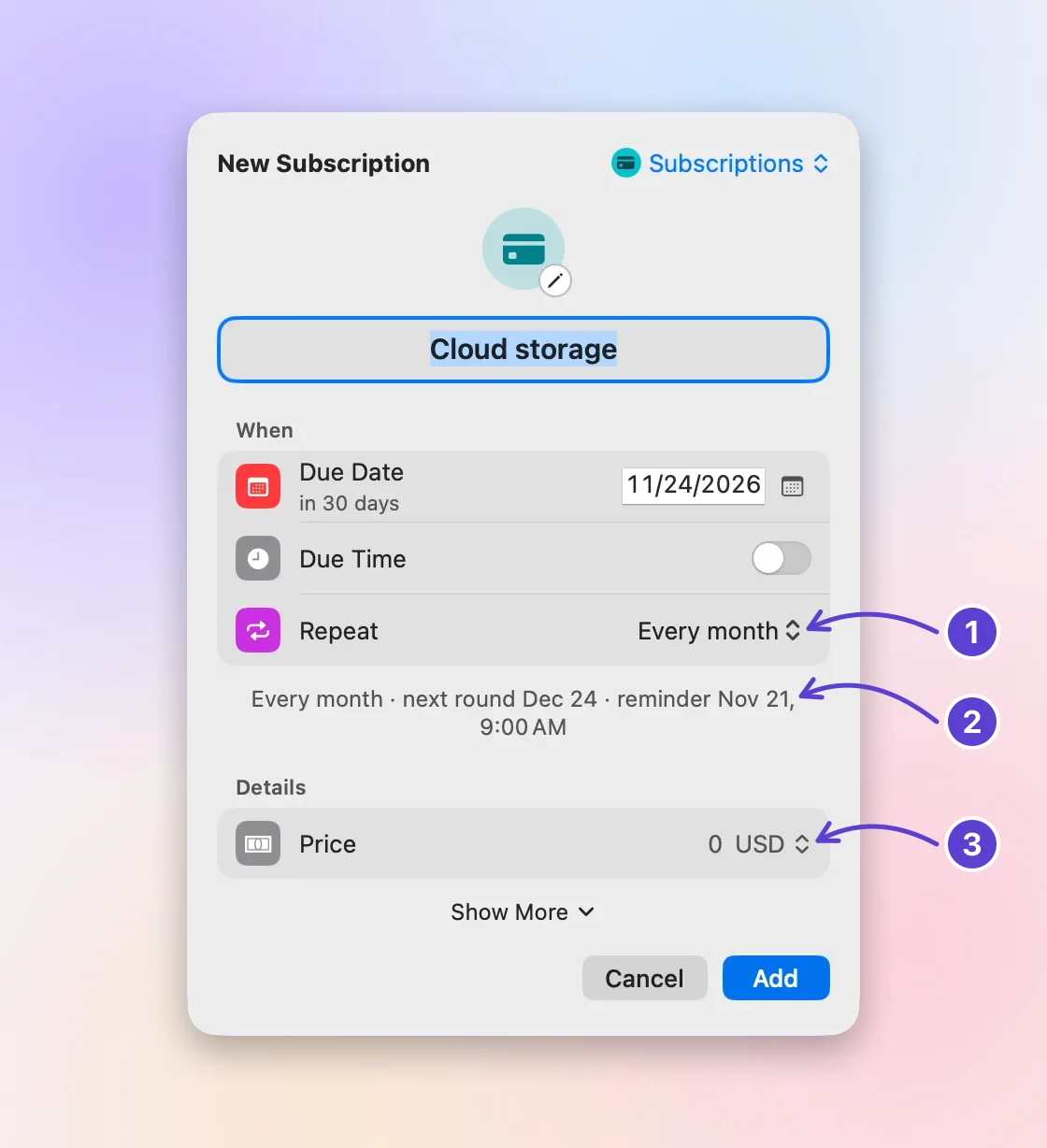
- Repeat: every month or year
- Reminder 3 days before
- The price
The new deadline appears in its group, with ↻ to show it repeats. A new subscription starts with a reminder 3 days before; a new bill, 2 days before. To change it, click Show More in the form, then the Early Reminder pop-up (it reads “3 days before, 9:00 AM”), and choose another time. Unless you give the deadline a time with Due Time, its reminder rings at 9:00 AM on the day you chose.
You can also press Control-Option-D (Control-Option-D⌃⌥D) in any app to open Quick Add, the same form without leaving what you’re doing, and choose a group from the menu at its top right. New to the app? The getting started guide walks through a first deadline from adding it to marking it done.
Put the date where the decision is
Each deadline has one due date and one early reminder, so choose the date that matters most.
- If the cutoff is a day or two before the charge, keep the charge date and pick a reminder that rings before the cutoff. For Sam’s cloud storage (cutoff Mar 2, charge Mar 3), keep Mar 3 and choose 1 week before: it rings at 9:00 AM a week before the charge, well ahead of the cutoff.
- If the cutoff is more than a couple of days before the charge, make the cutoff the due date and say so in the name. A gym that needs 30 days’ notice before a Jun 1 renewal becomes “Gym: last day to cancel (renews Jun 1),” due May 2. Then the color, the countdown, and the reminder all point to the day you must act.
The longest early reminder is 1 month before. For a yearly plan with a long notice period, set the due date on the cutoff rather than relying on the reminder alone.
A yearly renewal doesn’t need to sit in your list all year. In its form, set Shows (the row under Repeat) to how long before the due date you want to see it, up to 1 month before. Until then, each round waits under Scheduled, on the Scheduled & History tab (the archive box icon at the top of the panel). Choosing Shows also sets Early Reminder to When it shows, so you hear about the round the day it appears.
Done moves it to the next round
When a charge has gone through and the amount looks right, mark the deadline done: hover over its row and click ✓, or right-click it and choose Done, Next Round. Three things happen:
- This round moves to Completed, on the Scheduled & History tab, as a record that it was paid.
- The same deadline moves to its next date, with the same price, reminder, and repeat.
- If you mark it done late, it skips to the first date still ahead, so a monthly bill marked done three months late comes back once, not three times overdue. The months in between aren’t listed: if they’re unpaid too, pay them first, or add each as a deadline of its own.
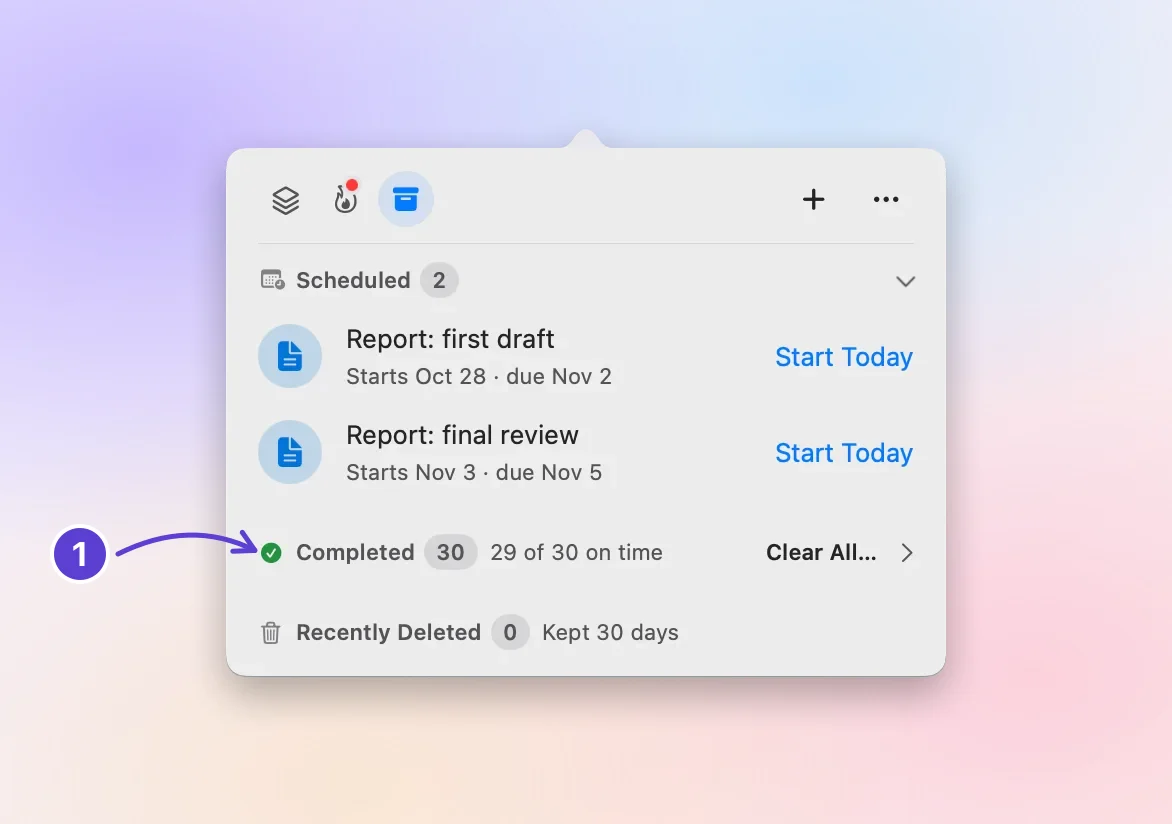
- Completed, and how many on time
The next date counts from the due date, not from the day you click, and a monthly repeat keeps its day: a bill due on the 31st comes back on the 31st, or on a shorter month’s last day. If a provider moves your billing date, open the deadline’s form (right-click, Edit…) and change Due Date. The repeats guide covers every repeat and what Postpone 1 Week does to a round.
When you cancel a subscription for good, open its form, set Repeat to Does not repeat, save, and mark it done. It moves to Completed and stops coming back.
See what it adds up to
In the Groups tab, a group whose deadlines have prices shows its monthly total on its line, such as “$9.99 + €12.99 a month.”
- A yearly price counts as a twelfth, and a weekly price is multiplied by 52 and divided by 12, so the total is a monthly average, not this month’s cash.
- Currencies stay separate, and nothing is converted. Your Mac’s currency comes first, then the others in alphabetical order of their codes (EUR before GBP). The currency menu keeps your last choice for the next price.
Sam’s groups would read “$1,450 a month” for Bills and “$9.99 + €12.99 a month” for Subscriptions.
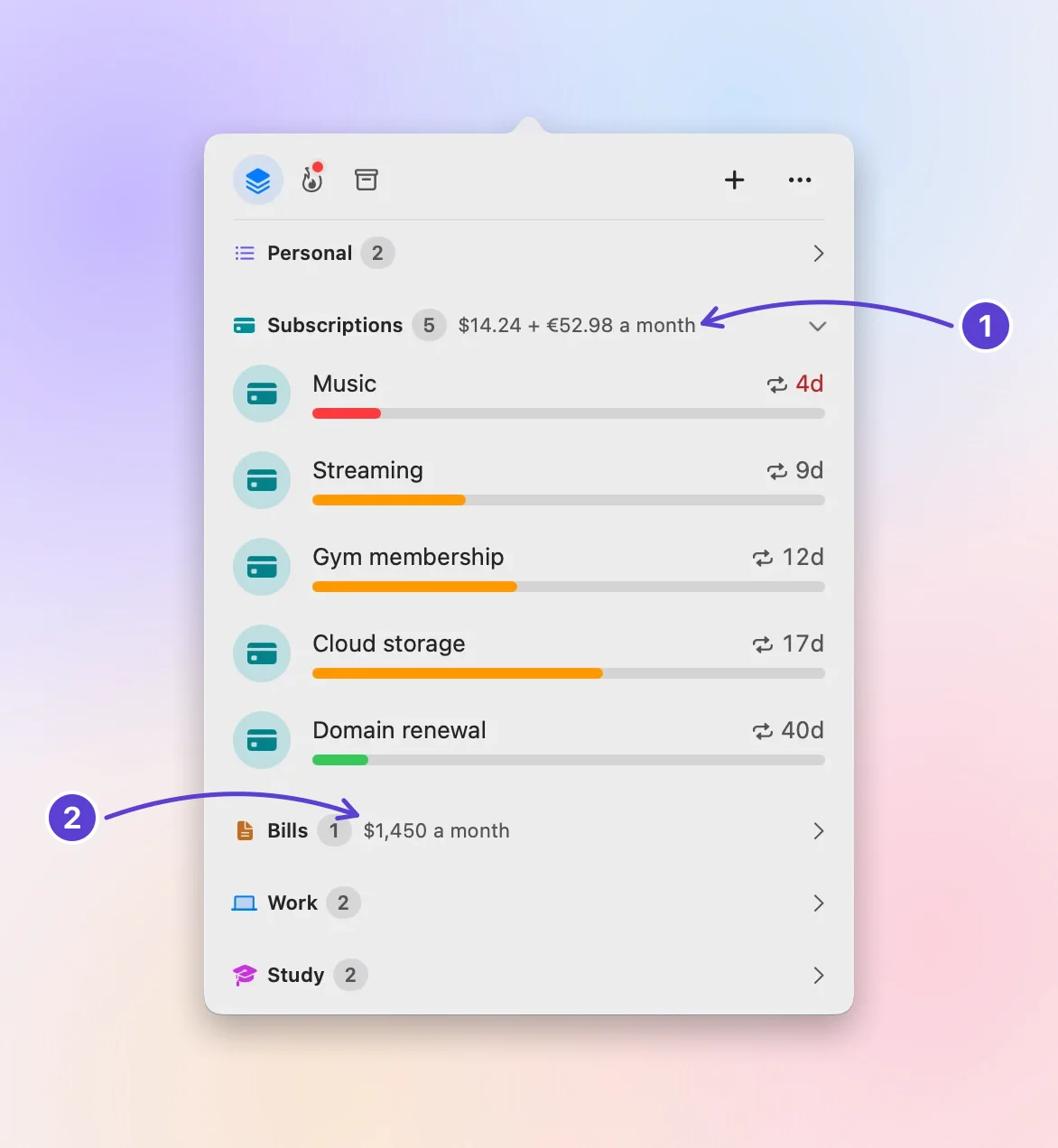
- What they cost a month
- Bills, added up the same way
Check that it worked
Your next bill or renewal shows in its group with its days left and ↻. By default each row shows the time left; to see “Renews Mar 3” instead, choose Due date in Settings → Appearance → Number on each row. The reminder arrives at 9:00 AM on the day you chose; if it doesn’t, the notifications guide goes through the checks in order.
Free or Pro
The free version keeps up to five unfinished deadlines, with repeats, reminders, Quick Add, and the built-in groups. A repeating bill takes one place for as long as it repeats; Done moves it to its next round instead of freeing the place. If your bills and renewals alone are more than five, Pro removes the limit and adds groups of your own. Pro comes as a yearly plan, which starts with a 14-day free trial (eligibility and terms on Apple’s purchase sheet), or as Buy Once, the same Pro paid for once. The App Store shows Pro’s price in your currency before you pay.
What it won’t do, and when another tool fits better
Deadline Bar works only from what you type, kept in a file on your Mac. It connects to no bank, card, or provider, and that sets clear limits.
- It doesn’t find your subscriptions. It reads nothing from your bank, cards, or email. You build the list.
- It doesn’t cancel or pay anything. It reminds you; you act on the provider’s site.
- It doesn’t notice a price change. When a provider raises a price, edit it in the deadline’s form.
- Some prices stay out of the total. Only deadlines that repeat every week, month, or year count toward a group’s monthly total. One that repeats every 2 weeks, every 3 or 6 months, or not at all keeps its price in its details but isn’t counted.
- It’s on this Mac only. There’s no iPhone app and no sync between Macs.
If you want subscriptions found for you, spending tracked across accounts, or reminders on your phone, a budgeting app or a dedicated subscription tracker fits better. Deadline Bar fits when you’d rather type a few dates yourself and see them beside the rest of your deadlines on your Mac.
Next step
Open your email or your app store’s subscriptions page, find the next renewal you’re unsure about, and add it to Subscriptions with a reminder before its cutoff. If it’s a free trial, read free trial reminders next.
Questions
What about a bill whose amount changes every month?
Leave Price empty, or enter a typical amount and correct it when the bill arrives. A deadline without a price still repeats and reminds you; it stays out of the group’s total.
Why doesn’t the row show the price?
The row keeps to the days left and the color, so the panel stays readable. Click the row to open its details, where the price is listed with how often it’s billed; the group’s line shows the monthly total.
Is the free version enough for my bills?
It depends on the count. Rent, a phone bill, and three subscriptions fill all five places, with none left for other deadlines. If that’s tight, track only the payments you might change or cancel, such as yearly plans and trials, and let the rest charge as usual.
What’s the best way to keep track of bills?
The one you’ll keep using. A spreadsheet or a notebook is free and flexible, but it reminds you of nothing. Alerts from your bank or card are automatic, but they cover only that bank’s accounts, and many arrive after the money has moved. A reminder app sits between the two: you type each bill once, and it tells you before the due date.
Trademarks belong to their owners; Deadline Bar isn’t affiliated with them.
Add the next bill you need to pay
See your deadlines in your Mac’s menu bar, colored green to red as time runs out, and choose what to do next.

Open in Deadline Bar
Review the 4 deadlines from this guide before they’re added; on Free, add as many as you have room for. No Deadline Bar yet? Download it above, then come back here.
Read next
Free trial reminders: remember to cancel before you’re charged
Write down when a free trial charges and the last moment to cancel, set a reminder before it, and decide in time. Canceling itself happens with the provider.
Repeating deadlines on Mac, and when reminders ring
Set an early reminder and a repeat, and the next round appears when you mark one done. All-day reminders, month-end dates, and late payments.