Free trial reminders: remember to cancel before you’re charged
Write down when a free trial charges and the last moment to cancel, set a reminder before it, and decide in time. Canceling itself happens with the provider.
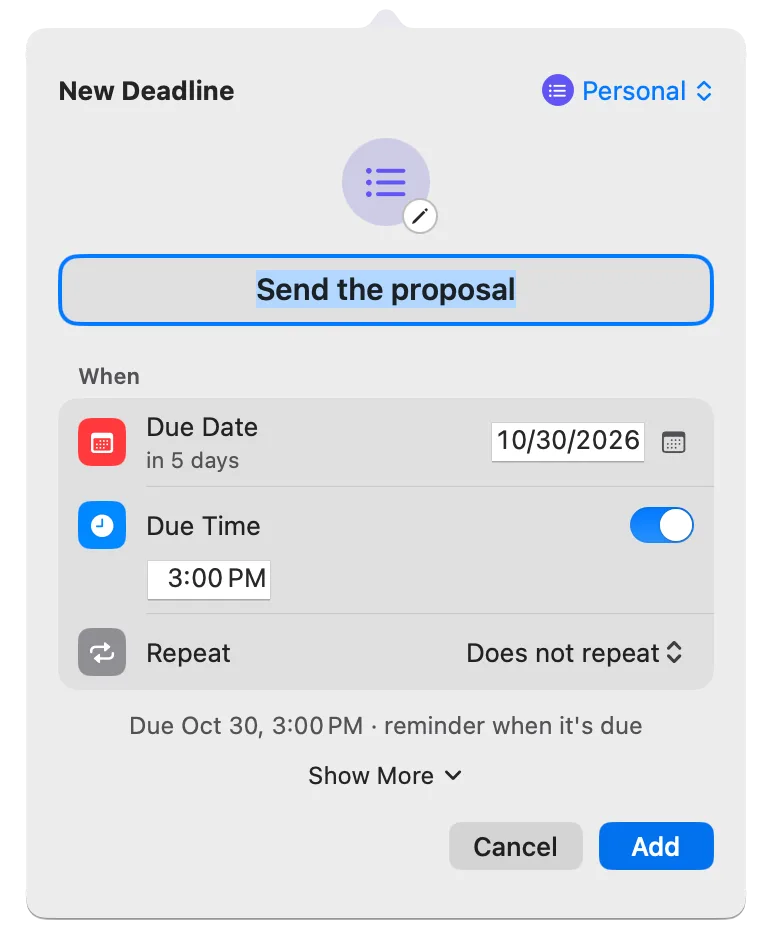
A free trial turns into a charge on a date you agreed to once and then forgot. To decide in time, write down two things: the date you’ll be charged, and the last moment you can still cancel. Then set a reminder that rings before that last moment, with enough time to try the product once more and find the cancel button.
Deadline Bar is a Mac app that keeps your deadlines in the menu bar at the top of your screen: the most urgent one counts down there, and a click shows the rest, each colored by how close it is. This guide is for anyone who starts trials on a Mac and wants to choose, not be charged by default. Everything here works on the free version, which holds up to five unfinished deadlines at a time.
How a trial ends without you
You sign up for a photo editor to fix a few pictures. You use it twice. Two weeks later a charge appears for a year you didn’t plan to buy, and the provider’s terms say you needed to cancel at least 24 hours before. The decision was yours to make; the date made it for you.
Why trials are easy to miss
Trials are easy to forget, whether or not the provider means them to be. There’s nothing to do during a trial, the confirmation email sinks under newer mail, and “14 days free” doesn’t say which day, or which hour, the charge comes.
The wording matters too. “Your trial ends on Nov 15” and “you’ll be charged on Nov 15” can mean different moments, and some providers want you to cancel a day or more before either one. A reminder on the charge date can arrive after the choice is gone.
Two dates, one reminder, one decision
- Find the charge date. Look in the confirmation email or on the account’s billing page for “you’ll be charged on” or “your trial ends on.” Note the time, if there is one: some trials end at the minute you started.
- Find the cancellation cutoff. Read the provider’s terms for how long before the charge you must cancel. If they say nothing, treat the charge date as the cutoff.
- Note where to cancel: in the app, on the website, in your app store’s subscriptions page, or by email.
- Set a review reminder before the cutoff. Give yourself time to try the product once more, then check the provider’s terms before you act: with some providers, canceling early also ends your access early.
- Decide, then confirm. After you cancel, look for a confirmation email or a canceled status on the billing page, and keep it until the charge date has passed.
A worked example: a 14-day trial with a cutoff
This example uses a made-up product and dates.
Alex starts a photo editor trial on Nov 1. The confirmation email says “Your plan starts on Nov 15, and you’ll be charged for a year.” The terms say a plan must be canceled at least 24 hours before it renews. The email gives no hour, so the real deadline could fall as early as the first minute of Nov 14.
Alex records one deadline, “Photo editor: cancel or keep (charges Nov 15),” dated Nov 13, with a reminder 2 days before. On Nov 11 at 9:00 AM (the hour a reminder rings for a day without a time) the reminder arrives. That leaves Nov 11 and 12 to try the editor again, and Nov 13 to cancel if the answer is no.
Doing it with Deadline Bar
Deadline Bar has two kinds of deadline: a Task, for work you spend time on, and a Date, for a day you only watch. A trial is a Date. A Date turns yellow when it’s 30 days away or less, and red at 7 days or less, so a 14-day trial is yellow from the start and red for its last week. (A Task is colored by the share of its own time left instead: yellow at 30%, red at 10%, by default.)
- Press Control-Option-D (Control-Option-D⌃⌥D) in any app. Quick Add opens: a small form over what you’re doing, with a name field and rows for Due Date, Due Time, and Repeat.
- Type a name that says the decision, such as “Photo editor: cancel or keep (charges Nov 15).”
- Quick Add may open in the group you used last. If the group menu at the form’s top right shows a group, choose Personal from it (the group for deadlines that belong to no other).
- Type the cutoff in Due Date. Turn on Due Time and type the hour if the provider gave one.
- Click Show More and turn on Date Only. Then click the Early Reminder pop-up and pick a lead time. For a day without a time, each choice shows the hour it will ring, such as 2 days before, 9:00 AM. Two or three days suits most trials. A trial that turns into a yearly charge deserves a week or more: a mistake costs more, and judging the product may take a few sessions.
- Optional: paste the cancellation page into Link.
- Click Add.
The trial now sits in the panel (the list that opens when you click Deadline Bar in the menu bar) with its days left. The menu bar itself shows it when it’s your most pressing deadline. If the reminder doesn’t arrive, see reminders not arriving.
You can also add a trial in the Subscriptions group, a built-in group on the free version too. Its Quick Add form has a price field. A new subscription there starts as a monthly repeat with a reminder 3 days before; for a trial, set Repeat to Does not repeat until you’ve decided.
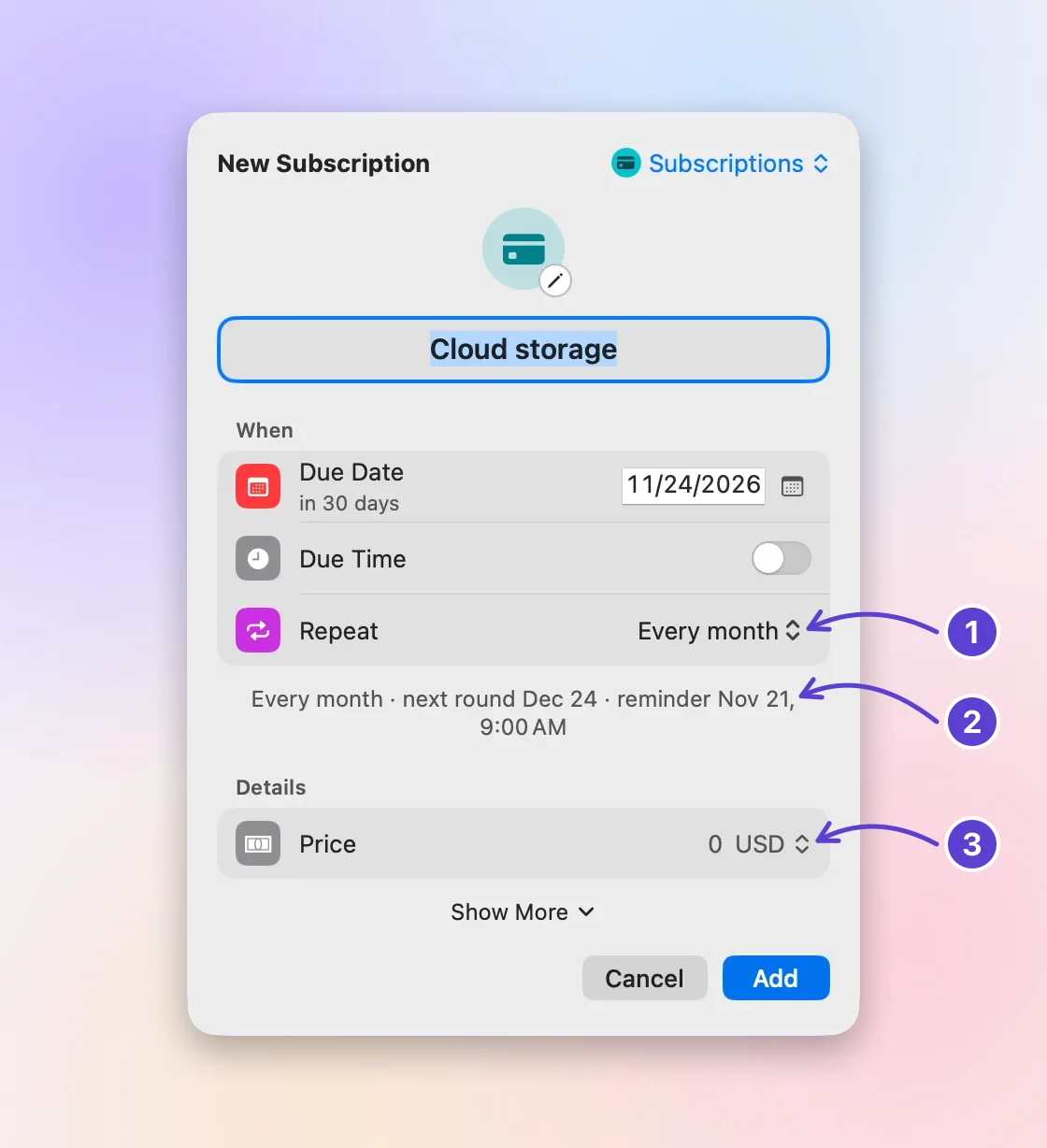
- Repeat: every month or year
- Reminder 3 days before
- The price
If you cancel
Cancel with the provider, check the confirmation, then mark the deadline done: hover over its row and click ✓. It moves to Completed on the Scheduled & History tab (the archive box icon at the top of the panel), and the menu bar moves on to your next deadline.
If you keep it
A trial you keep becomes a subscription that renews. Turn the same deadline into the renewal:
- Right-click its row and choose Edit….
- Rename it after the subscription, such as “Photo editor renews.”
- Set Due Date to the first charge date (Nov 15 in the example), and choose Repeat: Every month or Every year, as you’re billed.
- After the charge, check the provider’s billing page for the next billing date.
- Right-click its row and choose Done, Next Round, which marks this charge done and moves the deadline to the next billing date. Compare the new date with the provider’s, and change Due Date if they differ.
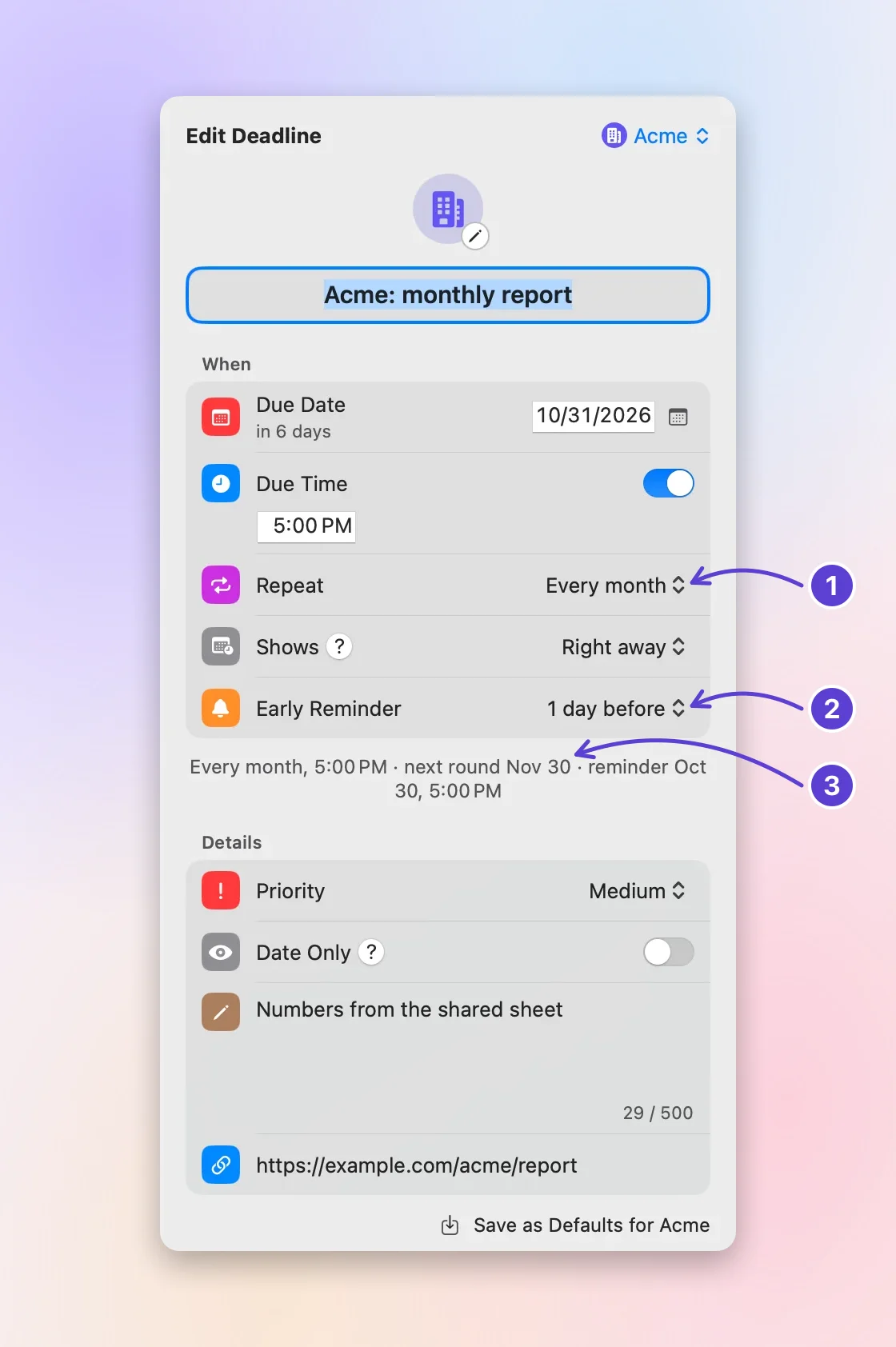
- Repeat: every month
- Early Reminder, 1 day before
- The next round, named
From then on, each Done brings the next renewal. The bills and renewals guide shows how to keep every subscription this way, with its monthly cost.
What a reminder can’t do, and what’s free
Deadline Bar only reminds you. It doesn’t connect to the provider, doesn’t read your bank, and can’t cancel anything. The deadline in your list says nothing about whether the provider received your cancellation; the confirmation email does. Keep that email until the charge date has passed, and check your statement after it.
The free version keeps up to five unfinished deadlines at once, with reminders, repeats, Quick Add, and the built-in groups: enough for a few trials beside your other deadlines. Deadline Bar Pro removes the limit and adds groups of your own. The App Store shows Pro’s price in your currency before you pay; the yearly plan starts with a 14-day free trial.
Next step
Find the trial you started most recently, look up its charge date and cutoff, and add it with a reminder before the cutoff. Then read how reminders and repeats work to choose lead times with confidence.
Questions
Should the deadline be the charge date or the cutoff?
The cutoff, when the provider has one. The color, the countdown, and the reminder then count down to the last moment you can act. Put the charge date in the name so you still see it.
What if I can’t tell when the charge happens?
Use the earlier day. If the wording leaves you unsure whether the charge comes at the start or the end of a day, set the deadline on the day before and check the provider’s terms when the reminder rings.
What if the trial is through the App Store?
Apple asks you to cancel at least 24 hours before the trial ends. On a Mac, open the App Store, click your name, choose Subscriptions, and cancel there, as Apple’s guide to canceling a subscription shows. Date the deadline the day before the trial ends.
Do I lose access if I cancel a free trial early?
It depends on the provider. Some let the trial run to its end after you cancel; others end it the moment you do. The cancel page or the terms usually say which. If they don’t, wait for your reminder and cancel then, before the cutoff, so you keep the trial as long as you can.
Trademarks belong to their owners; Deadline Bar isn’t affiliated with them.
Write down when your trial ends
See your deadlines in your Mac’s menu bar, colored green to red as time runs out, and choose what to do next.

Read next
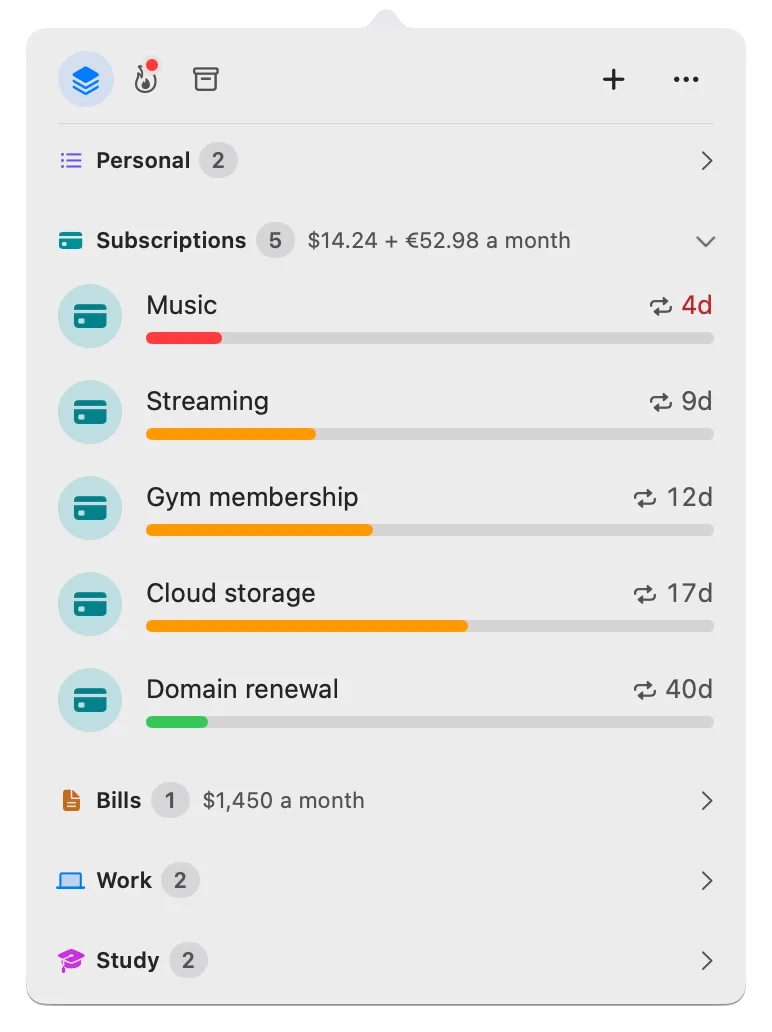
Bill reminders on Mac: track due dates and yearly renewals
Track every bill and yearly renewal on your Mac: the next due date, the last day to act, and a reminder in time. You enter each one; nothing reads your bank.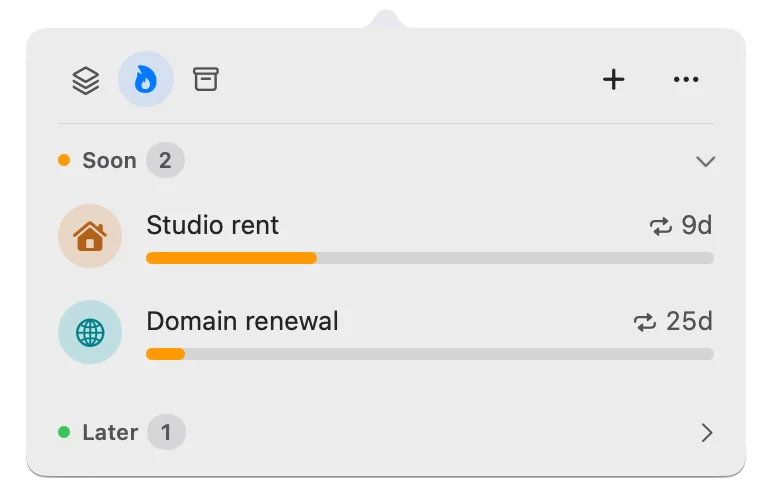
Repeating deadlines on Mac, and when reminders ring
Set an early reminder and a repeat, and the next round appears when you mark one done. All-day reminders, month-end dates, and late payments.