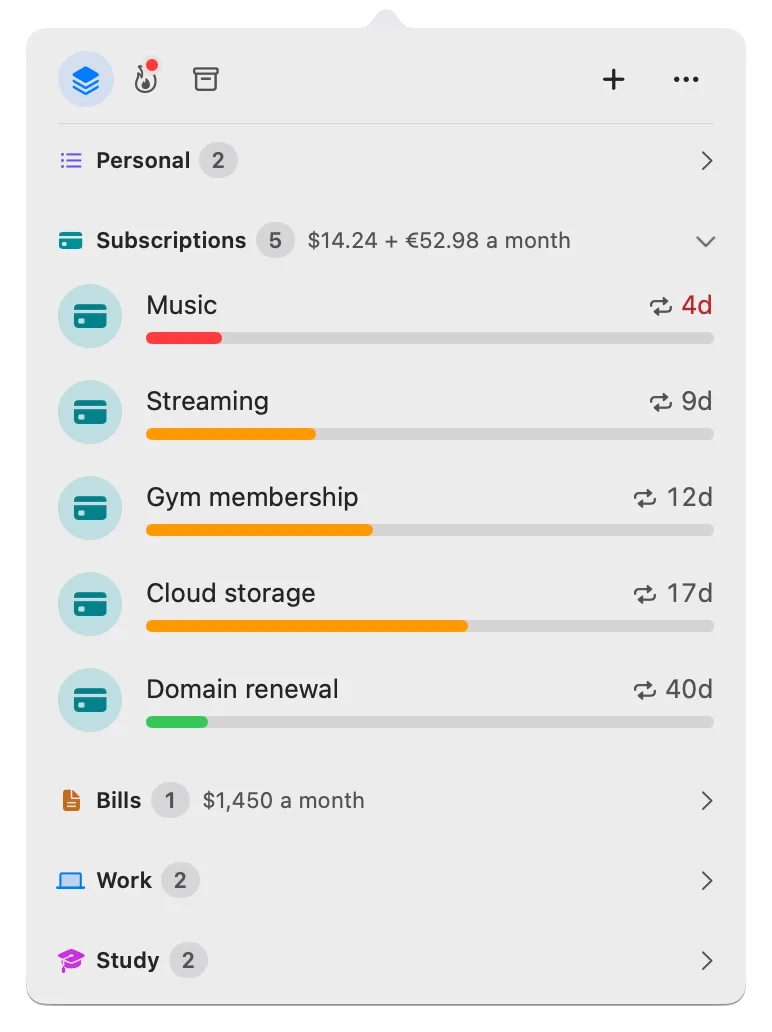
Deadline Bar reminders not showing up? Six checks
A Deadline Bar reminder didn’t appear? Check the deadline’s own reminder and macOS notification settings first, then the alert style, Focus, and sleep.
A reminder you expected from Deadline Bar didn’t appear. Most often the deadline has no reminder set, or macOS isn’t allowing Deadline Bar’s notifications, so check those two first. The other four checks below cover the alert style, a macOS Focus, a Mac that was asleep or an app that was quit, and long lists.
Deadline Bar is a Mac app that keeps your deadlines in the menu bar and sends a notification before each one is due. This guide is for anyone whose Deadline Bar reminders are missing or late, on the free version or Pro.
The six checks at a glance
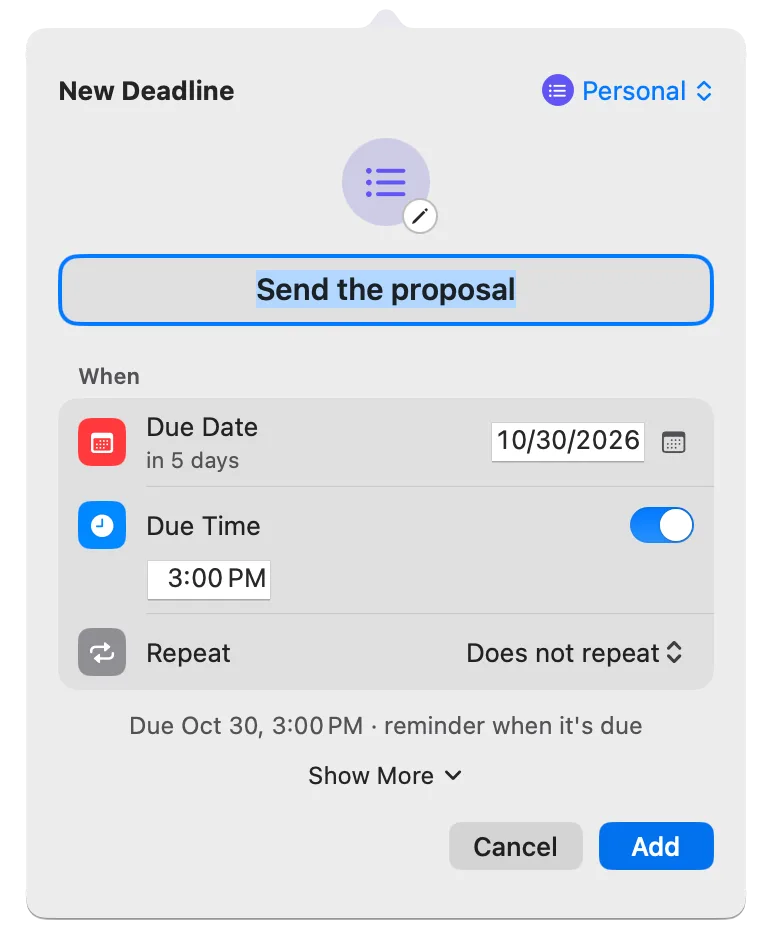
First, a two-minute test. Press Control-Option-D (Control-Option-D⌃⌥D) to open Quick Add, the small window for a new deadline. Type “Test,” set Due Date to today, turn on Due Time, type a time two or three minutes from now, and click Add. (On the free version, this needs one of your five places to be free.) With Alert when due on, as it is unless you turned it off, an alert arrives a minute before that time and again at it. If both arrive, notifications work, and the cause is most likely check 1, 4, or 5. Delete the test afterward: right-click it, choose Delete, and confirm with Delete at the foot of the panel.
Then work through the checks in order; each takes a minute.
| Likely cause | Where to check | What you’ll see if it’s the cause |
|---|---|---|
| 1. No reminder at the time you expected | The deadline’s form, Early Reminder | None, a time already past, or a deadline with no time |
| 2. Notifications not allowed | Deadline Bar’s Settings → Notifications | Allow Notifications… or Turn On in System Settings… |
| 3. Alert style set to None | System Settings → Notifications → Deadline Bar | Reminders only in Notification Center |
| 4. A macOS Focus is on | System Settings → Focus | Deadline Bar not among the allowed apps |
| 5. The Mac was asleep, or Deadline Bar was quit | When the reminder was due, and whether Deadline Bar is running | It arrives after you wake the Mac, or a repeating deadline’s next reminder never came |
| 6. Many deadlines with times (Pro) | How many deadlines you have | A far-off reminder not scheduled yet |
1. Check the deadline’s own reminder
Right-click the deadline in the panel (the list that opens from the menu bar item) and choose Edit…. Look at Early Reminder:
- None means no early reminder. You still get an alert at the deadline itself while Alert when due is on in Settings → Notifications (it’s on unless you turned it off): a deadline with a time alerts a minute before and when it’s due, and one without a time alerts at 9:00 AM on its day.
- A reminder rings only if its time is still ahead. “1 day before” on a deadline due in three hours never rings.
- A deadline without a time rings only in the morning, at 9:00 AM on the day or the days before. If you expected an evening alert, give it a time: Set a Time… at the end of its Early Reminder menu does it in one step.
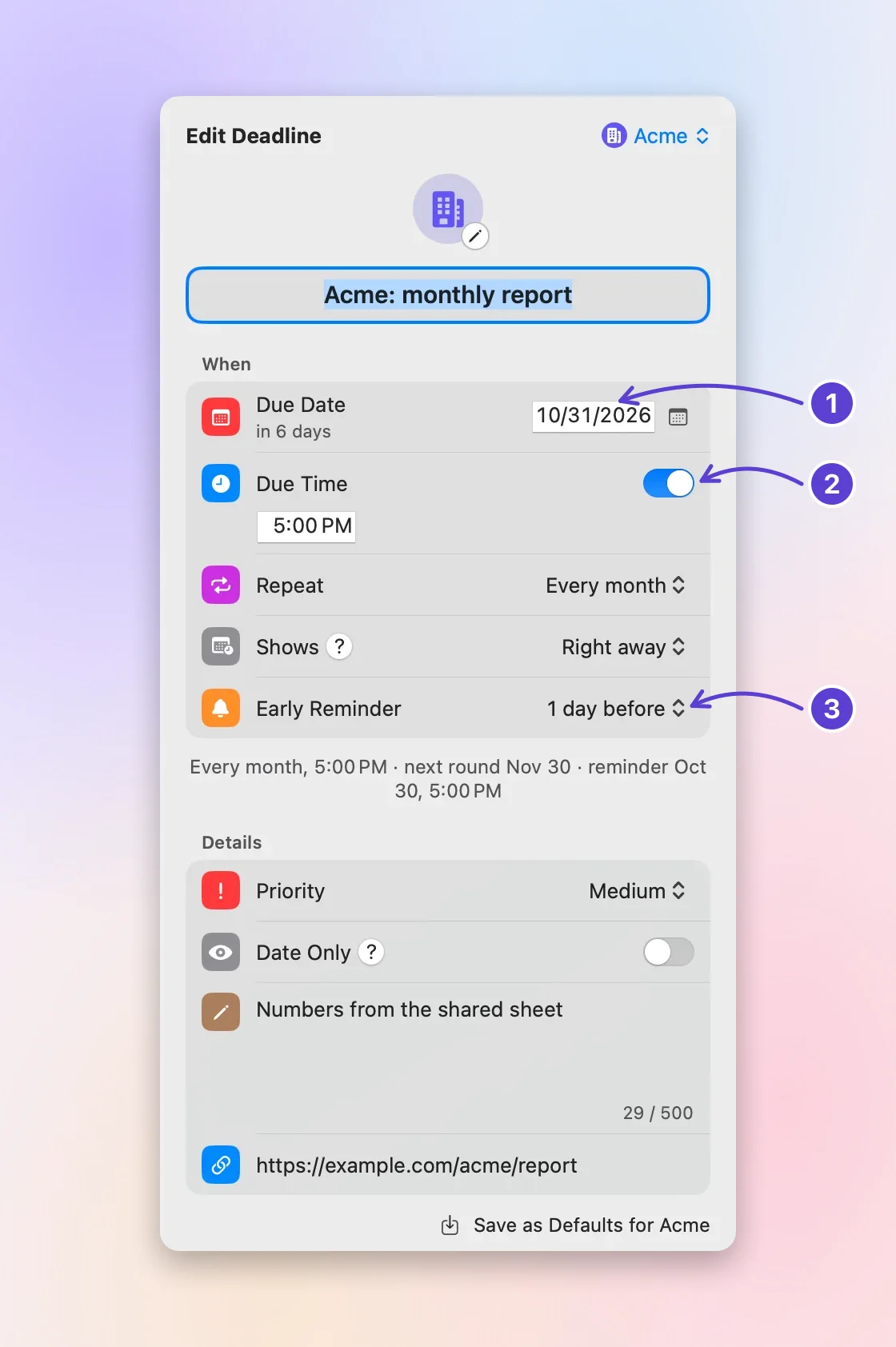
- Due Date
- Due Time
- Early Reminder, counted back
Two more cases. The sample deadlines added on first launch never ring until you edit one; then it rings like your own. And a deadline shown from Apple Reminders or Calendar (a Pro feature) keeps its alerts in that app; Deadline Bar rings for it only if you set an Early Reminder here.
2. Check that macOS allows notifications
Open Deadline Bar’s Settings → Notifications. The card at the top shows the current status:
- Allow Notifications…: Deadline Bar hasn’t asked yet. It asks the first time you add a deadline, never at launch (step 6 of getting started). Click the button and choose Allow.
- Turn On in System Settings…: notifications were turned off. Click it to open Deadline Bar’s page in System Settings, and turn on Allow notifications.
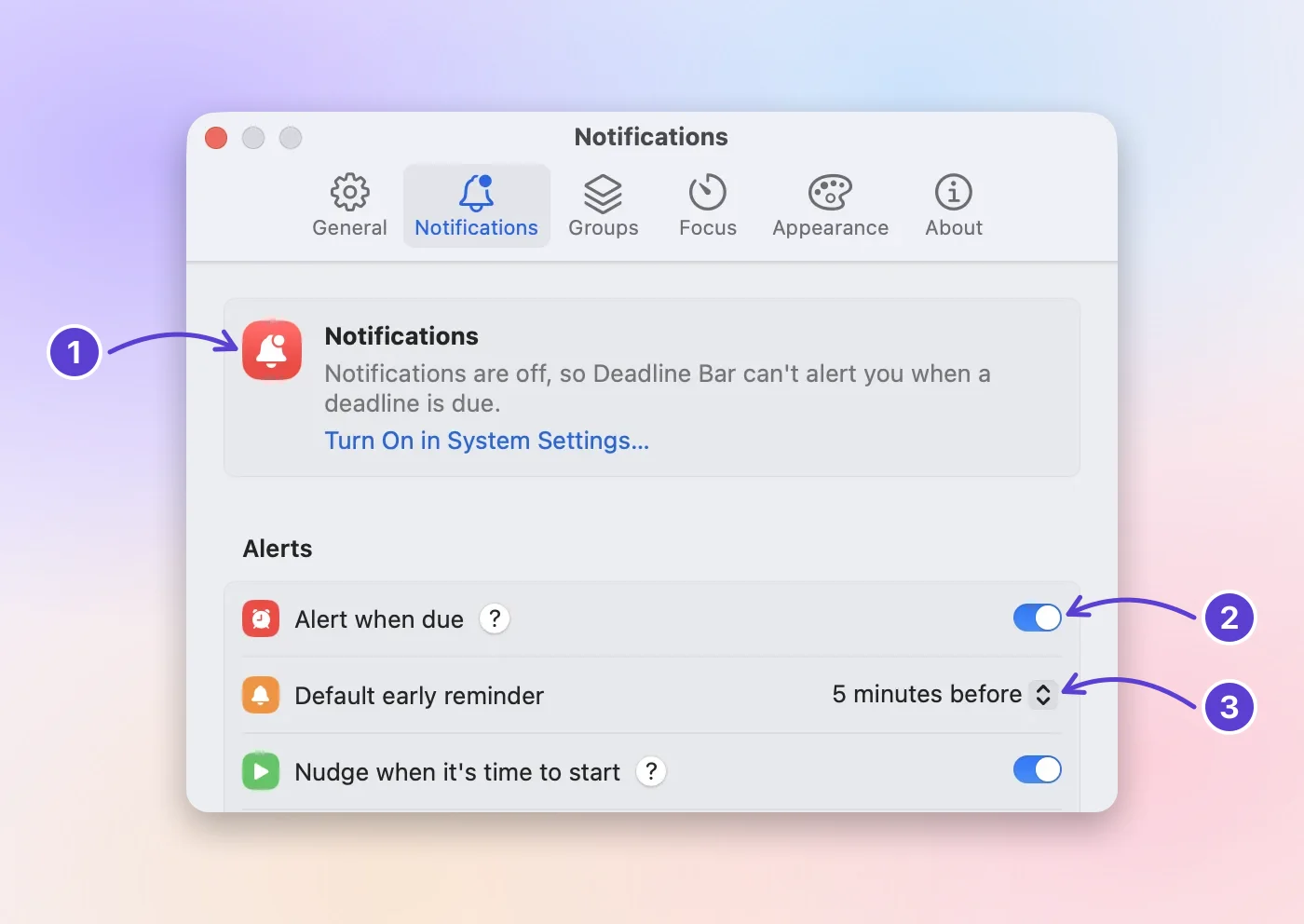
- Whether macOS allows alerts
- Alerts at the due time
- Default early reminder
While notifications are off, the panel also shows a red Notifications Are Off card above your list.
3. Check the alert style
Open System Settings → Notifications, and under Application Notifications, click Deadline Bar. Look at Deadline Bar alert style: Banners disappear after a few seconds, and Alerts stay until you click them. With None, reminders go only to Notification Center, with nothing on screen; open Notification Center to see whether they arrived there.
One notification is quiet on purpose: the Morning summary, a daily list of what’s urgent, which is on unless you turn it off in Settings → Notifications. macOS adds it to Notification Center without lighting the screen or playing a sound, so it’s easy to miss if you’re looking for a banner.
4. Check your macOS Focus
A macOS Focus, such as Do Not Disturb or Work, holds back notifications from apps it doesn’t allow. They wait silently in Notification Center.
- Open System Settings → Focus and choose the Focus you use.
- Under Allow notifications, click Allowed Apps and add Deadline Bar.
5. Check whether the Mac was asleep, or Deadline Bar was quit
Deadline Bar hands its reminders to macOS ahead of time, so they arrive while the panel is closed and even while Deadline Bar isn’t running. A sleeping Mac shows nothing, though. A reminder that comes due while the Mac sleeps stays with macOS, which shows it when you wake the Mac: late, but not lost. If you don’t see it then, look in Notification Center.
Deadline Bar plans new reminders only while it’s running: when you change a deadline, at launch, when the Mac wakes, when the clock changes, and at the start of each day. If it stays closed, nothing new is planned: morning summaries run out after a week, and on a long list (check 6) the farther reminders never get their turn. Turn on Open at login in Settings → General so it’s always running, and its menu bar countdown stays in view.
6. Check for a long list of timed deadlines (Pro)
This check matters only with many deadlines, so only on Pro. macOS keeps at most 64 waiting notifications per app, and a deadline with a time can use several: its early reminder, the start nudge (Nudge when it’s time to start), the alert a minute before, the alert when due, and a notice the day before a planned start. Morning summaries count too.
If you’d need more than 64, Deadline Bar schedules the nearest 64 first. The rest are added as earlier ones ring, and whenever Deadline Bar plans again. With the free version’s five deadlines, everything fits.
Still stuck: what to send
If none of this explains it, send a report from the app:
- Click the menu bar item, click ⋯, and choose Send Feedback… (it’s also in Settings → About).
- Choose Bug.
- Write the deadline’s due date and time, its Early Reminder, when you expected the alert, and what the card at the top of Settings → Notifications says. Mention whether a Focus was on and whether the Mac was asleep.
- Leave Include system info on. It adds the app and macOS versions, Free or Pro, your language and region, a few settings, and how many deadlines and groups you have, never their titles.
- Click Continue in Mail… and send the email from Mail.
More answers are on the Support page.
What to do next
Once reminders arrive again, set an early reminder on the deadlines that matter most, such as 1 or 2 days before a bill. The reminders and repeats guide shows exactly when each choice rings.
Trademarks belong to their owners; Deadline Bar isn’t affiliated with them.
Get your reminders back
See your deadlines in your Mac’s menu bar, colored green to red as time runs out, and choose what to do next.

Read next
Repeating deadlines on Mac, and when reminders ring
Set an early reminder and a repeat, and the next round appears when you mark one done. All-day reminders, month-end dates, and late payments.
Get started with Deadline Bar: add your first Mac deadline
Press Control-Option-D, give your first deadline a day and a time, and watch it count down in the menu bar. Then set a reminder, finish it, and see what’s free.