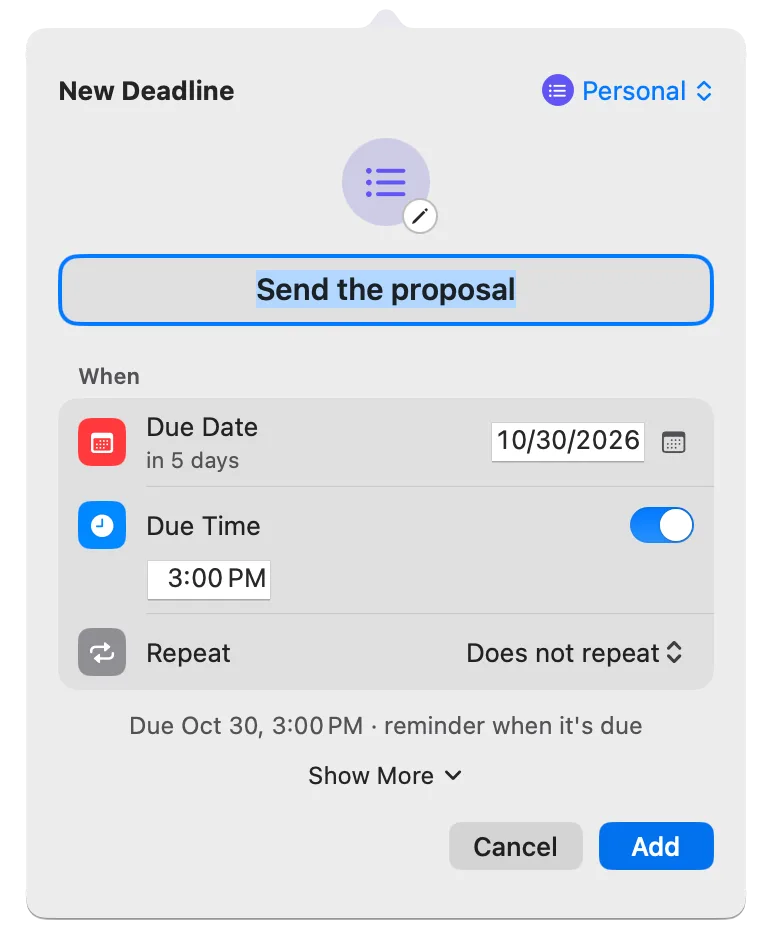
See Reminders and Calendar deadlines in one list (Pro)
Show dated Apple reminders and chosen calendar events in Deadline Bar’s list, sorted by urgency with your own deadlines. Setup, editing limits, and Done.
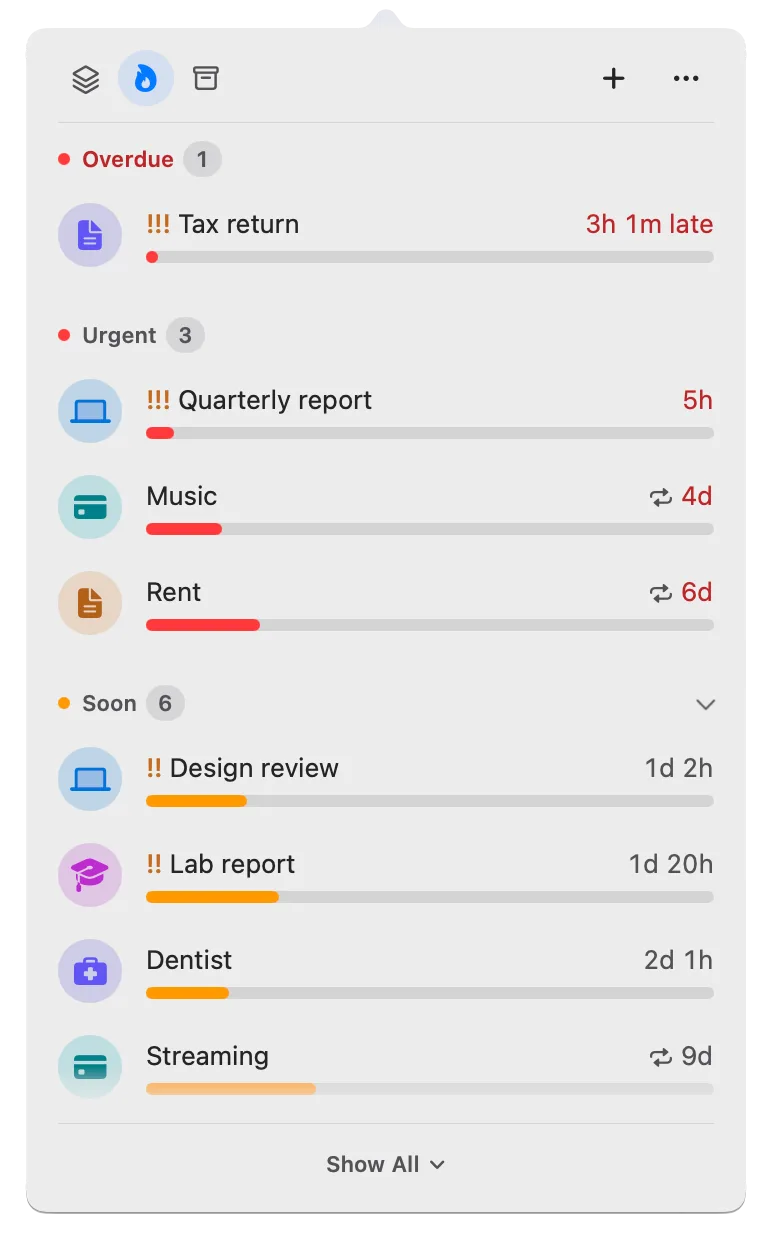
If some of your deadlines already live in Apple Reminders and Calendar, you don’t have to type them again. Deadline Bar Pro can show your reminders that have a due date, and the events of calendars you choose, in the same list as your own deadlines, sorted by urgency with everything else. Their title, date, and notes still belong to Reminders and Calendar, and Deadline Bar sends none of it anywhere.
Deadline Bar is a Mac app that keeps your deadlines in the menu bar at the top of your screen, with the time left on the most urgent one. This guide is for people who use Reminders or Calendar and want those dates in view. It’s a feature of Pro, the paid upgrade.
The job: see what’s due without copying it over
A due date entered twice drifts apart. You move the dentist in Calendar, forget the copy, and now the copy is wrong. Typing every reminder into a second app is also the kind of chore that stops after a week.
With Reminders and Calendar connected, nothing is copied by hand. The reminder “File the tax return” stays in Reminders, where your iPhone can see it, and also appears in your deadline list, between a client draft and a bill. Change its date in Reminders, and the list follows. The menu bar still counts down to one deadline, the most urgent of them all, whichever app it comes from; the rest wait in the list.
What shows up, and what stays out
Reminders: every open reminder that has a due date, from all your lists or only the lists you pick. A reminder without a date stays in Reminders only. Each one comes in as a Task, the app’s kind for work you spend time on, so you can start Focus (the app’s timed work session) on it. A Task turns yellow with 30% or less of its time left and red with 10% or less (the defaults, in Settings → General). Since Reminders has no start date, that time counts from the moment the app first brought the reminder in.
Old reminders: a reminder more than a week overdue isn’t brought in, so years of forgotten reminders don’t fill the top of your list as overdue. One that’s already in your list stays, however late, until you complete it.
Events: only from the calendars you select, and none at first, so meetings don’t flood the list. The app reads events from a week ago to a year ahead; an event more than a week past leaves the list. Each one comes in as a Date, the kind for a day you only watch, due at the event’s start time (an all-day event, at the end of its day). A Date turns yellow with 30 days or less to go, and red with 7 days or less.
In the panel (the list that opens when you click Deadline Bar in the menu bar), reminders show with a checklist icon and events with a calendar icon, mixed in with your own deadlines. The app reads Reminders and Calendar when it starts, when your Mac wakes, and whenever macOS reports a change.
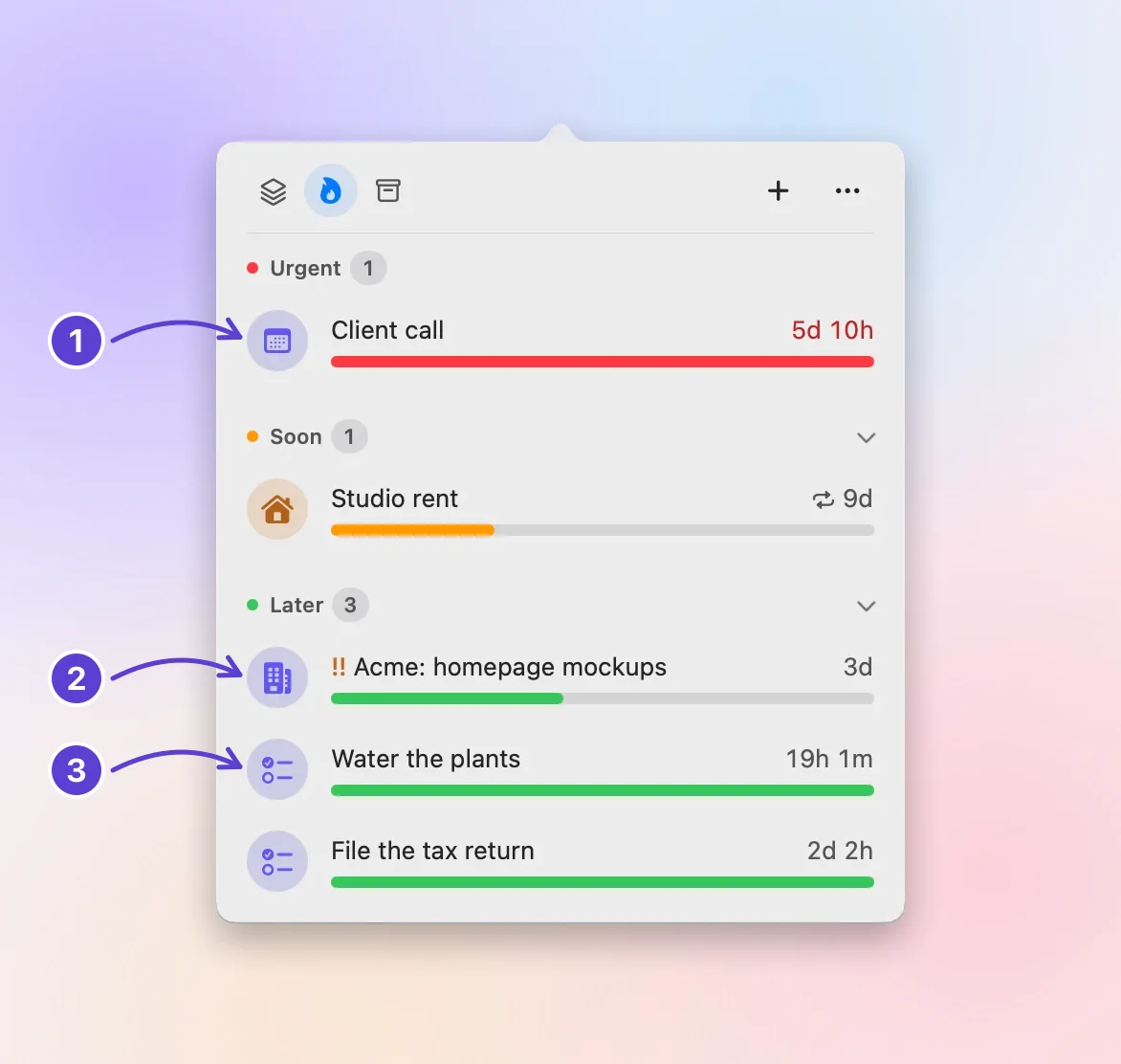
- From Calendar, as a Date
- Your own deadline
- From Reminders
Set it up
What stays on your Mac: Deadline Bar reads Reminders and Calendar on this Mac only, and only after you turn them on. What it shows is kept with your own deadlines in its data on this Mac. The app has no network code of its own, so none of it is sent to K68 Studio or anyone else. You can turn access off at any time in System Settings.
Show your reminders
- Click Deadline Bar in the menu bar, click ⋯, and choose Settings… (or press Command-Comma, Command-Comma⌘,).
- On the General tab, find Reminders & Calendar.
- Turn on Show reminders with a due date. macOS asks once whether Deadline Bar may access your reminders: allow it.
- To narrow it down, open From lists and select the lists you want. All Lists shows every one.
- Check one reminder you know has a due date. It should appear in the panel within a moment, with a checklist icon.
Show your calendar events
- In the same section, open the Show events from menu.
- The first time, choose Allow Calendar Access…, and allow it when macOS asks.
- Open the menu again and select each calendar whose events belong in your list, such as a calendar of exam dates or client launches. The menu then shows how many you’ve chosen.
- Check one event you know is coming up. It should appear in the panel as a Date.
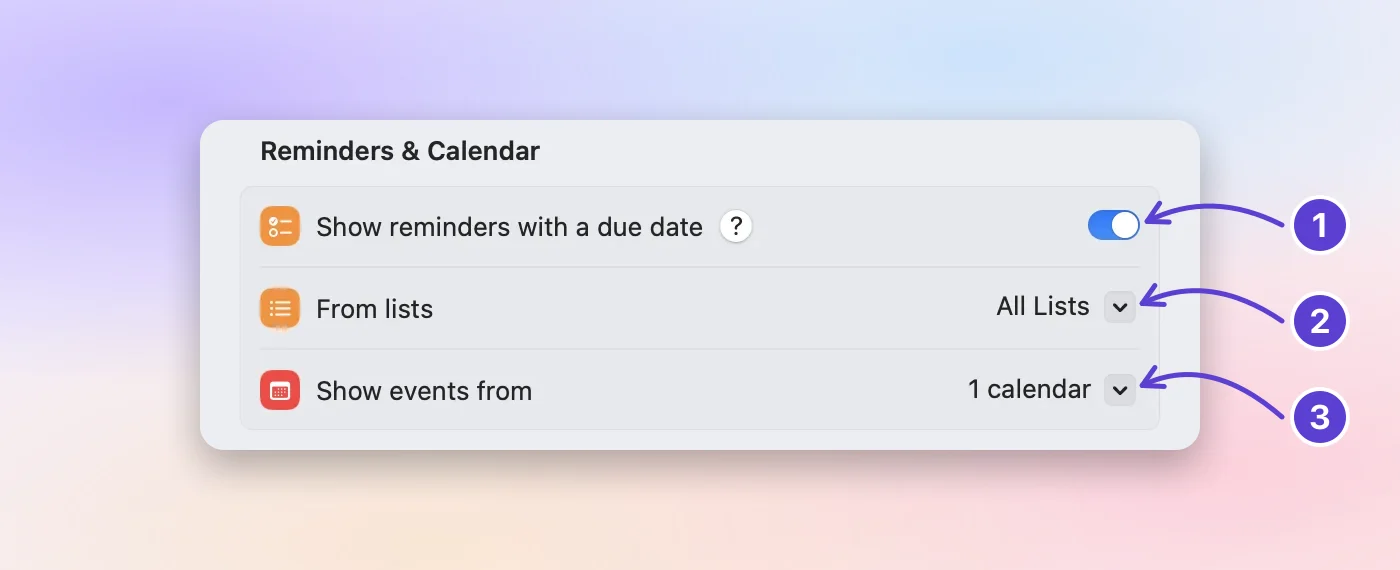
- Reminders with a due date
- Only these lists
- Calendars you select
Google Calendar, Outlook and Teams meetings
The app reads whatever calendars your Mac’s Calendar app has, so a Google or Microsoft 365 account works too, Teams meetings included:
- Open System Settings, choose Internet Accounts, and add your Google or Microsoft 365 (Exchange) account with Calendars turned on.
- In Deadline Bar’s Settings, open Show events from again: the account’s calendars are in the list. When two share a name, such as Calendar, each shows its account beside it.
- Select the ones whose events belong in your list.
Nothing is copied: the app reads them on your Mac, as it reads iCloud’s. If your company’s IT doesn’t allow the account on a Mac, its calendars can’t appear.
What you’ll see day to day
Which app owns each field
| Field | Where you change it |
|---|---|
| Title, due date and time, notes | Reminders or Calendar |
| Repeat | Reminders or Calendar |
| Group, Priority, Early Reminder, icon | Deadline Bar |
| Start date | Deadline Bar |
When you edit the item, the fields that belong to the other app are grayed out, with the line “Title, date and notes come from Reminders” (or Calendar) and an Open Reminders or Open Calendar link beside it. What you set here stays when the other app changes the item: rename a reminder in Reminders, and its group and priority here are still there.
Done, Delete, and Undo
| What you do in Deadline Bar | Ordinary reminder | Repeating reminder | Event |
|---|---|---|---|
| Mark as Done | Completed in Reminders too | Hidden here until its due date changes, as when you complete it in Reminders; Reminders unchanged | Off your list; Calendar unchanged |
| Undo after Done | Opened again in Reminders | Back in your list | Back in your list |
| Delete | Off your list (back if its date changes); Reminders unchanged | The same | Off your list (back if its date changes); Calendar unchanged |
A repeating reminder is left alone on purpose: completing it from another app could end the whole series in Reminders. Complete repeating reminders in Reminders itself, and the list shows the next one when it’s due.
Deleted items wait under Recently Deleted on the Scheduled & History tab (the archive box at the top of the panel); Put Back brings one into your list before its date changes. In Completed, on the same tab, right-click a reminder and choose Mark as Not Done to open it again in Reminders as well.
When you complete or delete an item in Reminders or Calendar, it leaves this list too.
Notifications
Reminders and Calendar alert you themselves, so Deadline Bar doesn’t add a second alert at the due time. If you want an earlier warning from Deadline Bar, give the item an Early Reminder in its editor. That notification offers Mark as Done and Remind Me in 10 Minutes, but not Move to Tomorrow, because the date belongs to the other app.
What it can’t do
The app reads Reminders and Calendar; it doesn’t write to them, apart from completing and reopening a reminder. It can’t create a reminder or an event, or change one’s title, date, or notes. It reads only what’s on this Mac: if Reminders and Calendar sync through iCloud, what arrives on this Mac shows up here.
When something is missing
- A red line under Reminders & Calendar says “Deadline Bar can’t read Reminders anymore” (or Calendar). Access was turned off. Open System Settings → Privacy & Security → Reminders (or Calendars) and turn Deadline Bar back on.
- A reminder is missing: check that it has a due date, that it isn’t completed, that it isn’t more than a week overdue, and that its list is selected under From lists.
- An event is missing: check that its calendar is selected under Show events from (the menu starts at None), and that the event is less than a year away.
- You marked it done or deleted it here: it stays out until its date changes in the other app, or until you use Put Back.
- An Early Reminder didn’t arrive: the notifications guide walks through the checks.
Free and Pro for Reminders and Calendar
Reminders and Calendar in your list come with Pro. On the free version, the switch and the menu show a Pro badge, and the app keeps up to five unfinished deadlines of your own, with reminders, repeats, and Quick Add from any app with Control-Option-D (Control-Option-D⌃⌥D). Items from Reminders and Calendar never take one of those five places, so they can’t crowd out your own deadlines.
If Pro ends, the items from Reminders and Calendar leave the list. Nothing is lost: they stay in those apps and come back with Pro. The App Store shows Pro’s price in your currency before you pay. The yearly plan starts with a 14-day free trial; eligibility and terms are on Apple’s purchase sheet. Buy Once is the same Pro, paid once.
Is Pro worth it for you?
This is worth it if:
- your deadlines already live in Reminders or Calendar, perhaps because you add them from your iPhone;
- you want one list on your Mac, sorted by urgency, without retyping anything; or
- someone shares a calendar of dates with you, such as exams or launches, and you want them counting down beside your own work.
The free version is enough if:
- you type your deadlines into Quick Add anyway; or
- you already check Reminders on your iPhone several times a day, and five deadlines of your own cover the rest.
Next step
Turn on Show reminders with a due date, select one list you use every week, and check that its next reminder appears in the panel. To decide which of all those items to work on first, read what matters first. To keep later work out of the list until you can begin it, use start dates.
Questions
Does Deadline Bar sync between Macs?
No. Your own deadlines stay on the Mac where you made them. Reminders and Calendar sync through iCloud on their own, so their items can show up on each Mac where Deadline Bar has Pro and this feature is on. To move your own deadlines, see moving to a new Mac.
Can I start Focus on a calendar event?
No. An event comes in as a Date, a day you only watch, so it has no Start Focus. Reminders come in as Tasks, so you can start Focus on a reminder.
Why is a reminder without a date missing?
The app is a list of deadlines, so it brings in only reminders with a due date. Give the reminder a date in Reminders, and it appears.
Trademarks belong to their owners; Deadline Bar isn’t affiliated with them.
Connect one reminder list or calendar
See your deadlines in your Mac’s menu bar, colored green to red as time runs out, and choose what to do next.

Read next
Start dates in Deadline Bar: hide work until you can begin
Give a deadline a start date and it waits in Scheduled, out of your list and menu bar, until that day. Set or move a start, begin early, and read time left.
How to prioritize competing deadlines: what to do first
When several deadlines compete, sort them by how much of their time is left, then by what a slip would cost. A worked example, and how to do it on your Mac.