Start dates in Deadline Bar: hide work until you can begin
Give a deadline a start date and it waits in Scheduled, out of your list and menu bar, until that day. Set or move a start, begin early, and read time left.
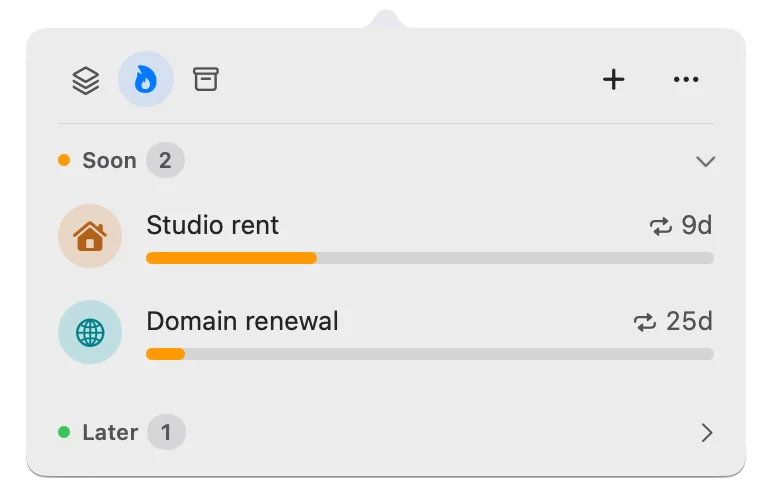
Some work is planned but can’t begin yet: a report you’ll start on the 25th, studying for an exam next month. A start date keeps that work out of your list and your menu bar until the day you choose. Until then it waits in Scheduled, a separate list of work set to begin later, and on its day it joins your list with all of its time still ahead. Meanwhile, you see only what you can work on now.
Deadline Bar is a Mac app that keeps your deadlines in the menu bar at the top of your screen, with the time left on the most urgent one. This guide is for anyone who plans work ahead, such as students with a semester of assignments or freelancers with a project that starts next month. Start dates work the same in the free version and in Deadline Bar Pro. Your list of what to do now is called Up Next, in the panel that opens when you click Deadline Bar in the menu bar.
The job: separate later work from work you can do now
A list of everything due mixes two kinds of items: work you can start today, and work you can’t touch yet. When the second kind crowds the first, the list stops answering “What now?” You scroll past next month’s report to find this week’s draft. Worse, the report’s bar (which shows how much of its time is left) drains the whole time, as if you were already behind on it.
A start date fixes both. The report waits out of sight until the 25th, and when it arrives, its time counts from the day you begin.
What a start date does
Due is when the work must be finished. Start is when you’ll begin. Without a start date, a deadline counts from the day you add it.
A start date matters most for a Task, Deadline Bar’s kind for work you spend time on, because a Task’s bar shows the share of its own time that’s left, from its start to its due date. A Date, the kind for a day you only watch, like a renewal, is colored by the days left either way: yellow with 30 days or less, red with 7 days or less. For a Date, a start only decides when it shows up: a renewal a year away, for example, can stay out of your list until three months before.
A start date doesn’t reserve time on a calendar, estimate how long the work takes, or schedule anything for you. It’s your plan for when to begin, and Deadline Bar holds the deadline back until then.
When it’s set, the deadline waits in the panel under Scheduled, on the Scheduled & History tab, with a line such as “Starts Oct 25 · due Oct 30.” It isn’t in Up Next, and it can’t lead the menu bar.
How the start changes the bar: an example
Say a report is due at the end of October 30, and you’ll begin on October 25. You add it on October 1. Deadline Bar’s standard thresholds turn a Task yellow at 30% of its time left and red at 10%, and one longer than 2 days 2 days and 1 day before it’s due at the latest.
| Without a start date | With a start on Oct 25 | |
|---|---|---|
| Counts from | Oct 1, the day you added it | Oct 25 |
| On Oct 1 to 24 | In your list, its bar draining | Waiting in Scheduled |
| On Oct 25, when you begin | Already yellow, 20% left | Joins your list with a full bar |
| Turns yellow | Late on Oct 21, before you could start | As Oct 29 begins |
| Turns red | 3 days before it’s due | As Oct 30 begins |
Without a start date, the report looks late the day you begin, and its warnings come while you can’t act on them. With one, yellow and red come as your own six days run low. The color guide explains both kinds of bar, and how to change the thresholds in Settings.
Set it up
In Quick Add, the small window that opens with Control-Option-D (Control-Option-D⌃⌥D), click Show More to find the Starts Later switch under Details. For a deadline you already have, open its form:
- Click Deadline Bar in the menu bar to open the panel (the list of your deadlines).
- Click the deadline, then the pencil at the top of its details. Or right-click its row and choose Edit….
- Turn on Starts Later and type the day you’ll begin in the field under it; it goes no later than the due day. Under the field, a line says “It waits in Scheduled until then; its bar counts down from here to Due.”
- Click Save.
The field also takes today or a day in the past. A start in the past is fine: if you began before you wrote the deadline down, the bar counts from when you really started.
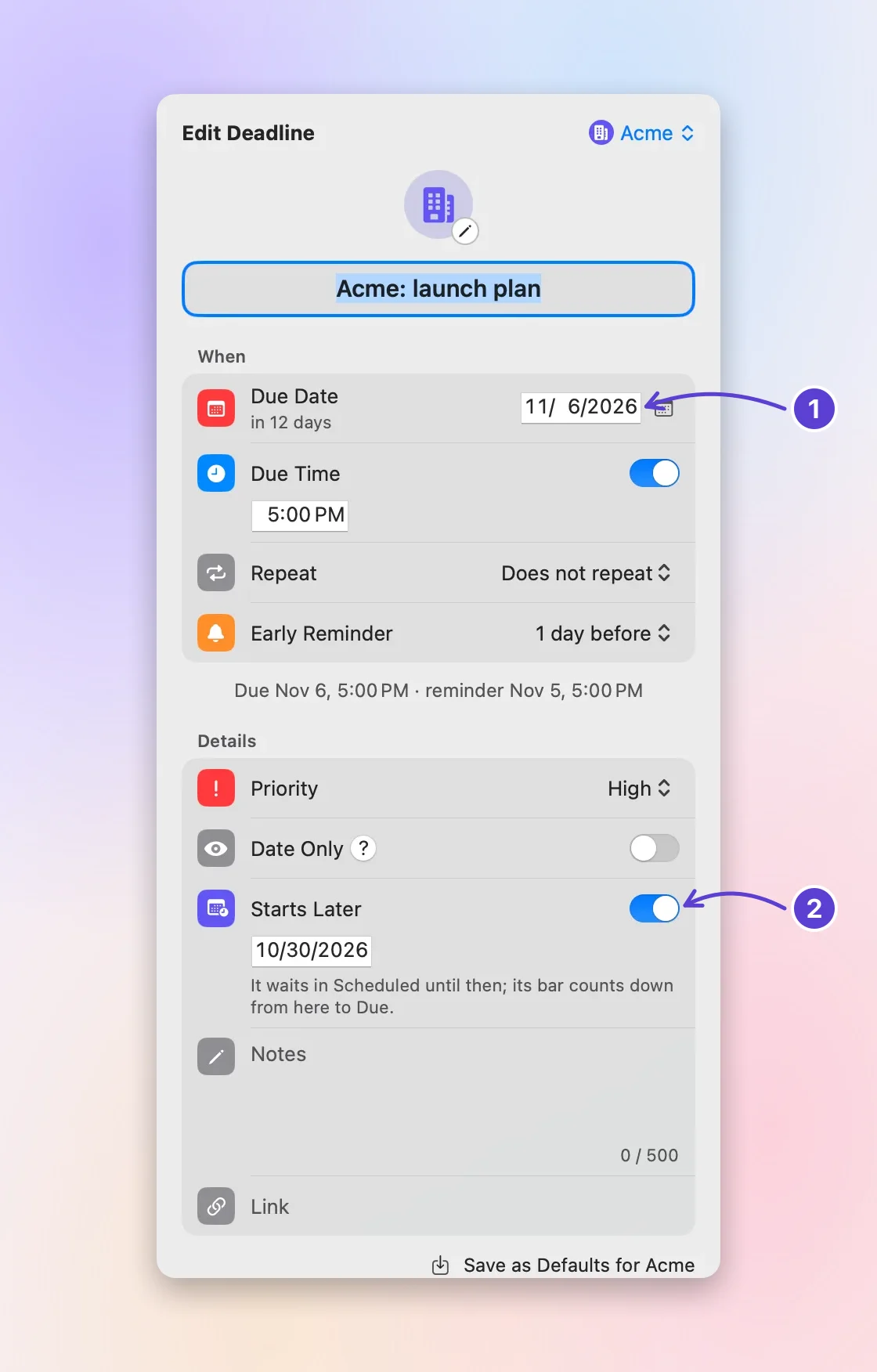
- Due Date: when it's finished
- Starts Later: when you begin
Check that it worked
Click the archive box at the top of the panel to open Scheduled & History. Scheduled comes first, soonest start first, and each row says when it starts and when it’s due. Then open Up Next (the flame): the deadline isn’t there, and the menu bar shows something else.
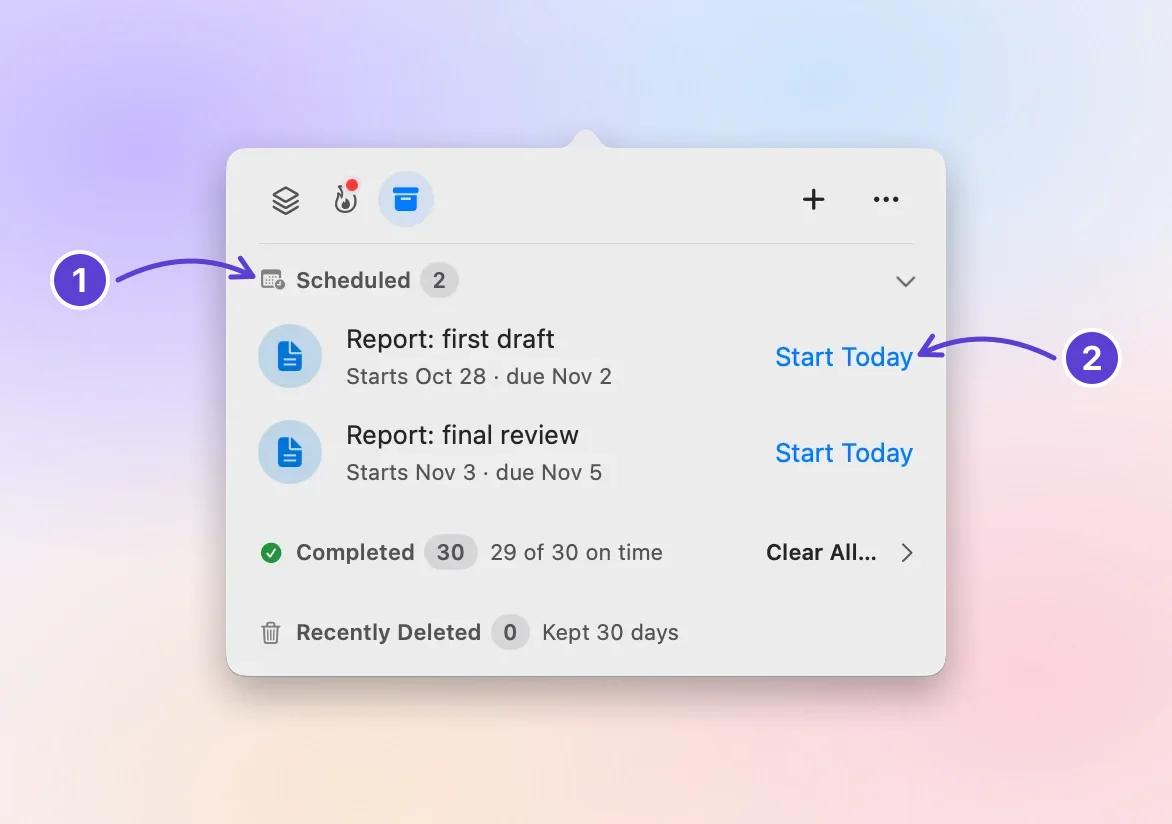
- Waits here until its start
- Start Today begins it now
What you’ll see day to day
While it waits
The deadline stays under Scheduled. Click its row for its details; right-click it to edit or delete it. If notifications are on, at 9:00 AM the day before it starts, a notification says it starts tomorrow and when it’s due, so a plan made weeks ago doesn’t take you by surprise.
When it starts
At midnight on its start day, the deadline moves to Up Next and takes its place by urgency, with a full bar. Deadline Bar wakes once for that moment and doesn’t keep checking while nothing changes, so waiting deadlines don’t drain your battery.
Start early
Plans change. To begin before the date you set:
- Open Scheduled & History.
- Click Start Today on the deadline’s row, or right-click it and choose Start Today. (For one set to start later today, the button reads Start Now.)
Its start becomes now, and it joins your list, its bar counting from this moment. Start Today only adds it to your list. To give it a timed work session, click ▶ on its icon in Up Next, or right-click it and choose Start Focus…, then pick a length for the Focus session, as the timeboxing guide describes.
Move or correct a start
Open the editor again and type another day under Starts Later. If the start comes after the due day, the editor says “Start must come before Due” and Save stays off until you move the start earlier or the due date later.
Free and Pro for start dates
Start dates work the same in the free version (Free, from here on) and in Pro. Free holds five unfinished deadlines at a time, and a deadline waiting in Scheduled counts toward those five, like any other. Pro removes the limit; the yearly plan starts with a 14-day free trial (eligibility and terms are on Apple’s purchase sheet), and Buy Once is the same Pro, paid once.
Are start dates worth setting?
Set start dates if:
- you plan work weeks ahead, such as a semester of assignments or a project that starts next month;
- your list fills with things you can’t begin yet; or
- you want a Task’s bar to count from the day you’ll really start.
Skip them if:
- most of your deadlines can start the day you write them down; or
- you track Dates, such as renewals and bills, whose colors don’t depend on a start.
Next step
Pick one Task you can’t begin until later this month. Open it, turn on Starts Later, type the day you’ll really begin, and check that it now waits under Scheduled. To read its bar when it arrives, see the color guide.
Questions
Does a start date reserve time on my calendar?
No. It keeps the deadline out of your list until that day and sets where its bar counts from. To protect hours for the work, block them in your calendar too. The timeboxing guide shows one way.
What happens to a start date when a deadline repeats?
A repeating deadline has a Shows row under Repeat in place of Starts Later, and it holds for every round. Choose how long before each due date the round appears: Right away (the next round joins Up Next as soon as you mark one done), 2 hours before (for a deadline with a time), or 1 day, 3 days, 1 week, 2 weeks, or 1 month before. Until then, each round waits in Scheduled, and its reminder can be When it shows. A renewal due Oct 12 that shows 1 week before joins your list on Oct 5; a weekday task due at 9:00 AM that shows 2 hours before joins it at 7:00 each morning.
Does a scheduled deadline count toward the limit?
On Free, yes: a deadline waiting in Scheduled counts toward the five, like any other unfinished deadline. With Pro there’s no limit. For a student, the guide to assignments and exams shows how to plan exam review as separate Tasks.
Trademarks belong to their owners; Deadline Bar isn’t affiliated with them.
Give one future task a realistic start date
See your deadlines in your Mac’s menu bar, colored green to red as time runs out, and choose what to do next.

Read next
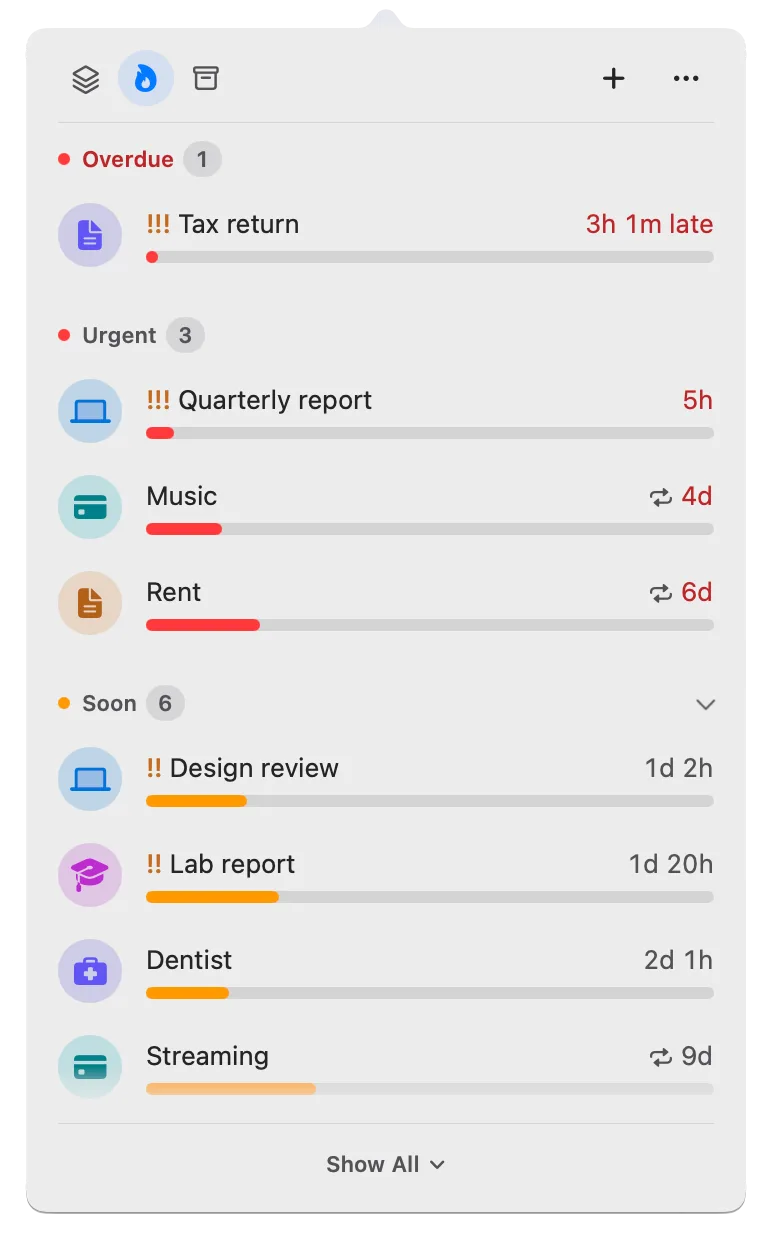
Green, yellow, red: how Deadline Bar shows a deadline’s urgency
A Task turns yellow at 30% of its time left and red at 10%; a Date at 30 and 7 days. Learn to read the three colors, and why time left isn’t the same as effort.
Timeboxing: how to work on one task in a fixed block of time
Pick one task, give it a fixed block of time, and stop when it ends, finished or not. How to choose the length and breaks, where timeboxing breaks, and a free Mac timer.