How to keep track of assignments and due dates on a Mac
Put every assignment and exam in one list on your Mac, plan exam study as its own deadline, and keep the most urgent one in your menu bar.
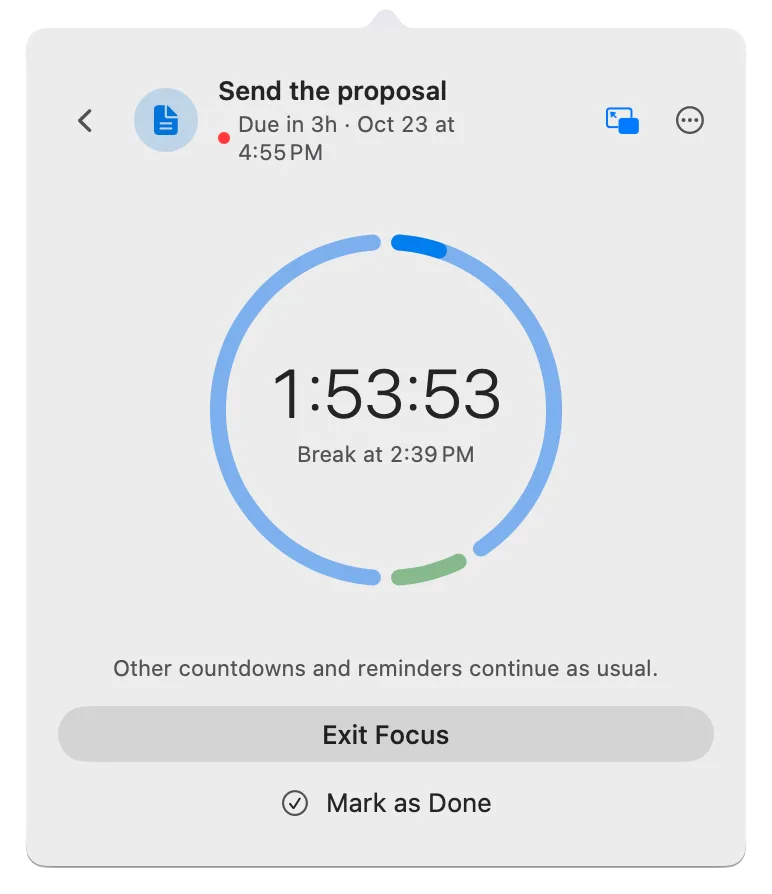
When your assignments are spread across a syllabus, a course site, and three emails, the one you forget is usually the one due tomorrow. The fix is a single list on your Mac that holds every assignment and exam, puts the one running out of time at the top, and keeps it in view while you work. It’s the general way to keep track of deadlines, applied to coursework.
Deadline Bar is a Mac app that keeps that list in the menu bar at the top of your screen, with a countdown to your most urgent deadline. This guide is for students who do their coursework on a Mac: how to set it up, what a week looks like, and when the free version is enough. The free version holds five unfinished deadlines at a time. Deadline Bar Pro, the paid upgrade, removes that limit and lets you make a group for each course.
Who it suits, and who it doesn’t
Deadline Bar suits students who study on a Mac and want to see what’s due without opening anything. It answers one question: which assignment needs you next?
It fits well if:
- your due dates come from several places and you want them in one list;
- you tend to notice a deadline only when it’s close; or
- you’d rather glance at the top of your screen than open a planner.
It’s a poor fit if you want one app for your whole academic life, with classes, grades, and notes, or if you plan mostly on an iPhone. Deadline Bar runs on the Mac only and doesn’t sync between Macs.
What a student’s deadlines look like
A student’s deadlines come in three kinds, and Deadline Bar treats each one differently.
- Assignments are Tasks. A Task is Deadline Bar’s kind for work you spend time on. Its time runs from the start of the day you add it to the moment it’s due, and a bar on its row drains as that time runs out. It turns yellow with 30% of that time left and red with 10% left.
- Exams are Dates. A Date is the kind for a day you watch rather than work through. It turns yellow with 30 days or less to go and red with 7 days or less, however long ago you added it.
- Exam prep gets its own Tasks. Studying for an exam is work, so it gets Tasks with their own due days, such as “Statistics: review chapters 1–4.”
Keeping exams and studying apart matters. Start studying when the material needs it, not when the exam turns red. The 7-day mark is the same for every Date; it knows nothing about how much you have to learn. If a midterm needs three weeks of review, split it into a few study Tasks and start the first one now.
All of these can live in Study, one of four built-in groups (Subscriptions, Bills, Work, and Study) that come with the free version. A group is a shelf for related deadlines; with Pro you can make one per course instead. Subscriptions and Bills are on from the start; Work and Study are off unless you chose them when you first opened the app.
Set it up
Start with the assignment due next. If you didn’t choose Study when you first opened the app, it’s still in Quick Add’s group menu; choosing it turns it on.
- Press Control-Option-D (Control-Option-D⌃⌥D) in any app to open Quick Add, the small window for writing down a deadline. It opens in the group you used last; choose Study from the group menu at the form’s top right.
- Type the name with the course first, the way your syllabus writes it: “Biology: lab report.” Course-first names tell you the course at a glance.
- Type the day it’s due in Due Date. If the portal closes at a set time, turn on Due Time and type it exactly: a portal that closes at 5:00 PM won’t wait until midnight.
- Check the reminder. In Study it’s already set to 1 day before, and the line under the fields says when it rings, such as “reminder Oct 14, 5:00 PM”. To pick another time, or None, click Show More and change Early Reminder.
- Press Return.
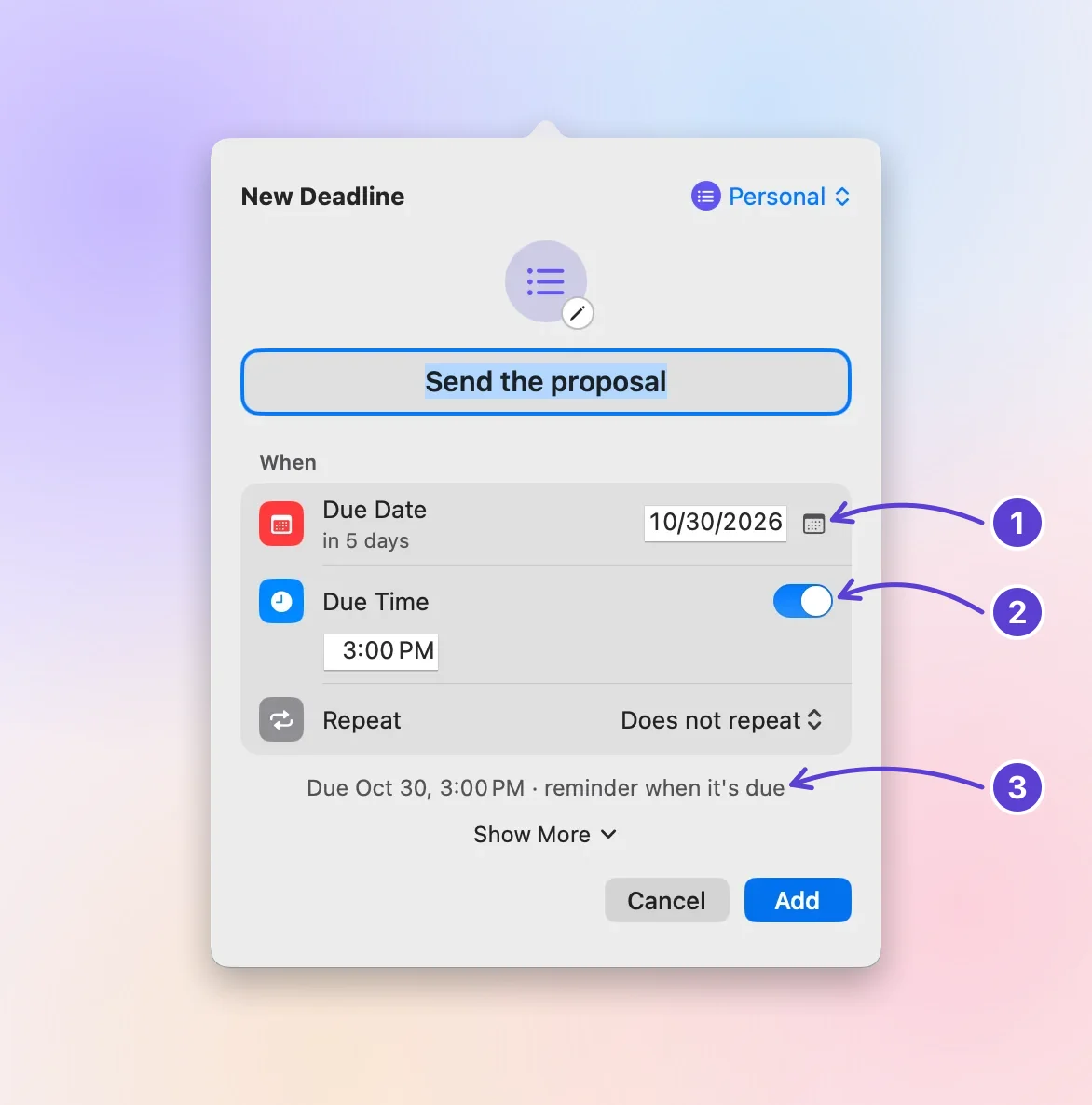
- Due Date: type it or pick it
- Due Time
- The reminder it starts with
The menu bar now counts down to your most urgent deadline, which may be this one. Click the countdown to open the panel (the list under the menu bar item); the assignment is in Up Next, the tab that lists your deadlines most urgent first.
An exam takes one more step, because a new deadline in Study starts as a Task. Add it the same way, with its day and, if you know it, its start time. Then click Show More and turn on Date Only before you press Return. Its color now follows the days left: yellow from 30 days, red from 7.
Two details help later. To keep the submission link with an assignment, click Show More in Quick Add (or press Command-Return, Command-Return⌘Return) and paste it into Link; Notes can hold the word count or the format. And because an assignment’s time counts from the start of the day you add it, add each one on the day it’s assigned. If you add an essay a week late, turn on Starts Later (under Show More) and set it to the day it was assigned.
A week with it
Here’s an example week, with made-up courses. On Sunday evening, Oct 11, you add everything:
| What | Kind | Due |
|---|---|---|
| Biology: lab report | Task | Thursday, Oct 15, 5:00 PM |
| Statistics: problem set 4 | Task | Friday, Oct 16, 9:00 AM |
| Statistics: review chapters 1–4 | Task | Saturday, Oct 17 |
| Statistics: midterm | Date | Monday, Oct 19 |
| History: essay outline | Task | Wednesday, Oct 21 |
On Monday, the four Tasks sit in Later, nearest due first: each still has most of its own time. The midterm is yellow, in Soon, so it’s first in Up Next, and the menu bar, which always shows the first deadline in the list, counts down to it. An exam with no time set counts to the end of its day, 11:59 PM, so on Monday it’s still a little over 7 days away. At 11:59 PM that night it turns red and moves up to Urgent. The Tasks below it are the work; the midterm is the reason the review Task exists.
On Thursday afternoon you submit the lab report and wait for the portal’s confirmation. Then you hover over its row and click the ✓. It’s struck through for a moment, moves to Completed on the Scheduled & History tab (the archive box icon at the top of the panel), and the menu bar moves on to the next deadline. If you clicked too soon, Undo brings it back.
On Thursday evening your statistics professor emails that the problem set is now due Monday. You right-click its row and choose Due Date → Next Week, which moves it to Monday at the same time of day. Its start stays put, so its share of time left grows with the longer stretch. Change a date only once the new one is in writing.
On Sunday you spend ten minutes on the list: add anything newly assigned, correct what moved, and pick the assignment you’ll start on Monday.
When everything lands at once
When several assignments land together, start at the top of Up Next. Unless you change the order in Settings, Up Next sorts by urgency into four sections:
- Overdue: already late.
- Urgent: a Task with 10% or less of its time left, or a Date 7 days away or less.
- Soon: a Task with 30% or less of its time left, or a Date 30 days away or less.
- Later: everything with more time than that.
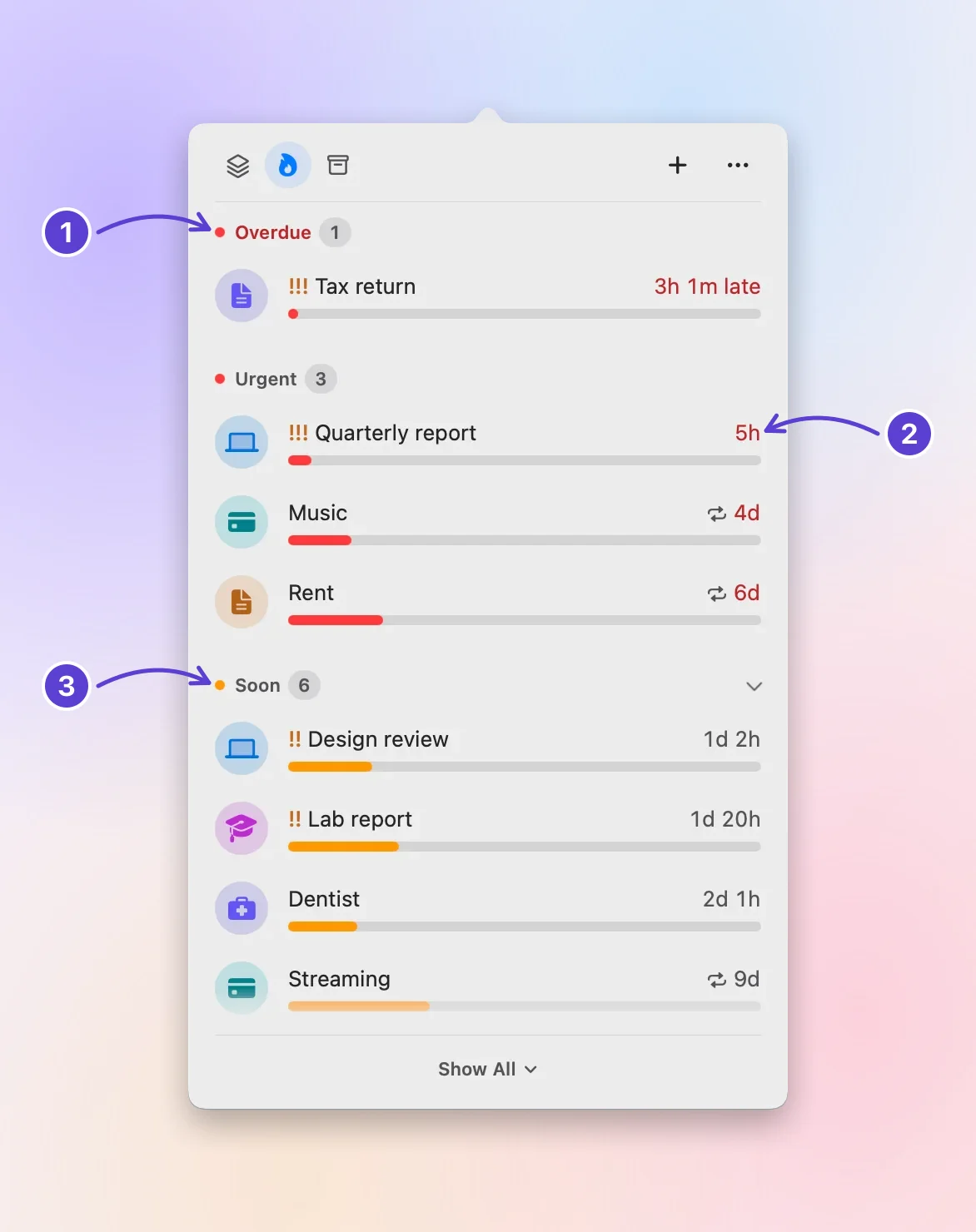
- Overdue comes first
- Red: little time left
- Yellow: running short
Time left is more useful than the date alone. A problem set handed out this morning and due tomorrow night still has most of its time; an essay assigned a month ago and due Friday has used nearly nine tenths of its own. By date, the problem set comes first; by time left, the essay is the one running out.
Time left can’t measure the work left, though. A Task in Later can still be a big one. When two assignments compete, also ask how much is left to do, what a slip would cost (a late penalty, no extension), and whether a lab partner is waiting on you.
Mark the one that counts most with Priority: under Show More in Quick Add, in the form, or by right-clicking its row. The row then shows !!! for high, !! for medium, or ! for low. Within the same section, the nearest day comes first, and on the same day high comes before low. One exception: a deadline in its last hour moves to the top of its section.
If everything is high priority, the label stops helping; compare the work left and the due times instead. The priorities guide walks through the whole order, including how to change that last-hour rule, and the color guide explains each section.
What it won’t do, and what to use instead
Deadline Bar keeps a short list of what’s due. Everything else stays with the tools built for it:
- Classes and lab sessions: keep them in Calendar. Deadline Bar has no class schedule.
- Grades: keep them in your school’s system. Deadline Bar records no grades or weights.
- Course sites and syllabi: Deadline Bar doesn’t read them. You type each deadline in yourself.
- Group projects: use the tool your group shares. Deadline Bar has no shared lists, assignees, or subtasks, so track your own part and its date.
- Your iPhone: Deadline Bar is a Mac app only.
Free or Pro for a student
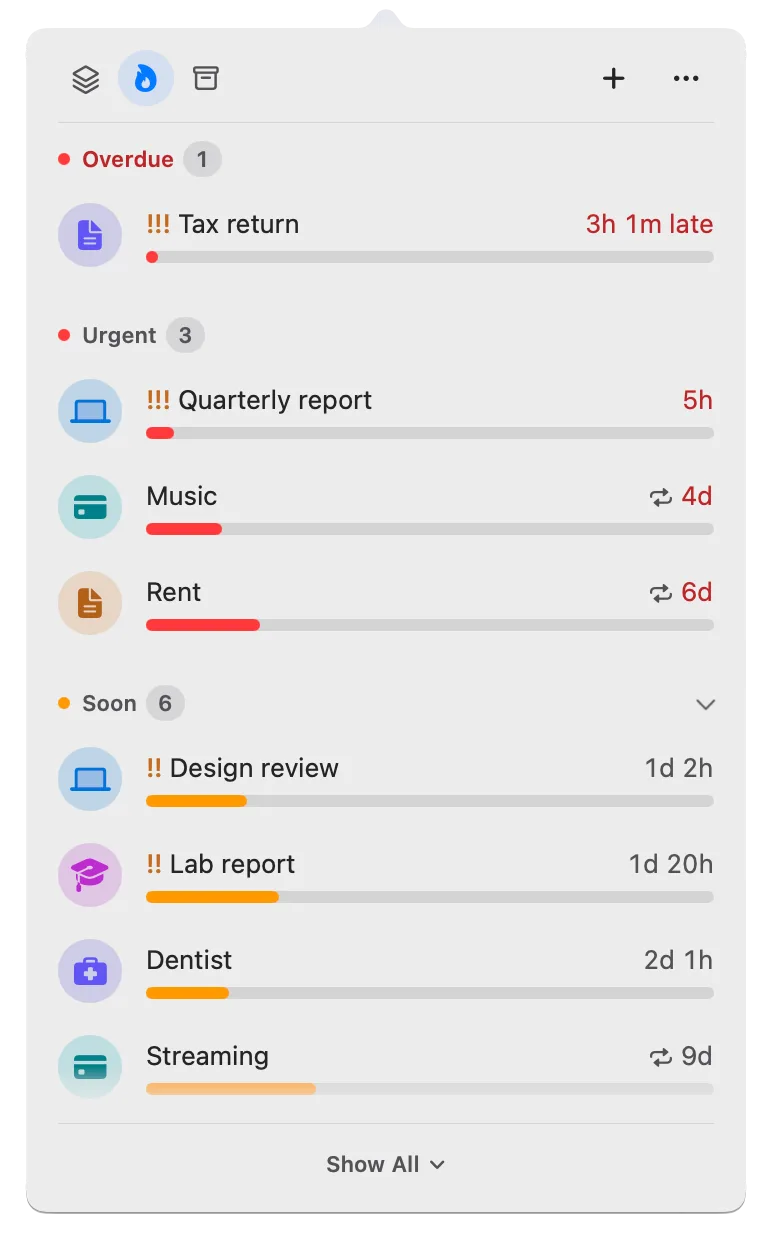
The free version is enough for many students. It holds up to five unfinished deadlines, with the Study group, Quick Add, reminders, repeats, start dates, and Focus, a timed work session on one assignment with breaks built in. A finished deadline moves to Completed and frees its place, so the limit is five at a time, not five a semester. The example week above has exactly five, so it fits.
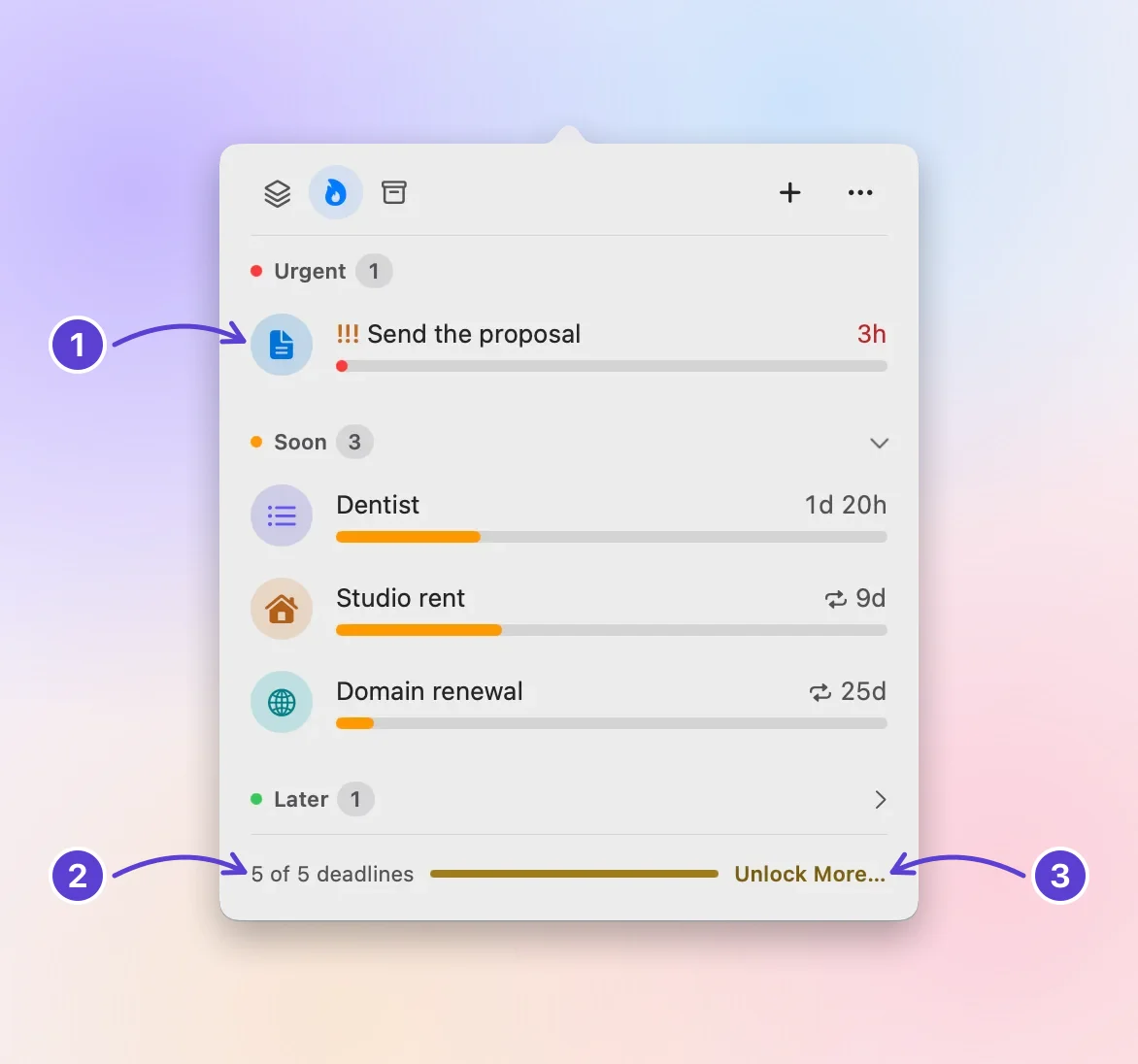
- Nothing added is blocked
- Five of five
- Unlock More… for Pro
Pro helps when your list is longer than five, or when you plan weeks ahead:
- No limit on deadlines, so you can enter the whole syllabus in week one. Study Tasks set to start later wait on the Scheduled & History tab (the archive box at the top of the panel) until their day comes.
- Groups of your own, one per course, each with defaults you save from a form.
- Focus your way: any session length, and breaks on another rhythm or none. The timeboxing guide explains how to choose a length.
Pro is worth it if you take several courses with overlapping deadlines and want the whole semester in view. The free version is enough if you can work from the next five. Pro comes as a yearly plan, which starts with a 14-day free trial (eligibility and terms are on Apple’s purchase sheet), or as Buy Once, the same Pro for a single payment with no subscription. The App Store shows the price in your currency before you pay.
Next step
Add the assignment due next, with its real submission time and a reminder. Then add the next exam as a Date and one review Task in front of it. To plan studying so it doesn’t all land in the last week, read the start dates guide next.
Questions
Can Deadline Bar import my syllabus?
No. It doesn’t read PDFs, course sites, or learning platforms like Canvas. You add each deadline yourself, with Quick Add or the form; the get started guide shows the steps.
What if my professor gives the whole class an extension?
Change the deadline once the new date is in writing: right-click its row, choose Edit…, and change Due Date. Its time still counts from the day you added it (or its start date), so a long extension puts it back in Later for a while. For an extension of exactly one week, Postpone 1 Week in the same menu moves the day and keeps the time.
What happens at the end of the semester?
Finished deadlines stay on the Scheduled & History tab under Completed, so you can look back at what you submitted. Delete what you don’t need; nothing carries over into next semester unless you add it.
What’s the best way to keep track of assignments in college?
Keep one master list, whatever holds it: a planner, a spreadsheet, or an app. Add each assignment the day it’s assigned, with the due date and time copied from the syllabus or the course site, not from memory. Then check the list at the same moment every day, such as before your first class, and pick what you’ll work on. The habit matters more than the tool.
Trademarks belong to their owners; Deadline Bar isn’t affiliated with them.
Add your next assignment with its real submission time
See your deadlines in your Mac’s menu bar, colored green to red as time runs out, and choose what to do next.

Read next
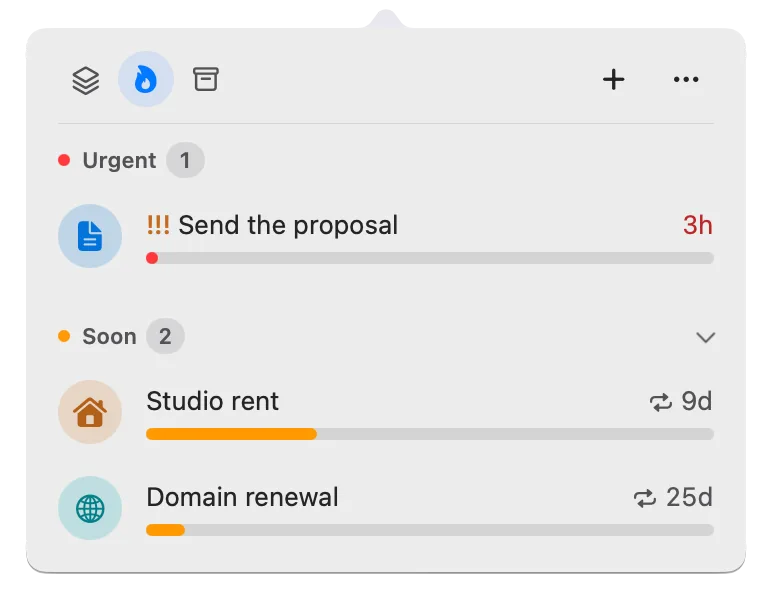
How to prioritize competing deadlines: what to do first
When several deadlines compete, sort them by how much of their time is left, then by what a slip would cost. A worked example, and how to do it on your Mac.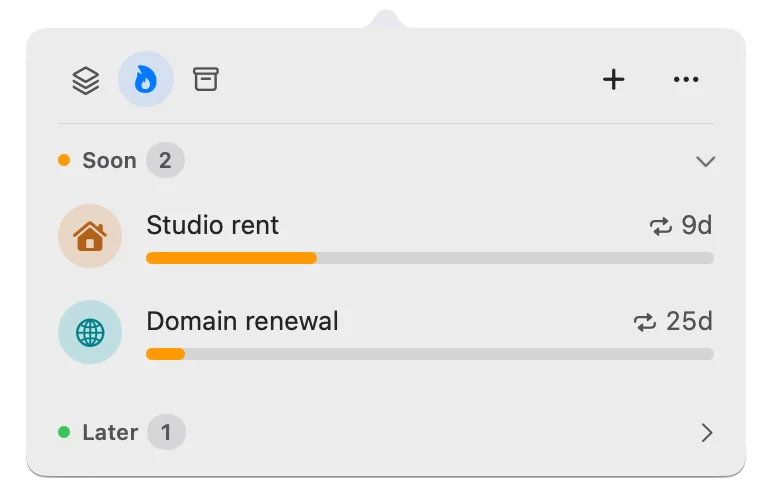
Start dates in Deadline Bar: hide work until you can begin
Give a deadline a start date and it waits in Scheduled, out of your list and menu bar, until that day. Set or move a start, begin early, and read time left.