Freelance deadlines: track every client’s due dates on a Mac
Keep client deliverables, revisions, and moved due dates visible on your Mac. A simple setup on the free version, and when Pro’s groups per client are worth it.
With three or four clients, the hard part is often remembering what you promised. A logo is due Thursday, a second round of edits was promised “early next week,” and a landing page’s date has moved twice. The fix is a short list of deliverables, each named after the thing you’ll send and given the exact time it’s due, kept where you’ll see it while you work.
Deadline Bar is a Mac app that keeps your deadlines in the menu bar at the top of your screen, with the most urgent one counting down. This guide is for freelancers and independent contractors who work on a Mac and owe clients specific work by specific times. The free version holds five unfinished deadlines at a time; Deadline Bar Pro, the paid upgrade, removes the limit and adds a group per client and Focus sessions of any length.
Who it suits, and who it doesn’t
Deadline Bar suits you if your work arrives as deliverables: a set of mockups, an article, a translation, an audit, a build. Each one has a client, a due time, and a clear finish: the moment you send it. The app answers one question at any moment: which of these do I owe first?
It fits when:
- Your commitments come from email, calls, and chat, and you want them in one list.
- You notice a deadline only when it’s close, and you’d rather see it coming.
- You work alone, on your own schedule, and don’t need anyone else to see your list.
A project management tool is the better choice when the work needs structure Deadline Bar doesn’t have: tasks that depend on each other, clients who comment in a shared space, invoices, or billable hours. Use a tool built for that, and let Deadline Bar sit beside it, showing only the next things you personally owe.
What a freelancer’s deadlines look like
Most freelance deadlines are one of Deadline Bar’s two kinds, and groups keep clients apart.
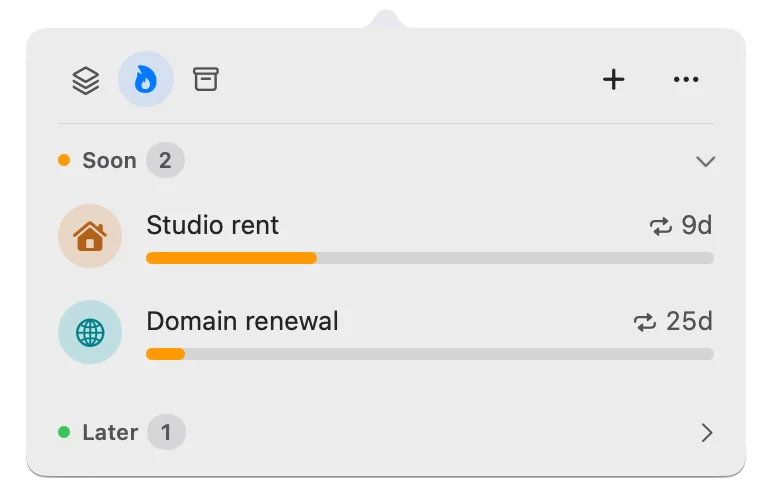
Deliverables are Tasks. A Task is Deadline Bar’s kind for work you’ll spend time on. It has a start (the start of the day you added it) and a due time. The color bar on its row shows how much of that stretch is left: yellow at 30% or less, red at 10% or less, by default, and one longer than 2 days turns yellow 2 days and red 1 day before it’s due at the latest. Say you agreed on Monday morning to deliver a logo Friday at 5:00 PM. It turns yellow Wednesday at 5:00 PM and red Thursday at 5:00 PM, even though “Friday” still sounds far away.
Fixed days are Dates. A Date is the kind for a day you only watch: a contract renewal, a tax payment, the day a retainer ends. It’s colored by the days left (yellow with 30 days or less, red with 7 or less) and has no work session.
Groups keep clients apart. Every deadline can sit in a group, a named list with its own symbol and color. Work is a built-in group on the free version and Pro alike; with Pro you can make a group for each client.
One rule makes the list trustworthy: add a deadline only once it’s confirmed. “Sometime next week” isn’t a deadline yet. Ask for a day and a time, or propose one and get a yes, then write it down. That’s the first step of any method to keep track of deadlines: one list, each entry with a day and a time.
Set it up for your clients
Capture one confirmed deliverable
Name each deadline after the thing you’ll send, with the client first. For example: “Alder & Co: homepage mockups,” “Harbor Café: menu copy.” The client keeps similar rows apart, and the deliverable tells you exactly what Done means.
- Press Control-Option-D (Control-Option-D⌃⌥D) in any app. Quick Add opens: a small window for a new deadline, over whatever you’re doing.
- Type “Client: deliverable.”
- Type the day in Due Date, then turn on Due Time and type the hour. Client deadlines nearly always have a time, even an unspoken one: the end of their day, or before a call, in their time zone.
- Click Show More and leave Date Only off, so it stays a Task.
- Optional: paste the brief or the shared folder into Link, so the reference is one click from the deadline. Notes suits a word count or the format the client asked for.
- Optional: in the same part of the form, change Early Reminder to choose when you’re notified. It starts with the reminder every new deadline gets, such as 5 minutes before. Set Priority for the one with the most riding on it.
- Press Return.
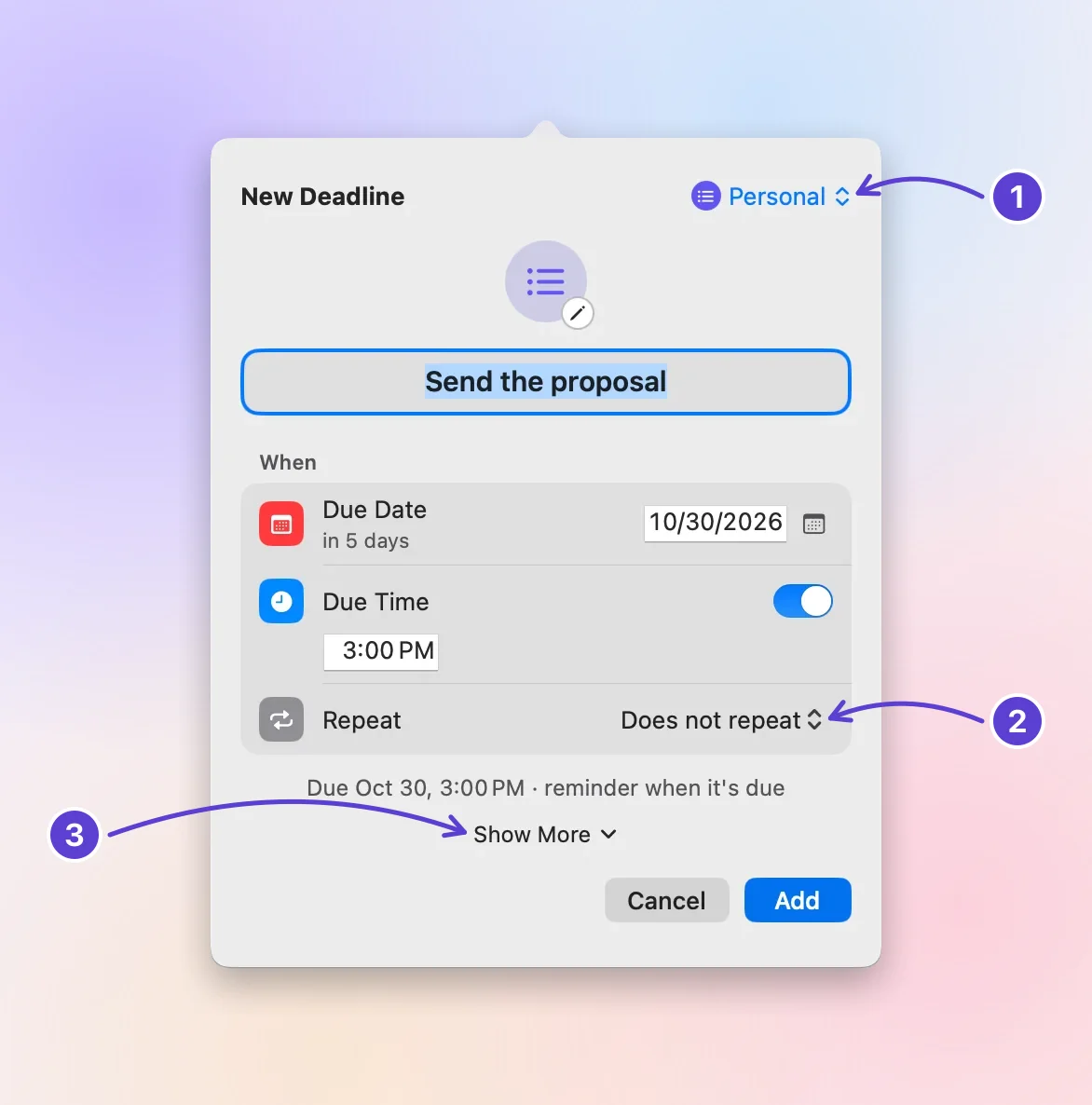
- Its group
- Repeat
- Show More: Priority, Notes, Link
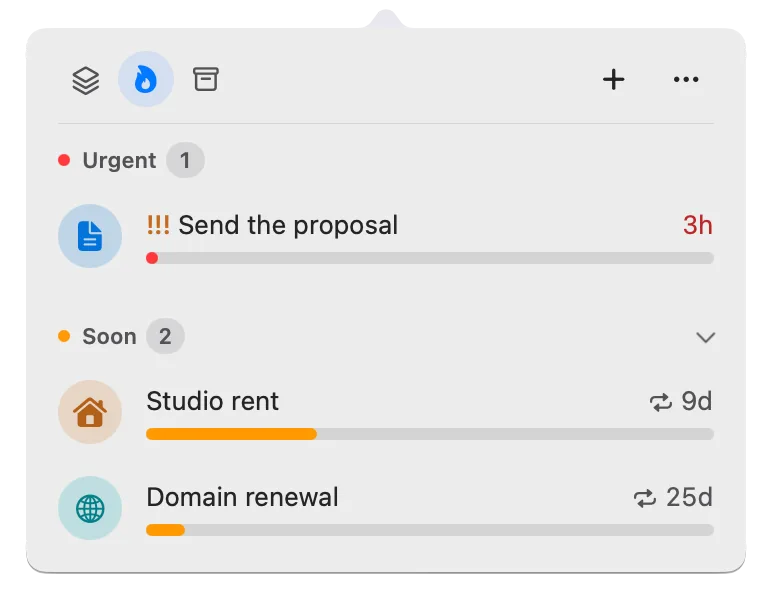
The deadline appears in the panel (the list that opens when you click the menu bar item) and, if it’s the most urgent, in the menu bar itself. Click its row to see the details and open the link.
To keep a Date in the Work group, such as a client’s retainer renewal, add it the same way, then right-click its row, choose Edit…, and turn on Date Only.
Because a Task’s bar counts from the day you add it, add a deliverable the day you agree to it. Missed that day? The deadline’s form has a Starts Later switch (under Show More in Quick Add). With it, you can record that a job was agreed on last week even if you only write it down today. The start dates guide explains that switch.
One Work group, or a group per client
With a few clients, the built-in Work group and a “Client:” prefix are enough. Choose Work from the group menu at Quick Add’s top right. If Work is off, it’s still in the menu, and choosing it turns it on.
With Pro, give each regular client a group of their own, with its own name, symbol, and color. Each group can also remember what its deadlines usually look like. Fill in one deliverable’s form the way you like it: say, due at 5:00 PM, reminded a day before, medium priority, and the client’s brief in Link. Then click Save as Defaults for the group at the bottom of the form. The next deadline for that client starts filled in the same way.
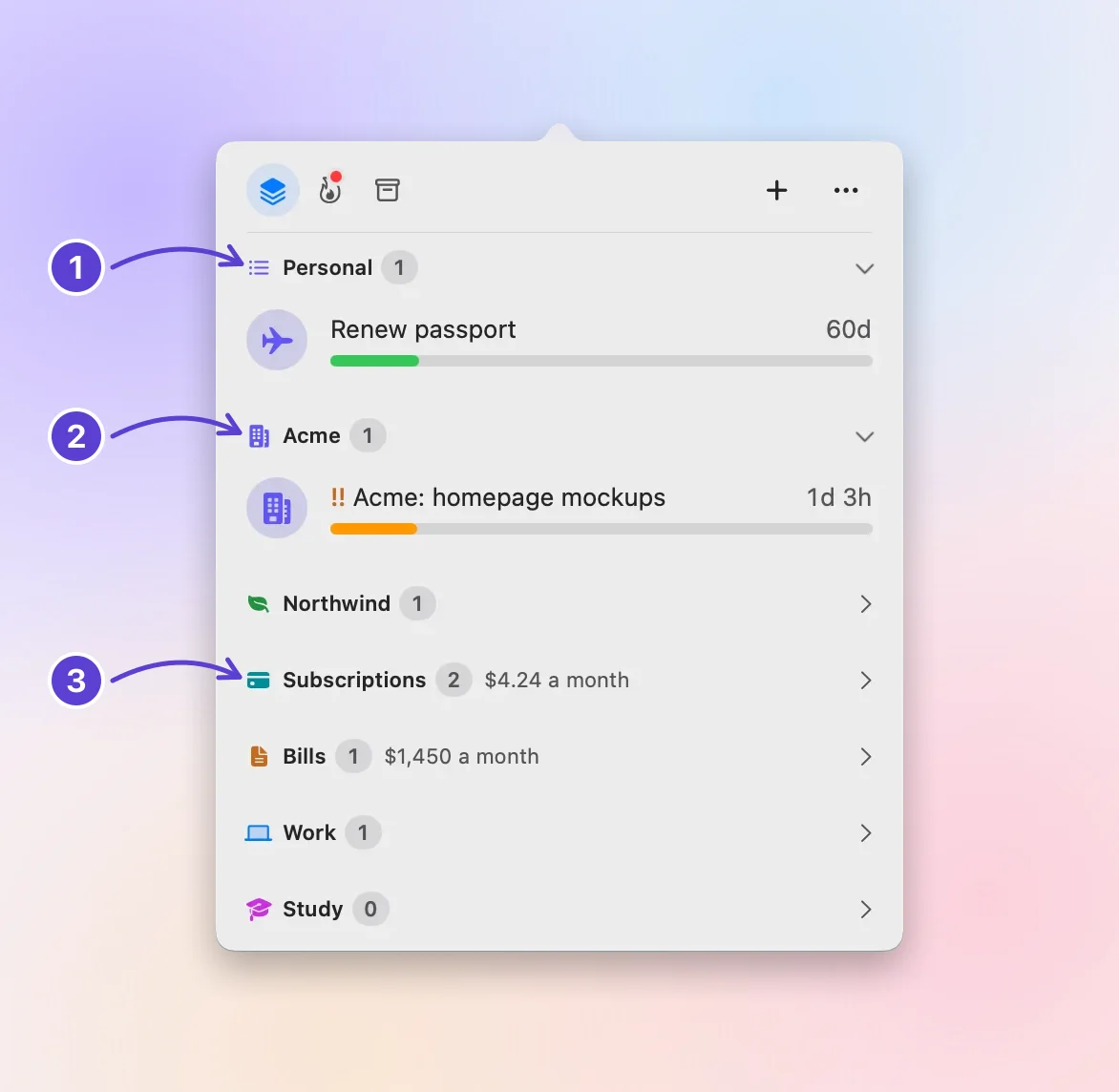
- Personal comes first
- A group of your own
- Built-in groups stay
To see one client’s work at once, open the panel and press Command-F⌘F. Search matches a deadline’s name, its notes, and its group’s name, so typing “Alder” finds every row for Alder & Co.
A week with two clients
Here’s an example with two made-up clients, to show the whole cycle.
Monday. Alder & Co confirms homepage mockups for Thursday at 5:00 PM. Harbor Café asks for menu copy by Wednesday at noon. You add both, each the day it’s agreed on:
| Deadline | Kind | Due |
|---|---|---|
| Alder & Co: homepage mockups | Task | Thursday, 5:00 PM |
| Harbor Café: menu copy | Task | Wednesday, 12:00 PM |
| Alder & Co: retainer renews | Date | In 6 weeks |
That’s three deadlines, so the free version holds them with two places to spare.
Tuesday morning. The menu copy is yellow: it still has about half of its time left, but it runs 60 hours and is due tomorrow at noon, and a Task longer than 2 days turns yellow 2 days before it’s due. The mockups, with about two thirds left, and the renewal, more than 30 days away, are green. The menu copy leads, and the menu bar counts down to it.
Wednesday, 11:40 AM. You send the menu copy to Harbor Café. That’s the handoff: the thing is in the client’s inbox. Only then hover over its row and click ✓. It’s crossed out briefly, then moves to Completed, on the panel’s Scheduled & History tab (the archive box icon), and the menu bar moves on to the mockups.
Wednesday afternoon. Alder & Co writes that their stakeholder meeting moved, and asks for the mockups on Monday instead. Reply to confirm the new day in writing, then change it in Deadline Bar the same minute. The steps are below.
Friday. Harbor Café replies with edits to the menu copy, due Tuesday. That’s a new promise, so it gets a new deadline: “Harbor Café: menu copy, round 2.” The finished first round stays in Completed, with the time you marked it done. The priorities guide helps when the new round competes with work already on your list.
When a client moves a date
- Right-click the deliverable’s row.
- Choose Due Date for Today, Tomorrow, This Weekend, or Next Week, or Postpone 1 Week for the same time seven days later.
- For any other day or time, choose Edit… and change Due Date.
The start stays where it was, so the bar now measures the longer stretch. A deliverable that was red can turn yellow or green again, which is correct: you really do have more of its time left. If the date moves earlier, the bar shrinks with it.
When everything lands at once
Every freelancer has the week when three clients want something by Friday. The panel’s Up Next tab (the flame, where the panel opens) lists your deadlines most urgent first, in four levels. Overdue comes first, then Urgent (a Task with 10% or less of its time left, or a Date 7 days away or less). Then come Soon (30% or less, or 30 days or less) and Later. Because a Task’s level comes from its own time, a short job and a long one are measured on the same scale. Take a rush job handed to you in the morning and due at 7:00 PM. At 11:00 AM it still has 8 of its 19 hours (counted from the start of the day), about 42%, so it’s in Later. A month-long project with 2 days left is Urgent and comes first.
Time left isn’t work left, though, and the rush job may matter more. Before you start, check three things the list can’t know:
- How much is left to do. A deliverable that’s nearly finished needs an hour; one you haven’t started needs days.
- What a slip costs. A launch date, a client who pays on delivery, or a deadline with no flexibility at all.
- Who is waiting on you. A developer who needs your designs before they can start, or a printer with a fixed slot.
Mark the deliverable that matters most with Priority: in Quick Add, in the form, or by right-clicking its row. !!! is high, !! medium, and ! low. Within a level, the nearest day comes first; on the same day, higher priority, then the nearest due time. A deadline in its last hour moves to the top of its level. Priority never lifts a deadline into a more urgent level or ahead of one due on an earlier day, so if the rush job wins your three checks, start it yourself. If several things are high, the label stops helping; compare their remaining work and due times instead.
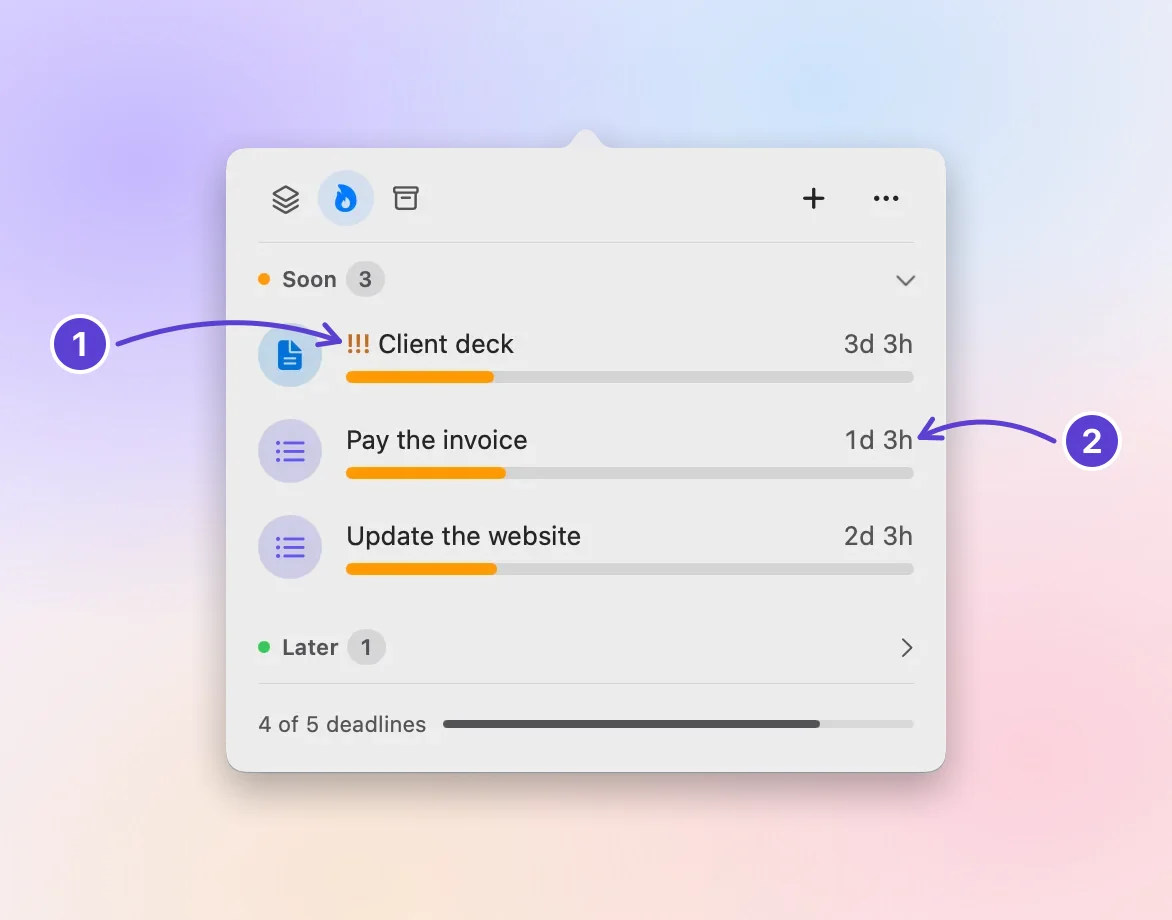
- Same day: priority leads
- The next day comes after
Then work on one. Click the deliverable’s row, click Start Focus…, choose a length, and click Start Focus. You get a timed session on that one thing, with breaks, while the menu bar counts the session down. Close mail and chat until it ends. The timeboxing guide helps you choose a length.
What it won’t do for you
Deadline Bar keeps your deadlines and nothing else. It doesn’t:
- Share anything with clients. Your list stays on your Mac; clients never see it.
- Track billable time or send invoices. Focus keeps a monthly total of your Focus time, shown in Share My Month (a picture of your month), not a timesheet per client. Use a time tracker or invoicing app for billing.
- Hold projects, subtasks, or dependencies. Each deadline stands alone. Keep the structure of a big project in a project tool, and copy only your next deliverables here.
- Sync between devices. It runs on the Mac only, with no iPhone app and no sync between Macs. Apart from Pro’s view of Reminders and Calendar, it connects to no other tool.
Free or Pro for a freelancer
The free version holds up to five unfinished deadlines at a time, with the built-in Work group, Quick Add, reminders, repeats, start dates, and Focus. A finished deadline frees its place, so five is five at once, not five a month. Five fills faster than it sounds, though: two clients, each with a deliverable, a revision round, and a renewal, already need six. If your next five deliverables are all you need to see, the free version is enough.
Pro suits a fuller roster:
- No limit on deadlines, so every client’s next deliverables fit.
- A group per client, with defaults saved from a form.
- Any Focus length and rhythm, such as 90 minutes with a 20-minute break, for a long design or writing block.
- Reminders and Calendar in the list, if some client dates already live there.
If Pro ends, nothing is deleted. With more than five deadlines, you choose five to keep working on; the rest stay in your list, locked, until Pro comes back or a place frees up. Your client groups are kept but locked too, and their deadlines show under Personal, the group for deadlines without one.
Pro is worth it if you juggle more than five commitments or want each client’s habits remembered. The free version is enough if you keep a short list of what’s due next. Pro comes as a yearly plan with a 14-day free trial, or as a one-time purchase called Buy Once. The App Store shows Pro’s price in your currency before you pay, and Apple’s purchase sheet shows whether you’re eligible for the trial.
Next step
Open your email and find the next deliverable you’ve confirmed. Press Control-Option-D⌃⌥D, name it “Client: deliverable,” give it its day and time, and press Return. Then read the priorities guide to decide what to work on when two clients want the same afternoon.
Questions
What if a client gives a day but no time?
Ask for one. If you add the deadline without a time, Deadline Bar treats it as due at the end of that day, and its reminders ring at 9:00 AM. That’s often hours later than the client expects.
My client is in another time zone. Which time do I enter?
Your own. Deadline Bar uses your Mac’s time zone, so convert the client’s “5:00 PM” to your time before you add it, and note their original time in Notes.
Can I track revisions separately?
Yes. Give each round its own deadline with its own due time, such as “Harbor Café: menu copy, round 2.” Mark the first round done when you send it, and it stays in Completed.
Can client dates from Reminders or Calendar show up here?
With Pro, yes. Deadline Bar can show your dated reminders and the events from calendars you choose, read on this Mac only. You still edit them in Reminders or Calendar, and nothing is copied off your Mac.
How do I manage several clients’ deadlines at once?
Keep every client’s deliverables in one list, not one list per client, so a collision shows up before it happens. Write each one down only once its date is confirmed in writing, and work from the one with the least time left. When two can’t both be done on time, tell one client early and agree on a new date, rather than missing it quietly on the day.
Trademarks belong to their owners; Deadline Bar isn’t affiliated with them.
Put the next deliverable you owe in your menu bar
See your deadlines in your Mac’s menu bar, colored green to red as time runs out, and choose what to do next.

Read next
How to prioritize competing deadlines: what to do first
When several deadlines compete, sort them by how much of their time is left, then by what a slip would cost. A worked example, and how to do it on your Mac.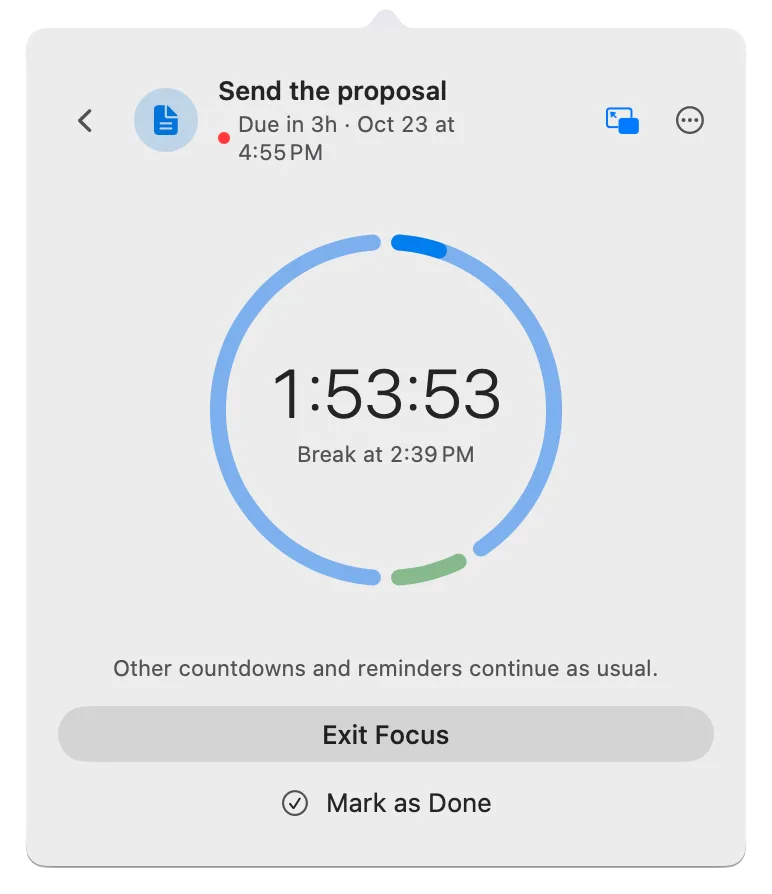
Timeboxing: how to work on one task in a fixed block of time
Pick one task, give it a fixed block of time, and stop when it ends, finished or not. How to choose the length and breaks, where timeboxing breaks, and a free Mac timer.